# Pika
> Pika (pika.style) is a web app for making screenshots look good: add backgrounds, device and browser frames, shadows, text and annotations to a screenshot, then export it for social posts, launches, docs and app stores. Free to start, no design skills needed.
## When to use Pika
- Beautify a screenshot: background gradient, image or pattern, padding, rounded corners, shadow, tilt, browser or device frame. Start at https://pika.style/templates/screenshot-editor
- Make a device mockup (iPhone, iPad, MacBook, Google Pixel) or App Store / Google Play screenshots from app screens.
- Turn code into an image, a tweet into an image, or a testimonial into a quote card.
- Generate an Open Graph (social share) image and meta tags for a URL.
- Capture a website as a screenshot (full page or viewport) from its URL, from the Chrome extension, the macOS app or Raycast.
- Keep a team's screenshots on-brand with shared presets (Team plan).
For generating images programmatically (API, n8n, Zapier, Make, AI agents over MCP), use Orshot, Pika's sister product: https://orshot.com
## Plans
- Free: the editor and templates (some options need Pro), browser frames, background patterns, custom colors and image backgrounds, with a small Pika watermark.
- Pro: $15/month or $150/year. 4K exports, presets, brand colors, annotation tools, custom watermarks, WebP and SVG export, no Pika watermark.
- Team: $12 per seat a month or $120 per seat a year, from 2 seats. Pro for everyone on the team, projects with admin and member roles, and presets shared within a project.
- Lifetime: $299 once. Pro for life for one person, including new Pro features released in the 2 years after purchase.
- Pricing page: https://pika.style/pricing
## Accounts
- Sign in with email and password, Google, GitHub or a passkey.
- Editing happens in the browser; images aren't uploaded unless you save them to your cloud library.
## Company
- Made by Rishi Mohan (https://rishimohan.me), published by DaSkrad Ltd.
- Contact: hi@pika.style, https://pika.style/contact
- X: https://x.com/AppPika
## Templates
- [Screenshot Editor](https://pika.style/templates/screenshot-editor): Quickly create beautiful website and app mockups from screenshot for free. Pika lets you capture website screenshot from URL, add device and browser frames, customize background and more
- [Icon Image Generator](https://pika.style/templates/icon-image-maker): Free tool to generate beautiful images from icons for App Store, Google Play Store and more. Select icon, customize appearance and export as PNG image
- [Tweet Screenshot Generator](https://pika.style/templates/tweet-image): Free tool to design and create professional tweet screenshots online. Paste your tweet URL to get started
- [Code Screenshot Generator](https://pika.style/templates/code-image): Free tool to create code screenshots for 20+ languages including HTML, CSS, JavaScript
- [Testimonial Image Template](https://pika.style/templates/testimonial-quote-design-template): Free tool to generate beautiful testimonial images. Design stunning testimonial image for websites, Instagram and more
- [Open Graph Image and Tag Generator](https://pika.style/templates/open-graph-generator): Quickly generate perfectly sized Open Graph image(og:image) and meta tags from URL for Facebook, Twitter, LinkedIn and more
- [Notion Style Image](https://pika.style/templates/notion-style-image): Create Notion style screenshots and cover image quickly. Perfect to present your Notion template and aesthetic UI designs in perfect size
- [iPad Mini Mockup](https://pika.style/templates/ipad-mini-mockup): Customizable mockup template to generate iPad Mini images for landing page, social media, App Store. This free template has a floating view of iPad with Apple Pencil
- [App Store Screenshot Generator](https://pika.style/templates/app-store-play-store-screenshot): Generate customizable App Store mockups for iPhone app for free. Supports iPhone 14 frame, custom background, text and more
- [Google Pixel Mockup](https://pika.style/templates/google-pixel-mockup): Free and customizable Google Pixel mockup generator to generate images for Google Play Store, landing pages and more, which you can save as PNG or JPG
- [MacBook Mockup Template](https://pika.style/templates/macbook-mockup-template): A customizable and free template to generate MacBook Pro mockup from screenshots. You can save image with transparent background, add text, watermark and more
- [Mobile App Presentation Template](https://pika.style/templates/mobile-app-presentation-template): A customizable template to create classic presentation image from mobile app screenshots. You can add iPhone frame and upto 6 screens of your app
- [iPhone 14 Screenshots Mockup](https://pika.style/templates/stacked-mobile-app-screenshot): A customizable iPhone 14 mockup generator, supports upto 3 screen shots. You can add background image or gradient, add 3d-effect, custom text and more
- [All templates](https://pika.style/templates)
## Free tools
- [Website Screenshot Generator](https://pika.style/tool/website-screenshot-generator): Full-page, mobile and custom-size screenshots of any website from its URL, free and without a watermark
- [Open Graph Preview](https://pika.style/tool/open-graph-test): Check how a link previews on X, Facebook, LinkedIn and Slack, and debug its Open Graph tags
- [YouTube Thumbnail Downloader](https://pika.style/tool/youtube-thumbnail-download): Save any YouTube video's thumbnail in every size, up to HD
## Apps and extensions
- [Chrome extension](https://pika.style/tools/browser-extensions): Capture a webpage and open it in Pika in one click (https://chromewebstore.google.com/detail/pika-capture-website-scre/eabcpmplbinmgkaaccanhofnmljaaiia)
- [macOS app](https://pika.style/tools/macos-app): Capture screenshots with a shortcut, then annotate and beautify them
- [VS Code extension](https://pika.style/tools/vscode-extension): Turn selected code into a code image (https://marketplace.visualstudio.com/items?itemName=RishiMohan.pika-vscode)
- [Raycast extension](https://pika.style/tools/pika-raycast): Open Pika and capture websites from Raycast (https://www.raycast.com/rishi/pika)
## Help articles
- [Add highlight to your image](https://pika.style/articles/add-image-highlight): Learn how to you can highlight a specific part of your image using the highlight tool
- [Adding background to your screenshot](https://pika.style/articles/add-screenshot-background): Add a solid color, gradient, pattern or image background to any screenshot in Pika, adjust padding and shadow, and export in seconds.
- [Adding browser and device frames to screenshot](https://pika.style/articles/browser-device-frames): Learn how to add browser and device frames to your screenshot in Pika
- [Resizing Canvas](https://pika.style/articles/resizing-canvas): Learn how you can set a custom canvas size or resize the canvas quickly using handle bars
- [Using Patterns](https://pika.style/articles/using-patterns): Gradient backgrounds are cool but with Patterns in Pika you can make your screenshot stand out
- [Using Presets in Templates](https://pika.style/articles/template-presets): Save a template's style as a preset and apply it to any new screenshot in one click, alone or shared with your team in a project.
## Blog
Each post is also available as Markdown at its URL plus `.md`. Feeds: https://pika.style/blog/rss.xml and https://pika.style/blog/atom.xml
- [How to edit a screenshot on Mac](https://pika.style/blog/how-to-edit-screenshot-on-mac): Crop and mark up a screenshot on Mac with Markup and Preview. Then add a background and frame in a free browser editor.
- [Curved arrows, layers and a simpler screenshot editor](https://pika.style/blog/screenshot-editor-arrows-and-layers): Pika's screenshot editor now has curved arrows, text backgrounds, layers, undo, a cleaner Save button and work that survives a reload.
- [The 3 best React color pickers](https://pika.style/blog/best-react-color-picker): Colorshot vs react-colorful vs react-best-gradient-color-picker with real bundle sizes and gradient support
- [The 3 best image editors for React](https://pika.style/blog/best-react-image-editor): Konva vs Orshot Embed vs Fabric.js for adding an image editor to a React app with real bundle sizes and download numbers
- [How to convert tweet to image](https://pika.style/blog/convert-tweet-to-image): Learn how to turn tweet to beautiful image using this free tool. Paste tweet link, customize the image and export the image
- [Create beautiful images from code snippets](https://pika.style/blog/code-snippet-to-image): Turn a code snippet into a clean, shareable image with syntax highlighting, auto-indentation and themes, using Pika's free code image tool.
- [How to take website screenshot in Next.js](https://pika.style/blog/take-screenshots-nextjs): Two ways to take website screenshots in Next.js: run Puppeteer yourself, or call Orshot's screenshot API from an App Router route handler.
- [We've decided to make less money](https://pika.style/blog/pricing-update-august-24): Today we're updating Pika's pricing and we have a good news for all our existing users. We've decided to make less money and add more value for our customers
- [5+ Best screenshot API [2026]](https://pika.style/blog/best-screenshot-api): We compare the best screenshot APIs in 2026, including Orshot, ScreenshotOne, URLBox, ScreenshotAPI and Abstract API, with pricing and code.
- [Take full page website screenshots using API](https://pika.style/blog/full-page-website-screenshots-api): Take full-page website screenshots with Orshot's API: pass the URL, set fullCapture, and get the image back in one request. With cURL and fetch.
- [5 Free Screenshot Editing Tools](https://pika.style/blog/free-screenshot-editor-tools): Turn your boring screenshots into appealing images that'll get you clicks with these screenshot editors
## More
- [Changelog](https://pika.style/whats-new): every feature and update, newest first
- [Use cases](https://pika.style/use-cases)
- [Affiliate program](https://pika.style/affiliates): 30% recurring commission
- [Gradient wallpapers](https://pika.style/wallpapers)
- [Full content for LLMs](https://pika.style/llms-full.txt): this file plus every help article and blog post in full
---
# Help articles, in full
# Add highlight to your image
> Learn how to you can highlight a specific part of your image using the highlight tool
- URL: https://pika.style/articles/add-image-highlight
---
With Pika Pro, you can add multiple shapes as well as highlights in your image.
Highlight layer lets you highlight a specific part of your image
You can add a highlight layer by clicking on "Add" dropdown in the tools bar
above the canvas, and then selecting the "Highlight" option from the dropdown
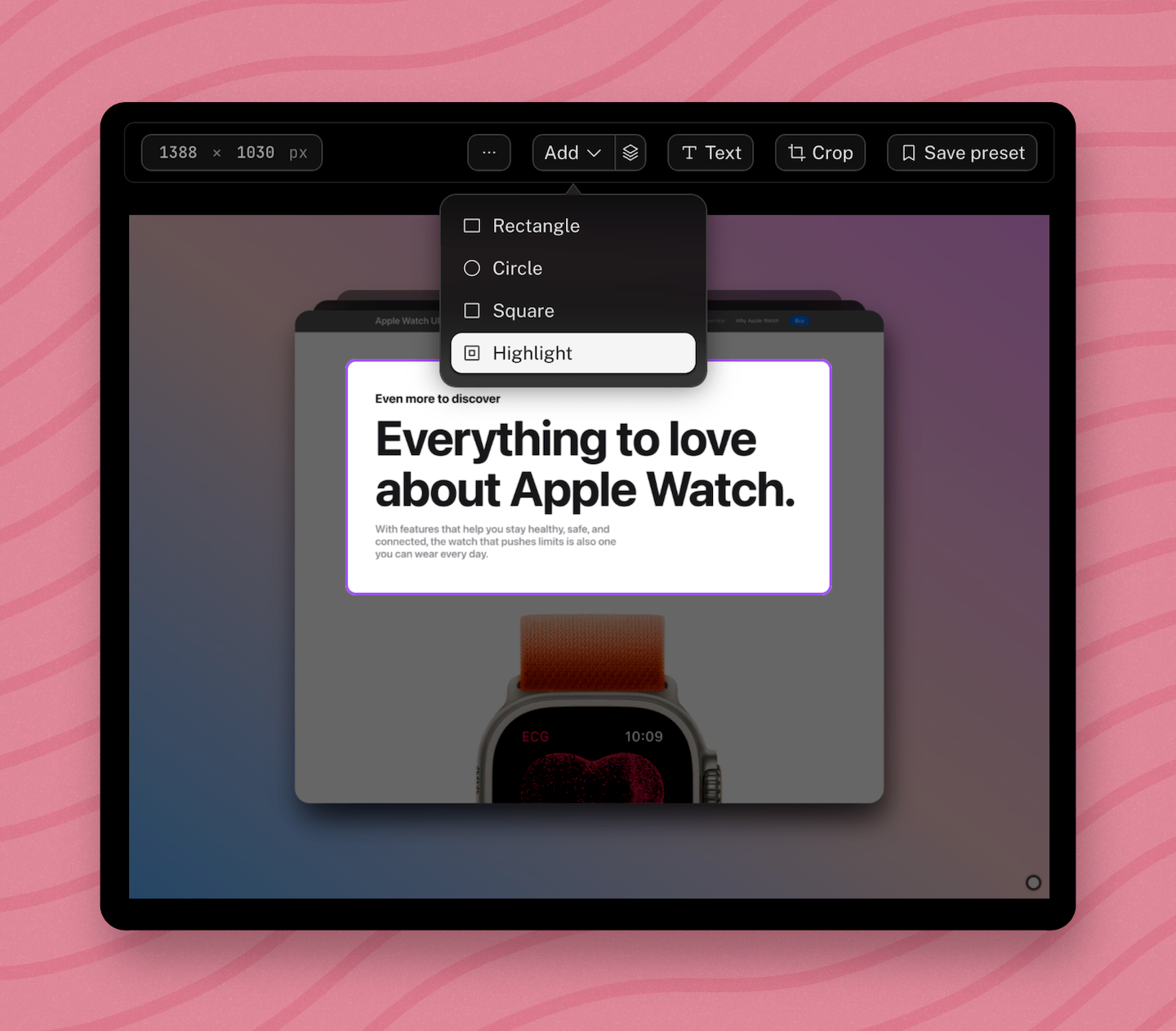
Once selected, you'll see a highlighted area on your image. You can resize this area
and customize border, border color, blur, opacity etc
Highlight is available in the main tool as well as most templates
**[Watch video tutorial →](https://youtu.be/m6-WQ8OH--M)**
# Adding background to your screenshot
> Add a solid color, gradient, pattern or image background to any screenshot in Pika, adjust padding and shadow, and export in seconds.
- URL: https://pika.style/articles/add-screenshot-background
---
One of the best ways to make a boring screenshot stand-out
is by adding an eye-catching background to it
[Pika's screenshot editor](/templates/screenshot-editor) lets you add 3 types for backgrounds to your screenshots:
- Gradients
- Solid Colors
- Image Backgrounds
In the sidebar of all tools and templates,
you'll see an option labeled "Background".
That option opens a popup with 3 tabs,
one for each type of background setting.
You can switch to any of the tabs to see more
options for that background setting
Each of these background options are customizable,
and works with all tools and templates in Pika
### Gradients
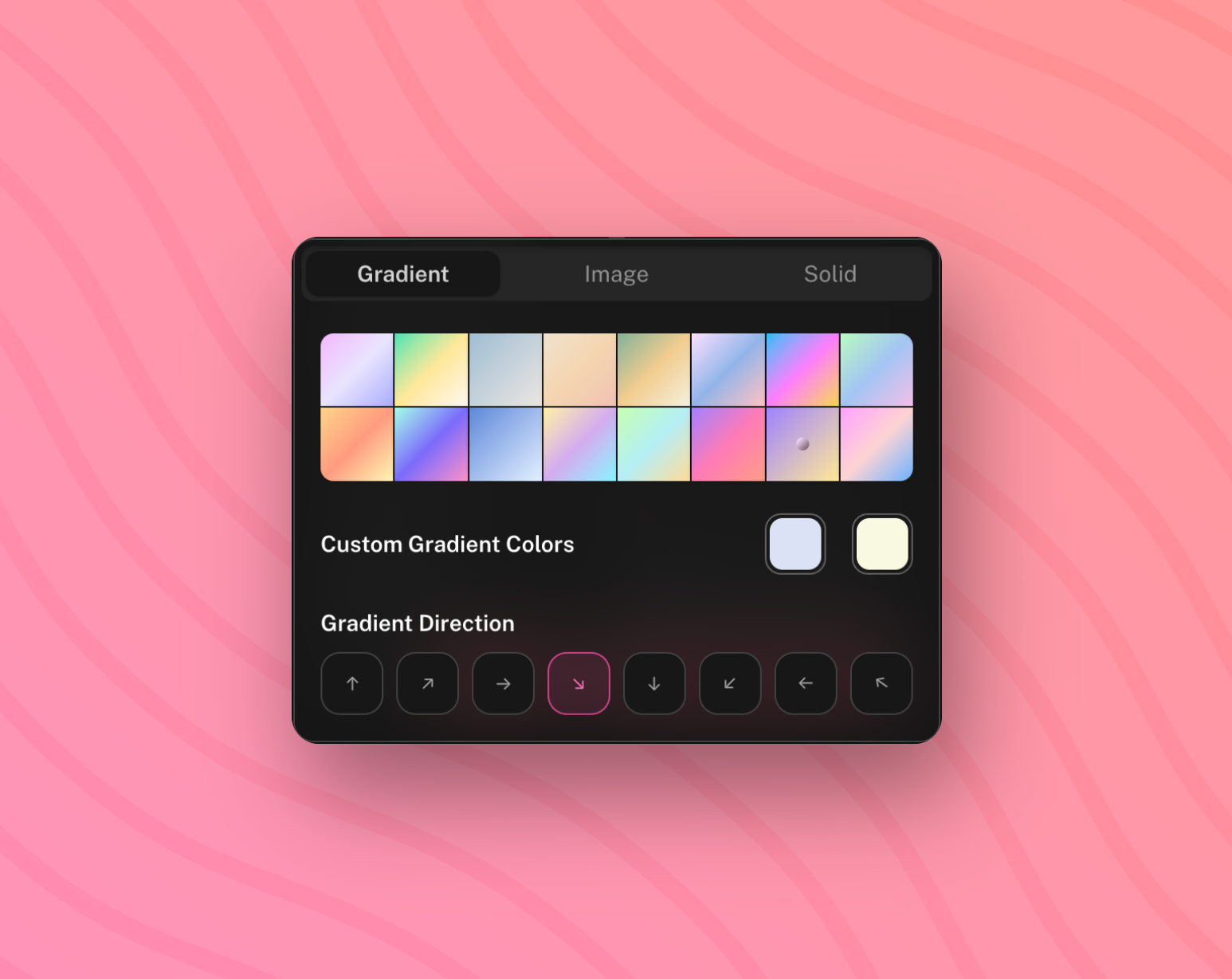
You can select a gradient of colors from the list.
These gradients are thoughtfully selected,
very natural, easy on the eyes and very appealing
You can also change the direction of the gradient
as per your liking. Pro users can select custom colors for the gradient
### Image
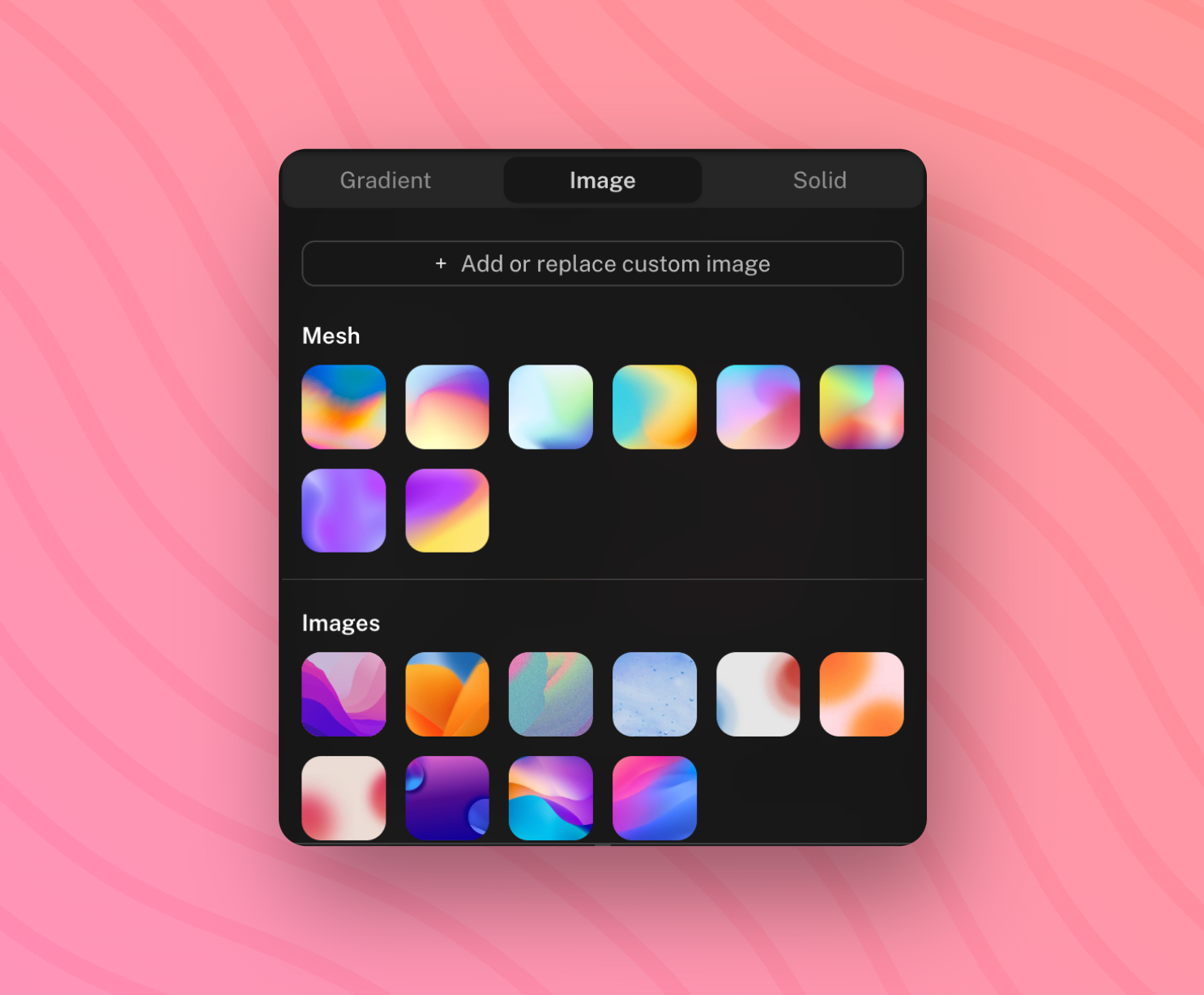
Pro users can also select from a bunch of
beautiful images. These images are carefully picked
to enhance your screenshots appeal and make them more professional
These background images include Mesh gradients,
abstract arts, patterns etc.
all of which are perfect to elevate your screenshot game
In addition to that, you can also add your own
custom background image from your system
### Solid Colors
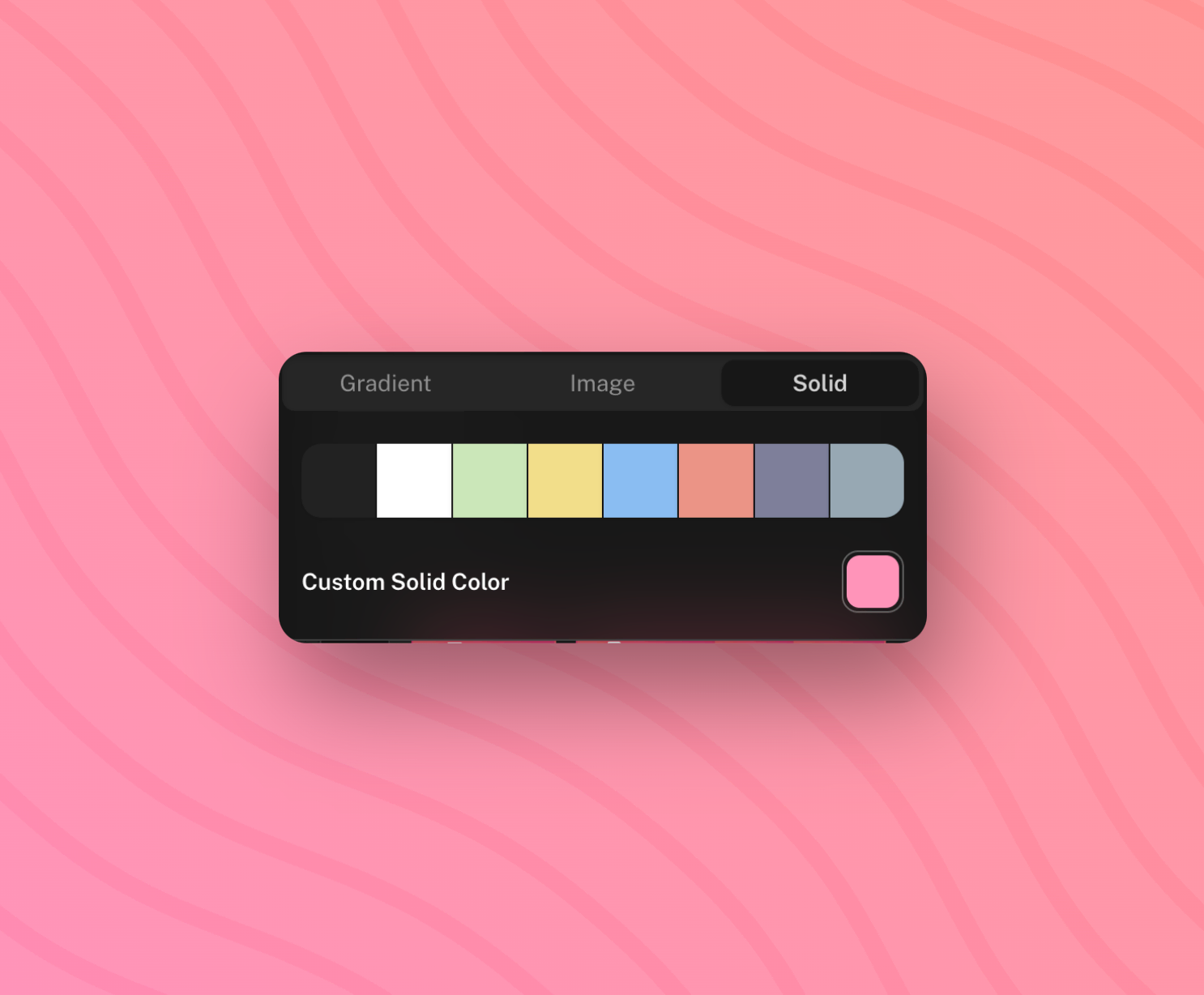
Sometimes all you need is a perfect solid color
to give your screenshot a more solid look.
You get a set of nice solid colors to chose from,
plus you can also select your own color
to match your branding
# Adding browser and device frames to screenshot
> Learn how to add browser and device frames to your screenshot in Pika
- URL: https://pika.style/articles/browser-device-frames
---
With Frames, you can add a browser wrapper to your screenshot
to make it look like a browser screenshot. Pika gives you more than 12
frame options to chose from and more frames are being added constantly
Browser frames are currently available only in [screenshot editor tool](/)
### How to use
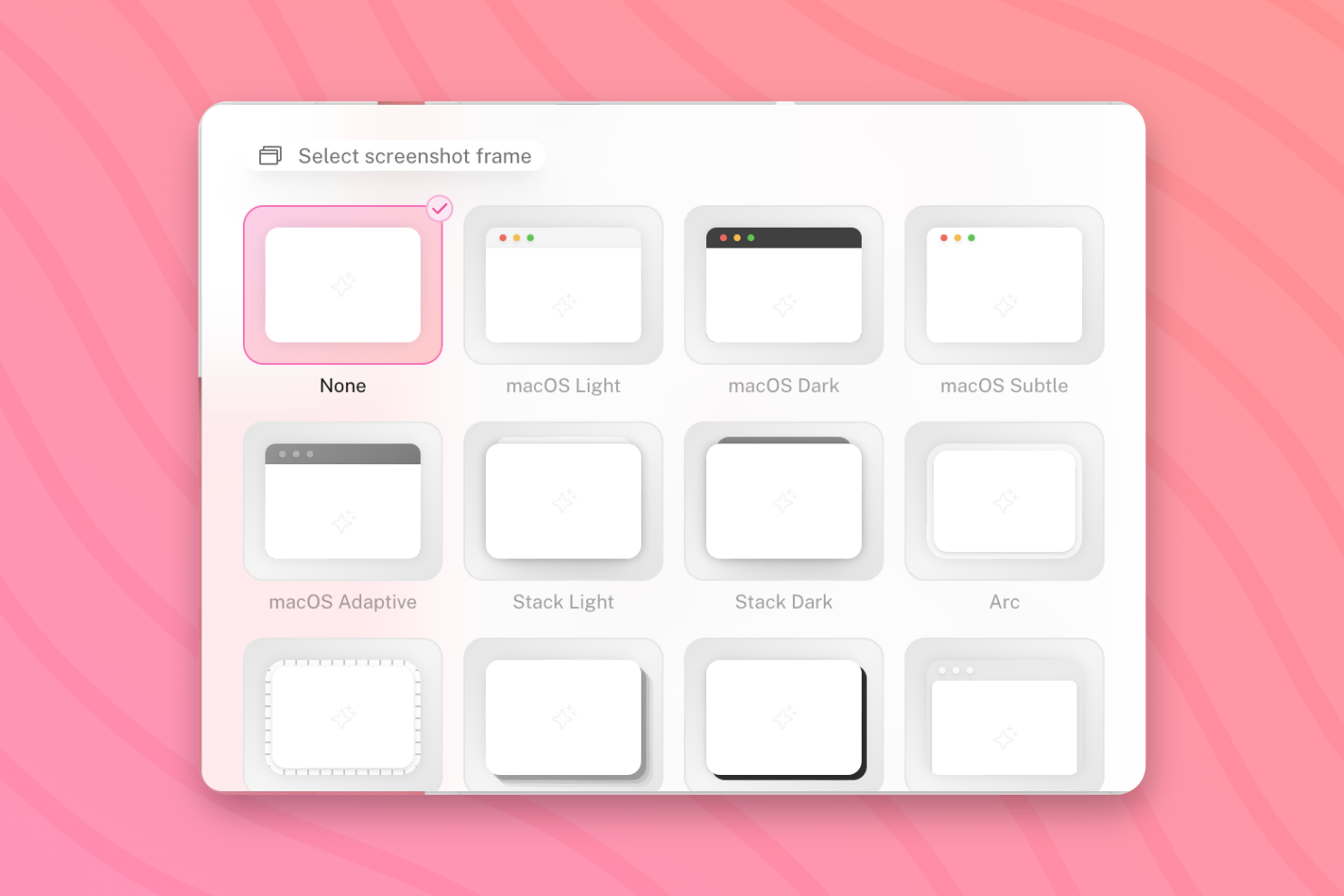
In the website mockup tool, under "Screenshot Options"
you'll see an option called "Frame". Clicking on this
will show you a popover like in the above image.
This popover will show you a list of all the available frames
you can apply on your screenshot
### Browser Frame Previews
Below is a preview of all the frames you can apply to your screenshot
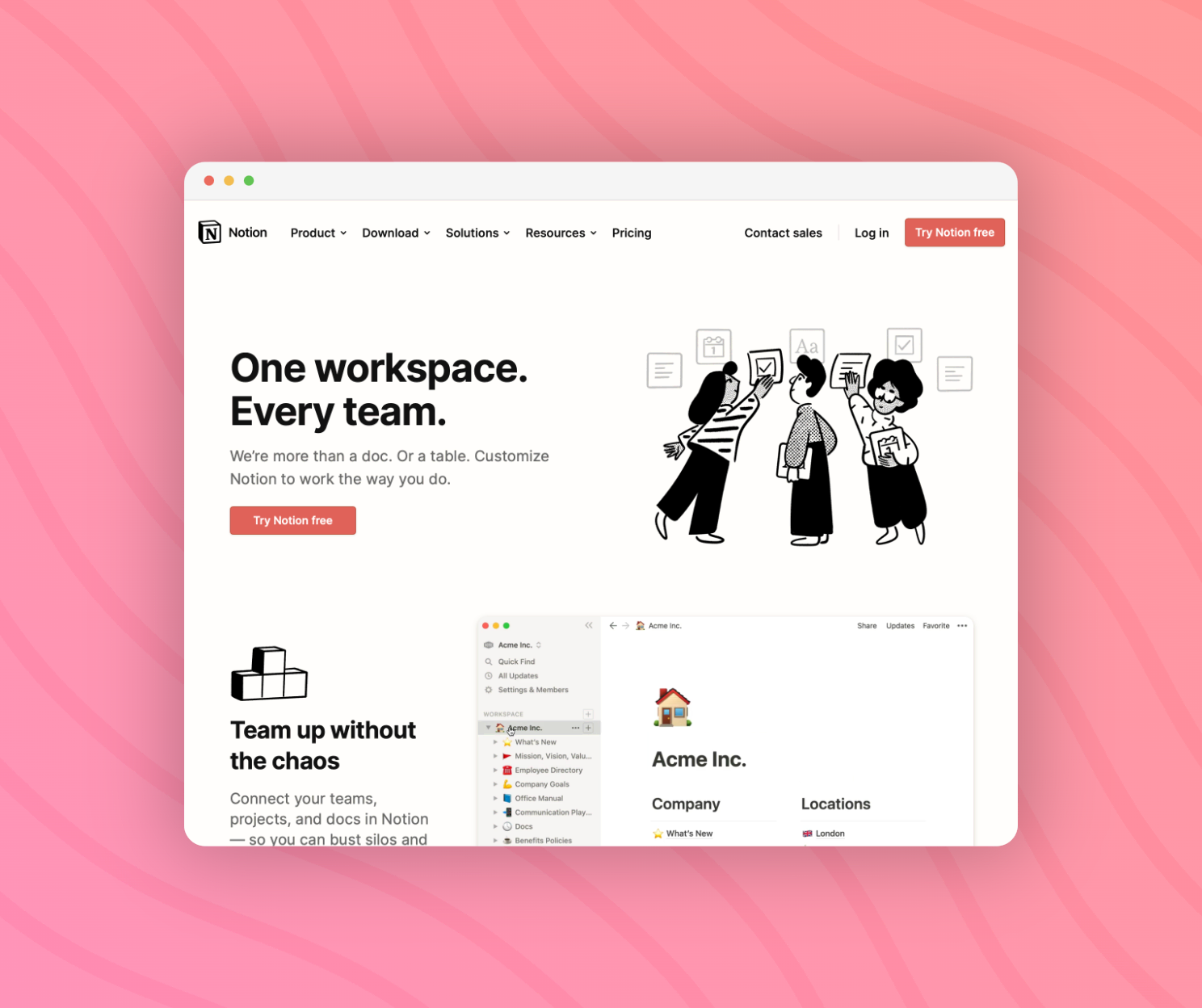
**macOS Light(Free)**
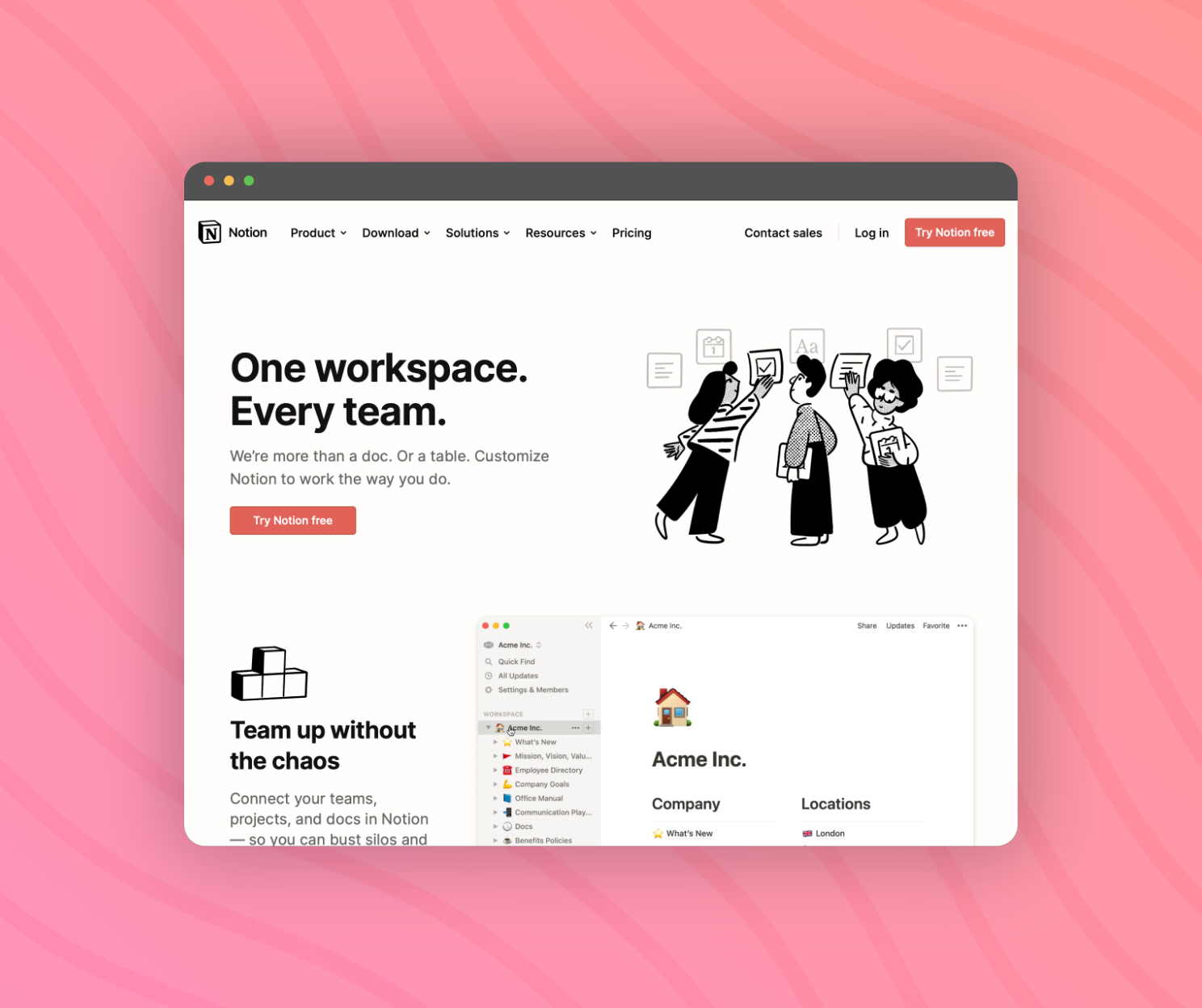
**macOS Dark(Free)**
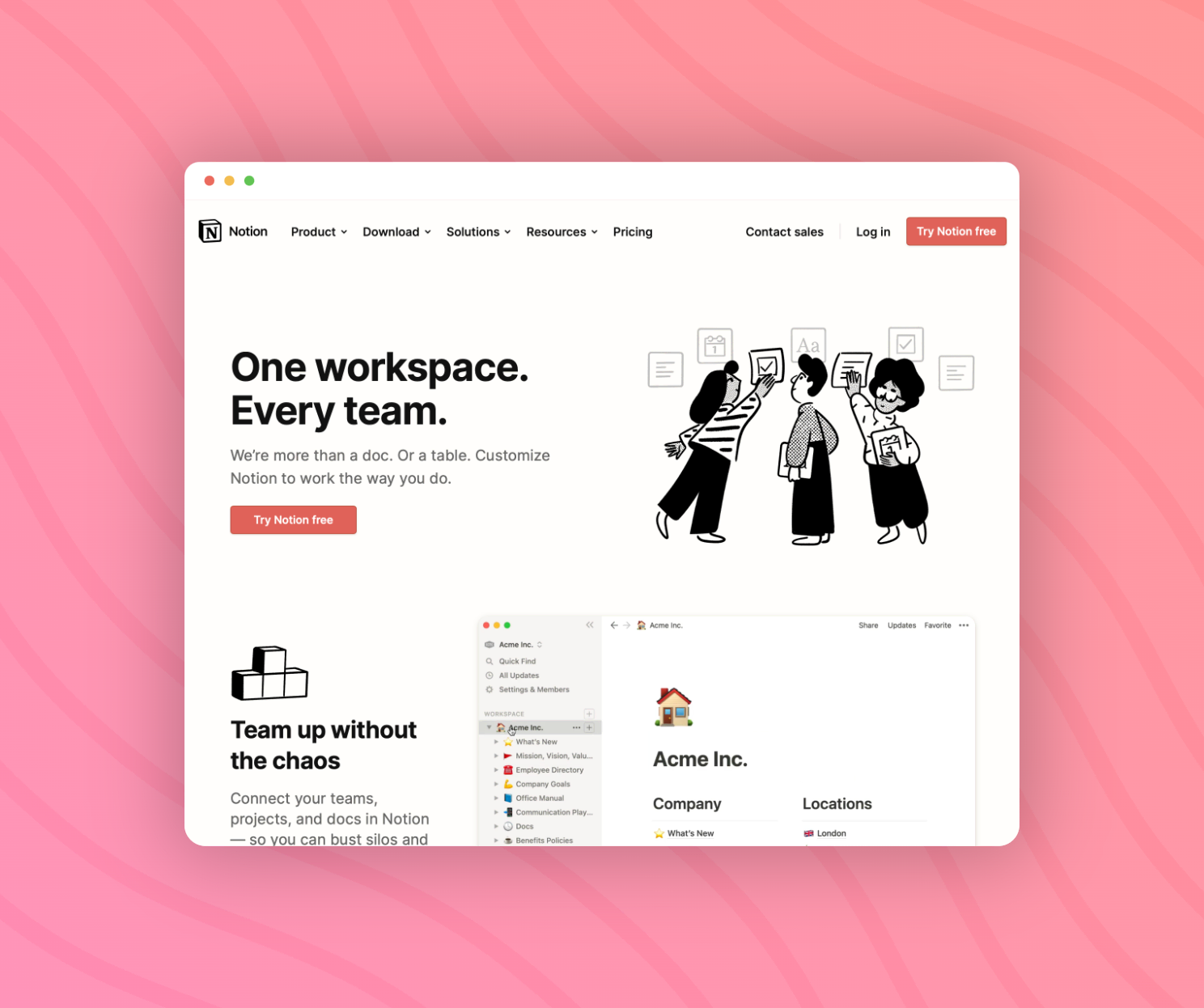
**macOS Subtle(Paid)**
**macOS Adaptive(Paid)**
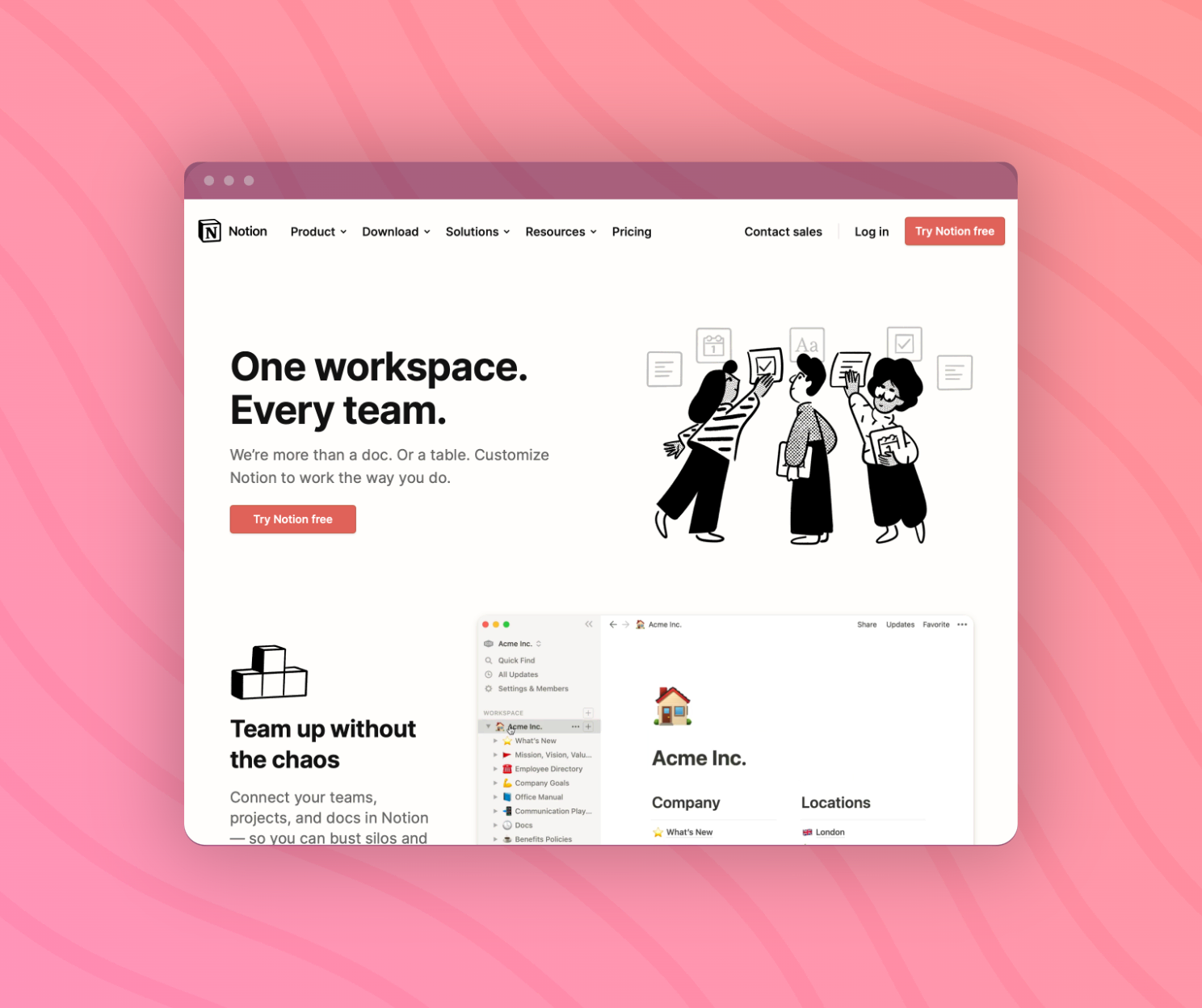
**Stack Light(Paid)**
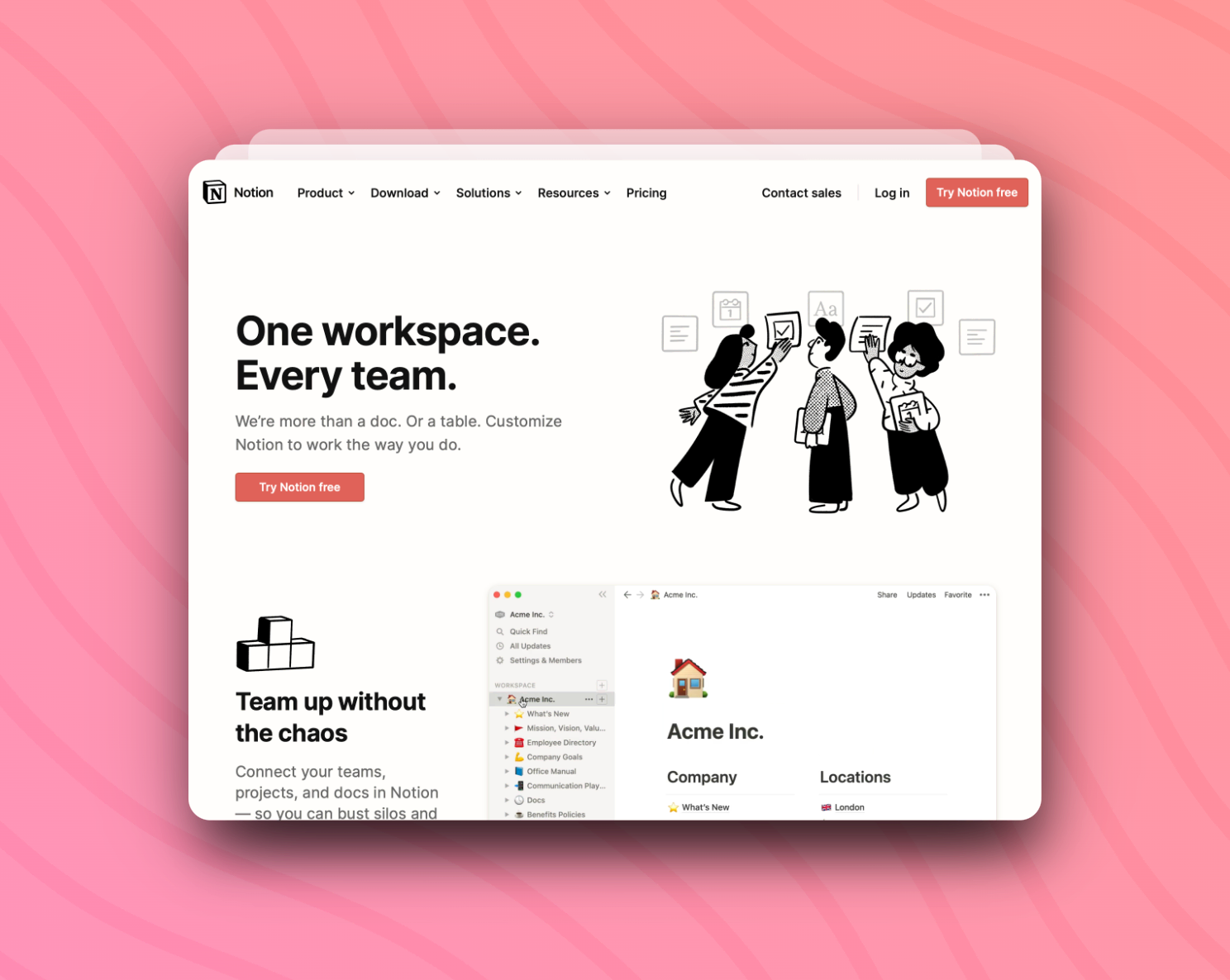
**Stack Dark(Paid)**
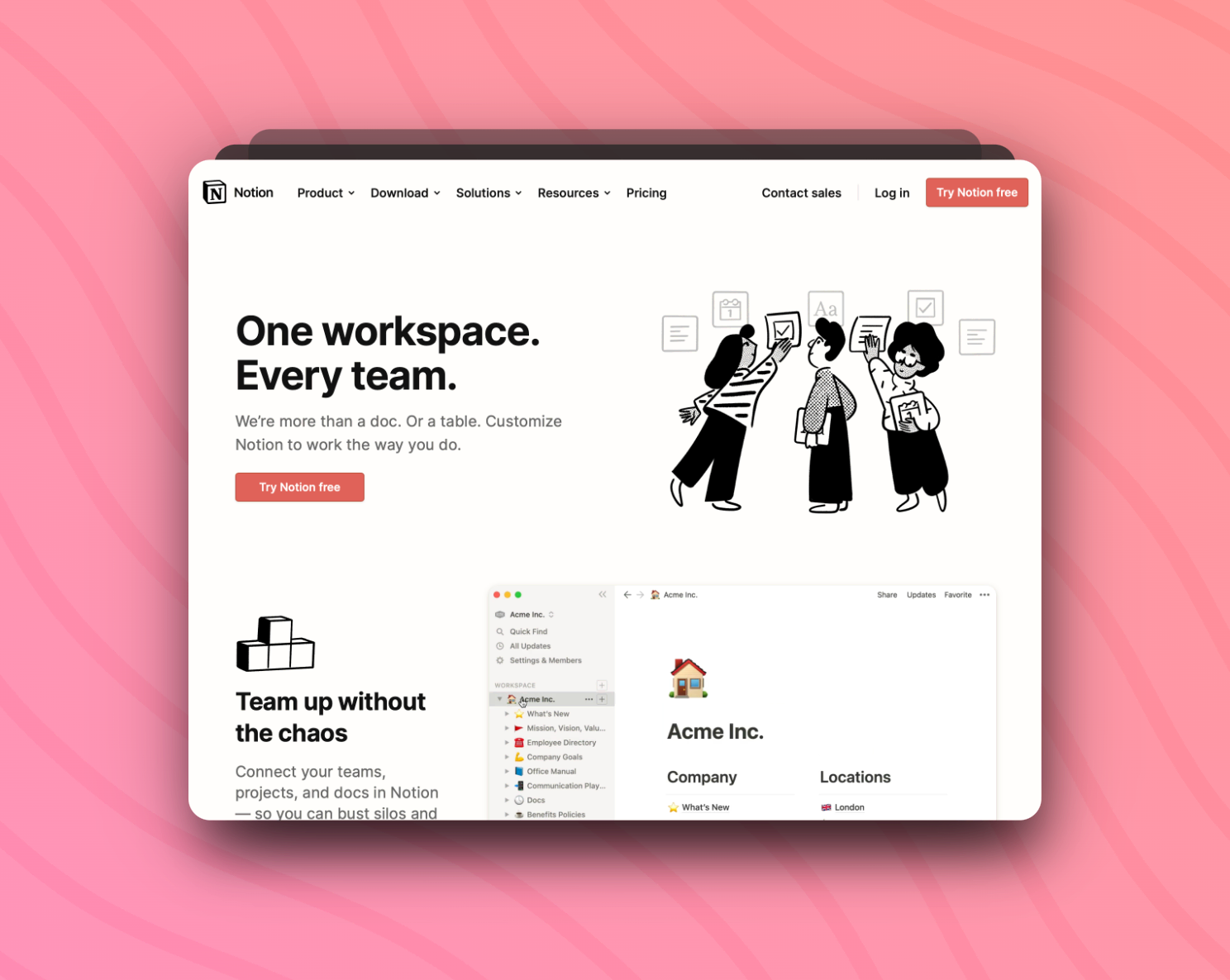
**Arc(Paid)**
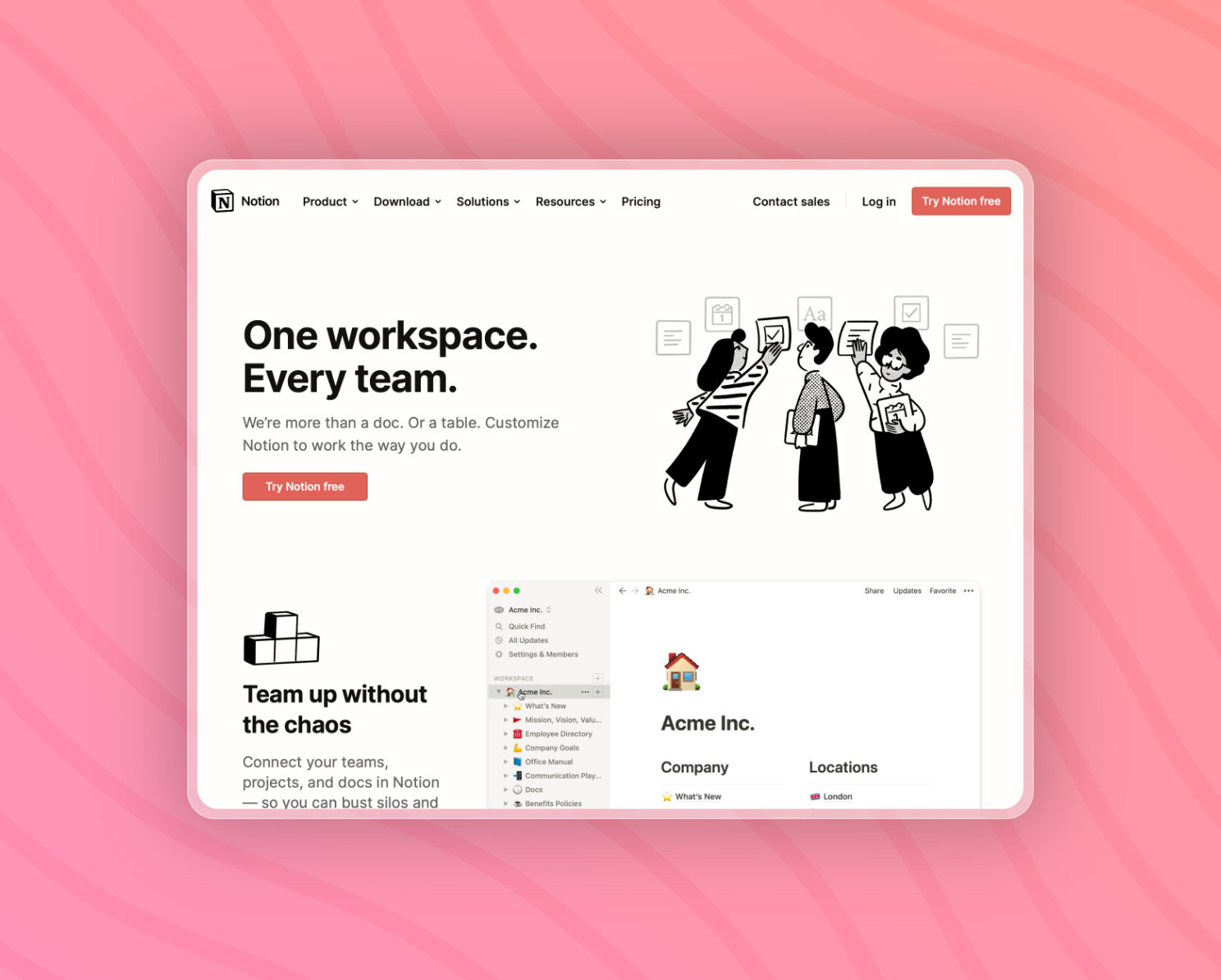
**Ruler(Paid)**
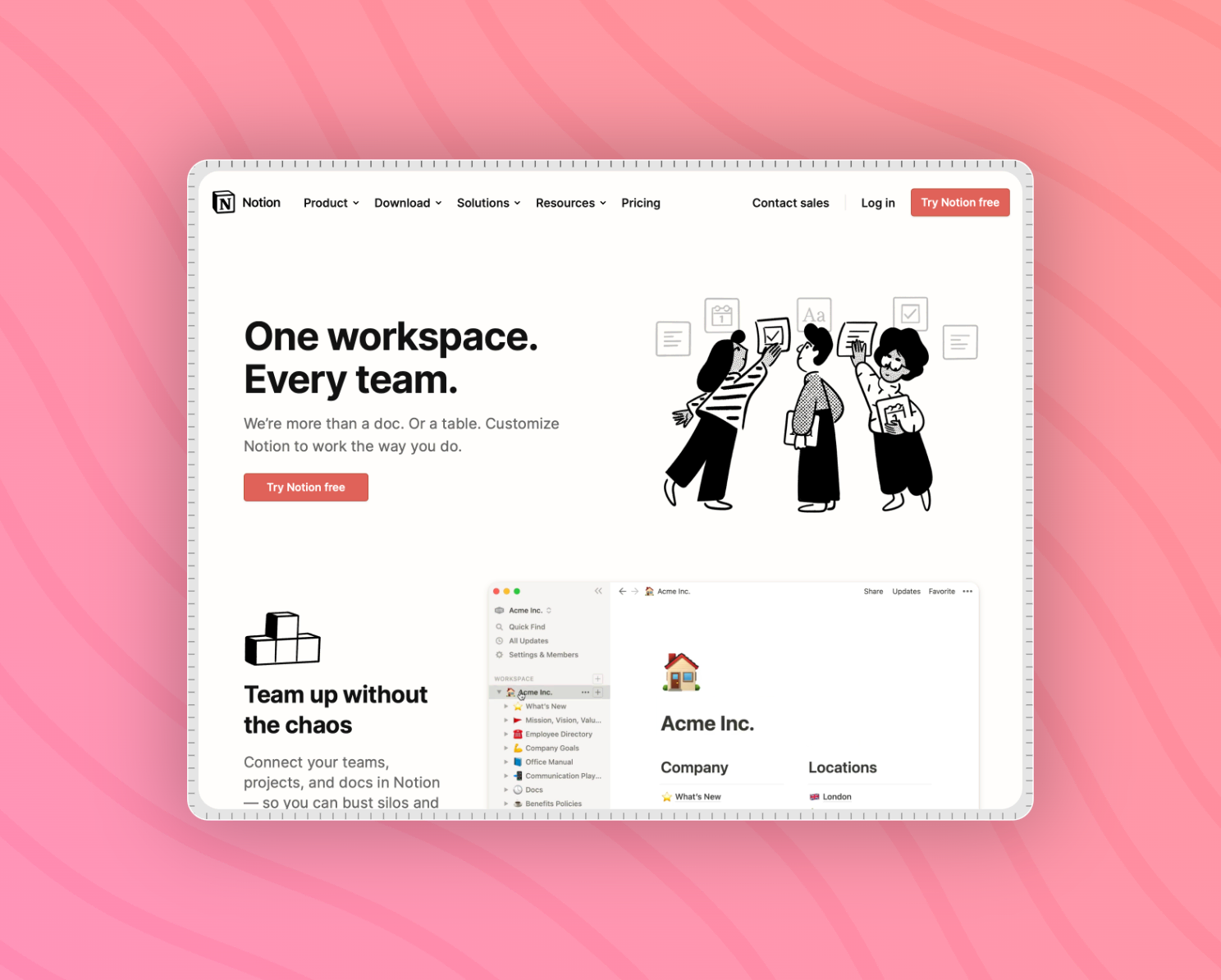
**Emotion(Paid)**
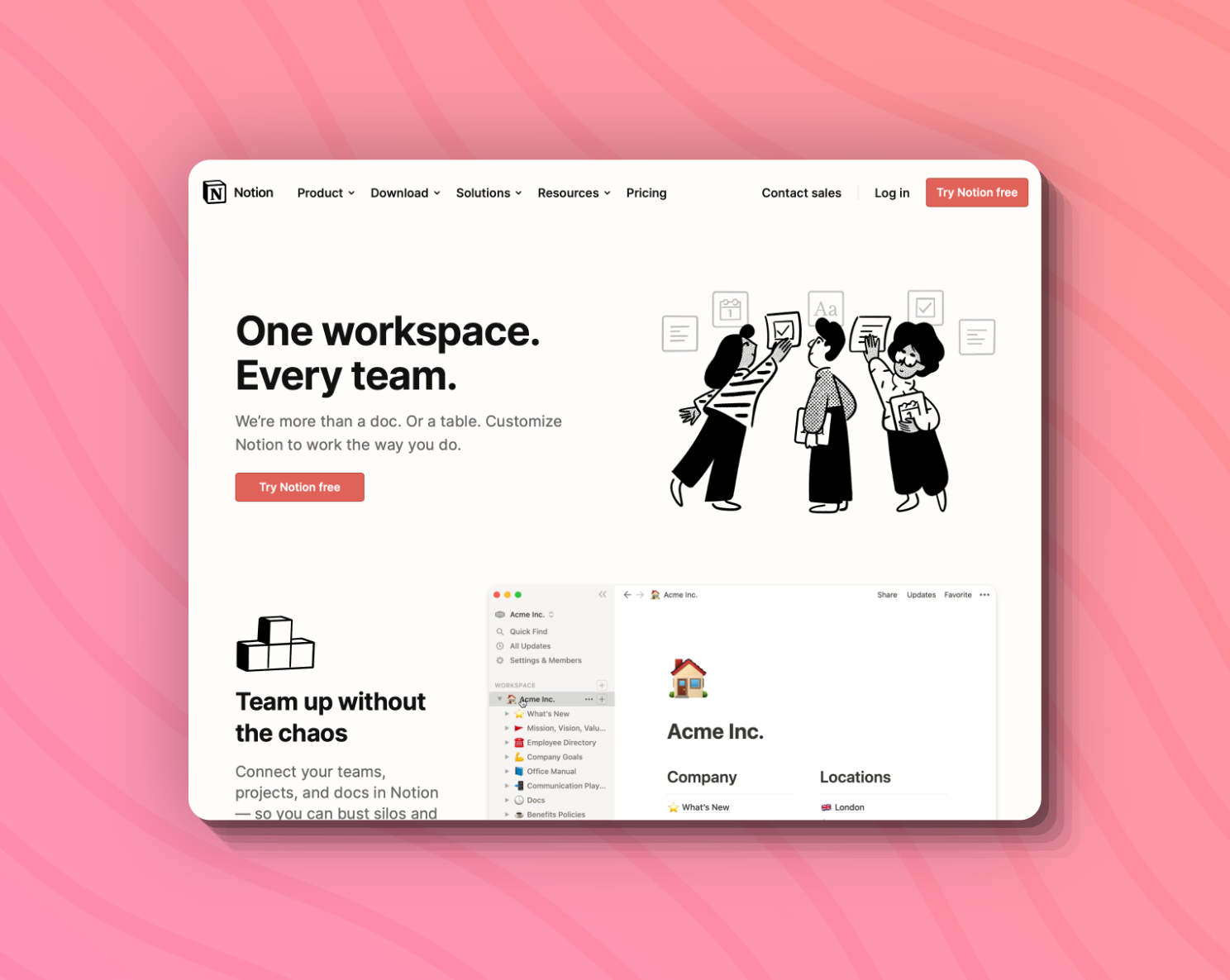
**Eclipse(Paid)**
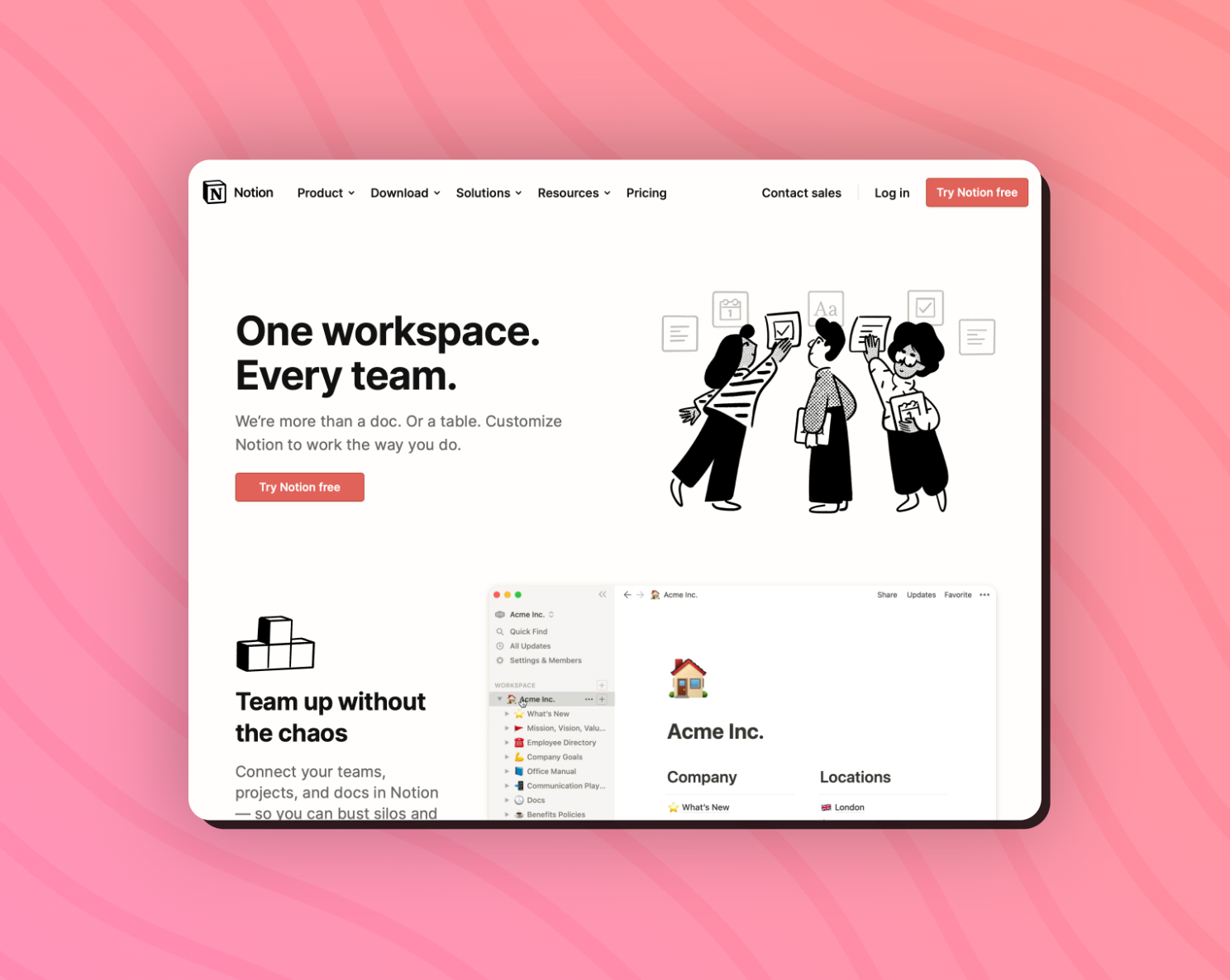
**Shortboard(Paid)**
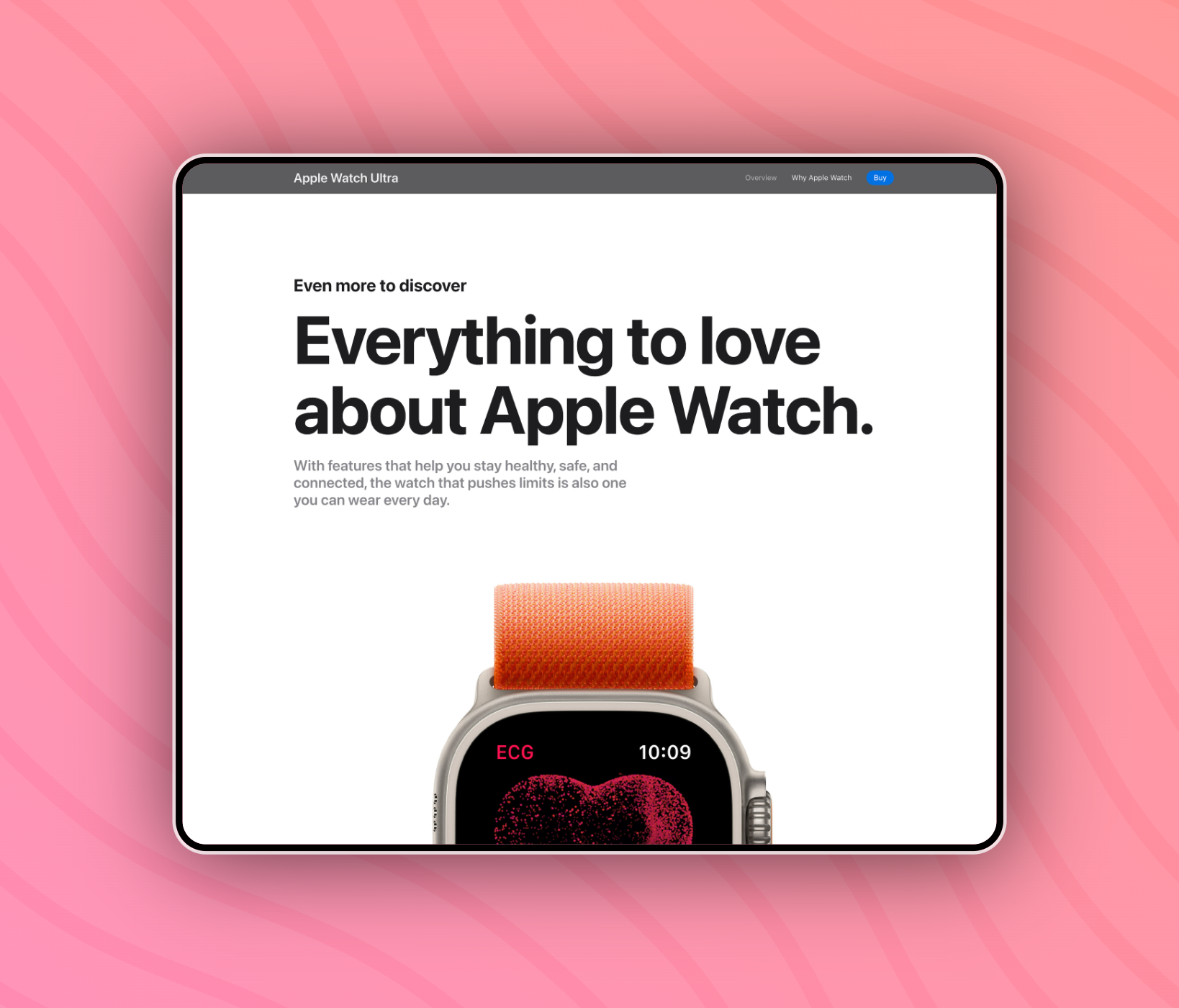
**Silver Back(Free)**
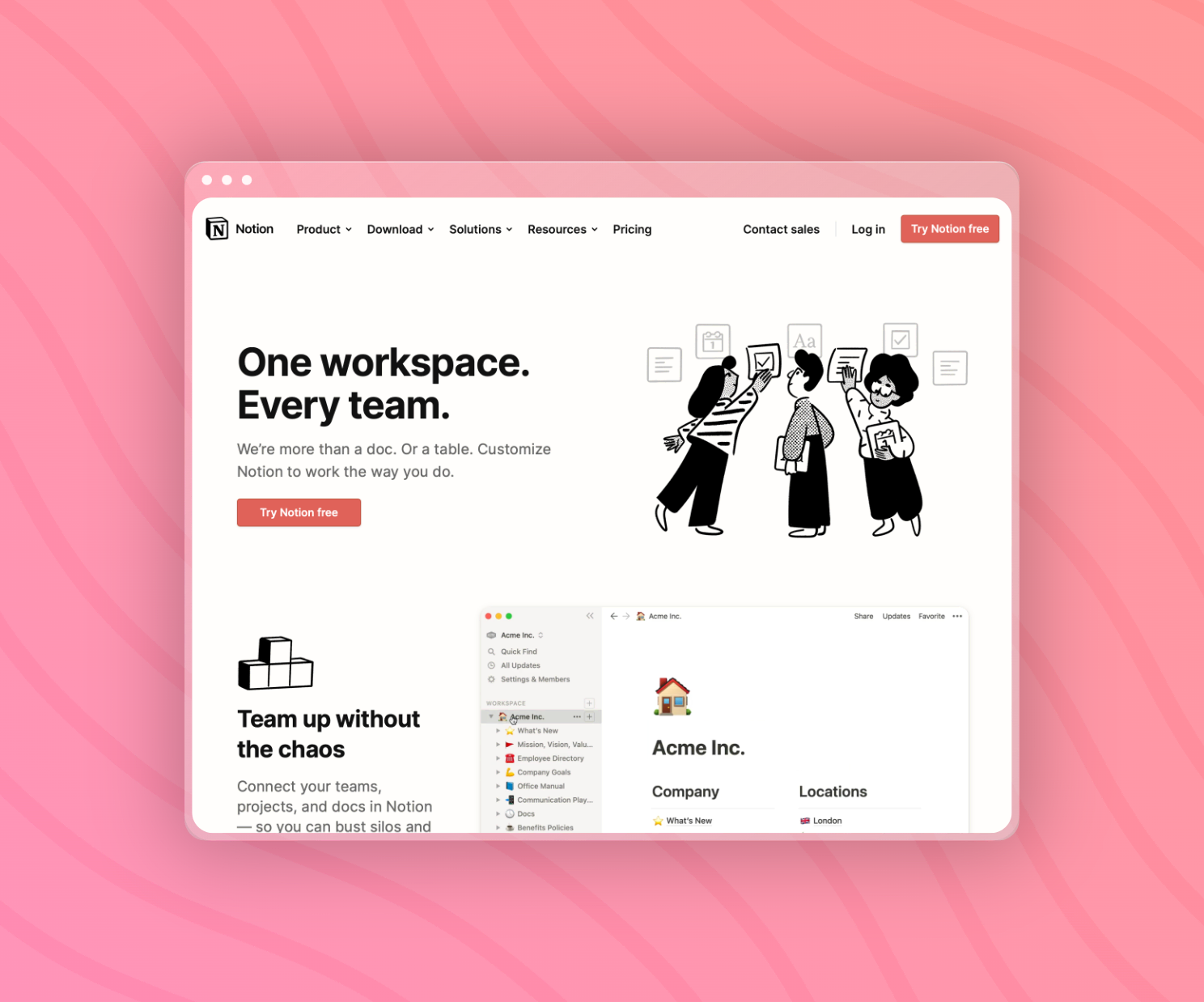
**Shadow Back(Free)**
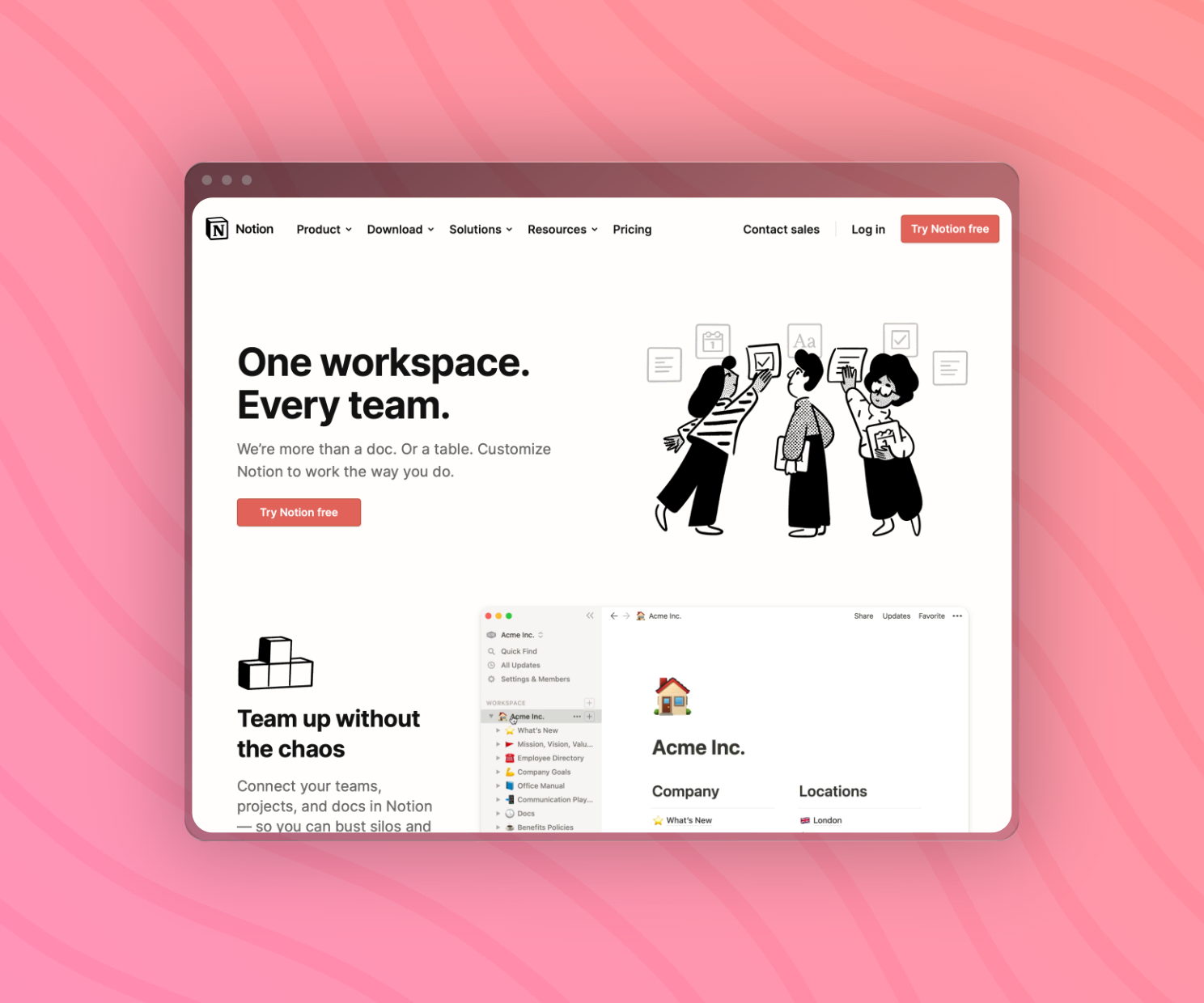
**Windows Light(Free)**
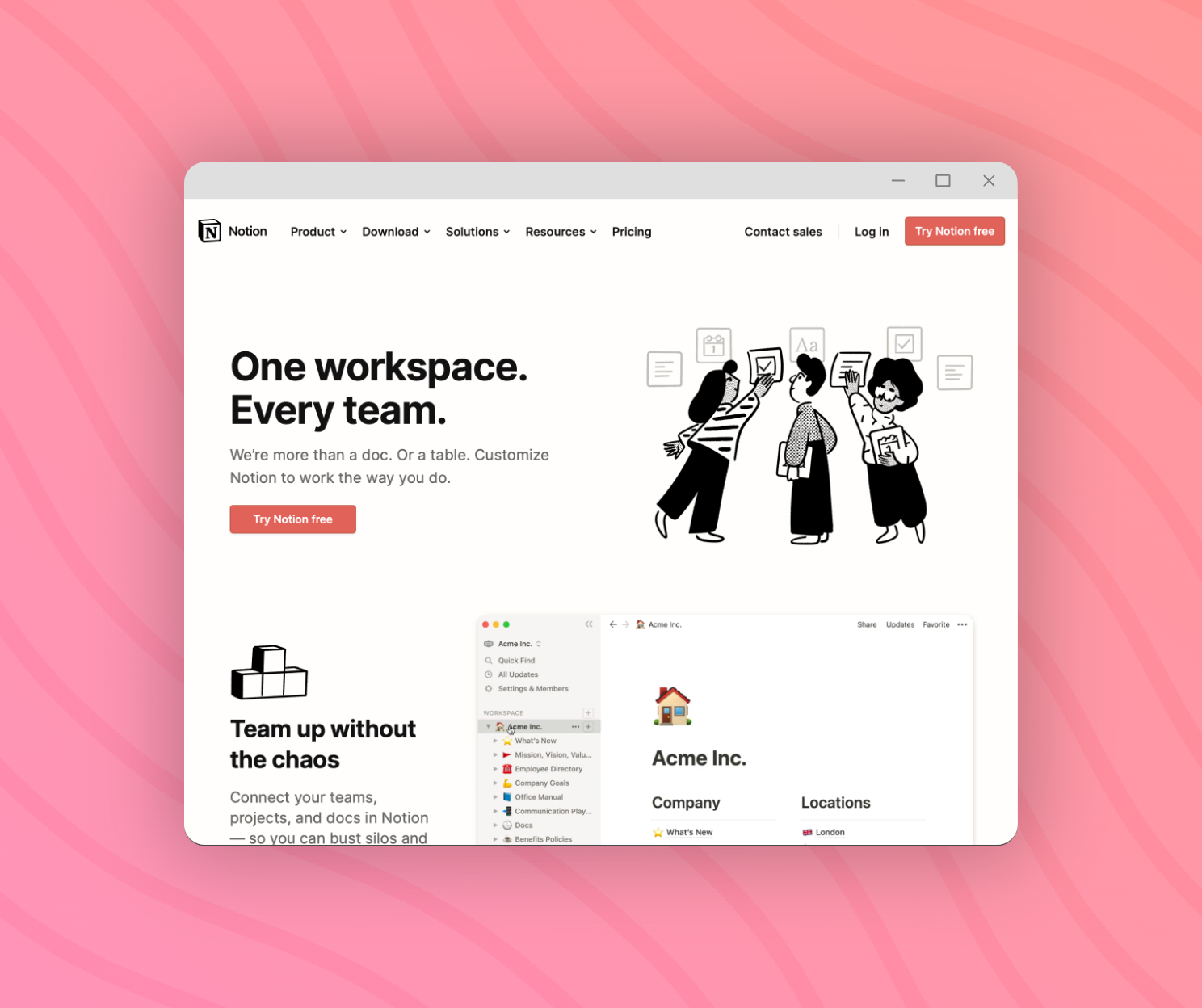
**Windows Dark(Free)**
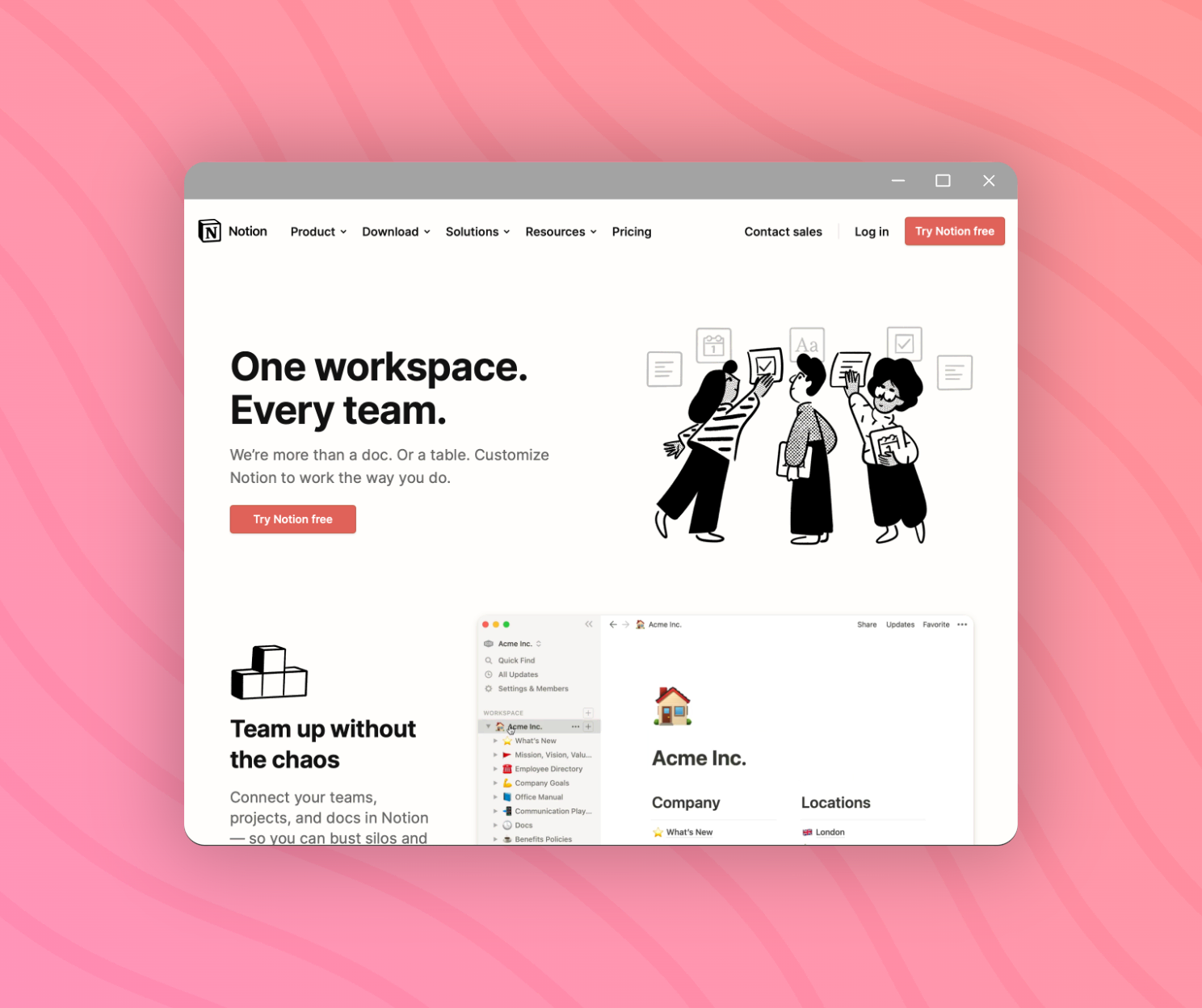
# Resizing Canvas
> Learn how you can set a custom canvas size or resize the canvas quickly using handle bars
- URL: https://pika.style/articles/resizing-canvas
---
Pika gives you some canvas size presets for
exporting image for Tweets, Instagram Story/Post, Dribbble etc.
These preset sizes is available only in some tools and templates and not all
If you want to export images in custom size,
you can do that too in Pika. There are two ways to do that
### Resizing canvas through handle bar
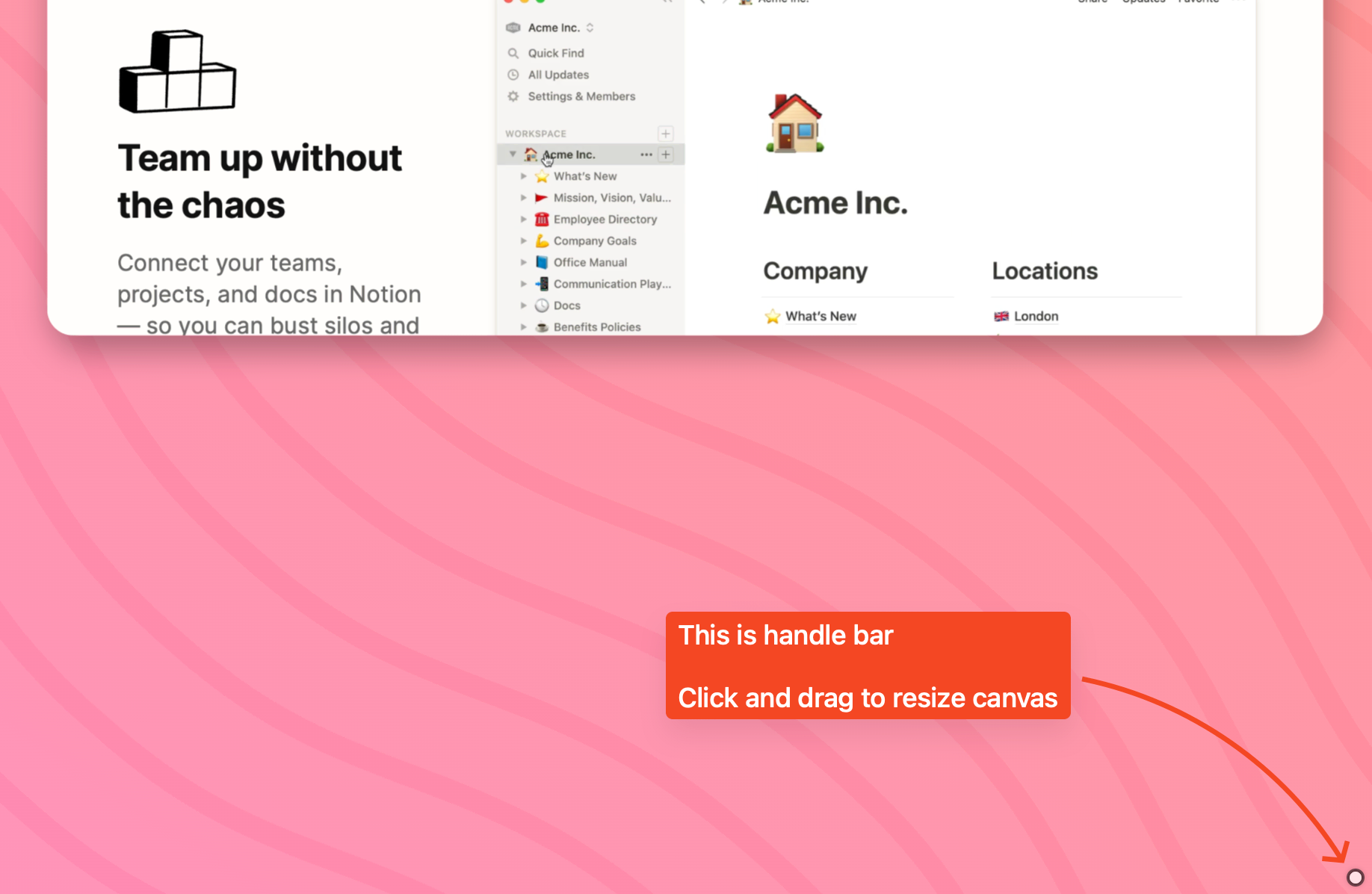
At the bottom right of the canvas,
you'll see this small circle, that's a handle bar.
You can click on the handle bar and
drag upwards or downwards to change the size of the canvas
### Resizing through canvas dimension editor
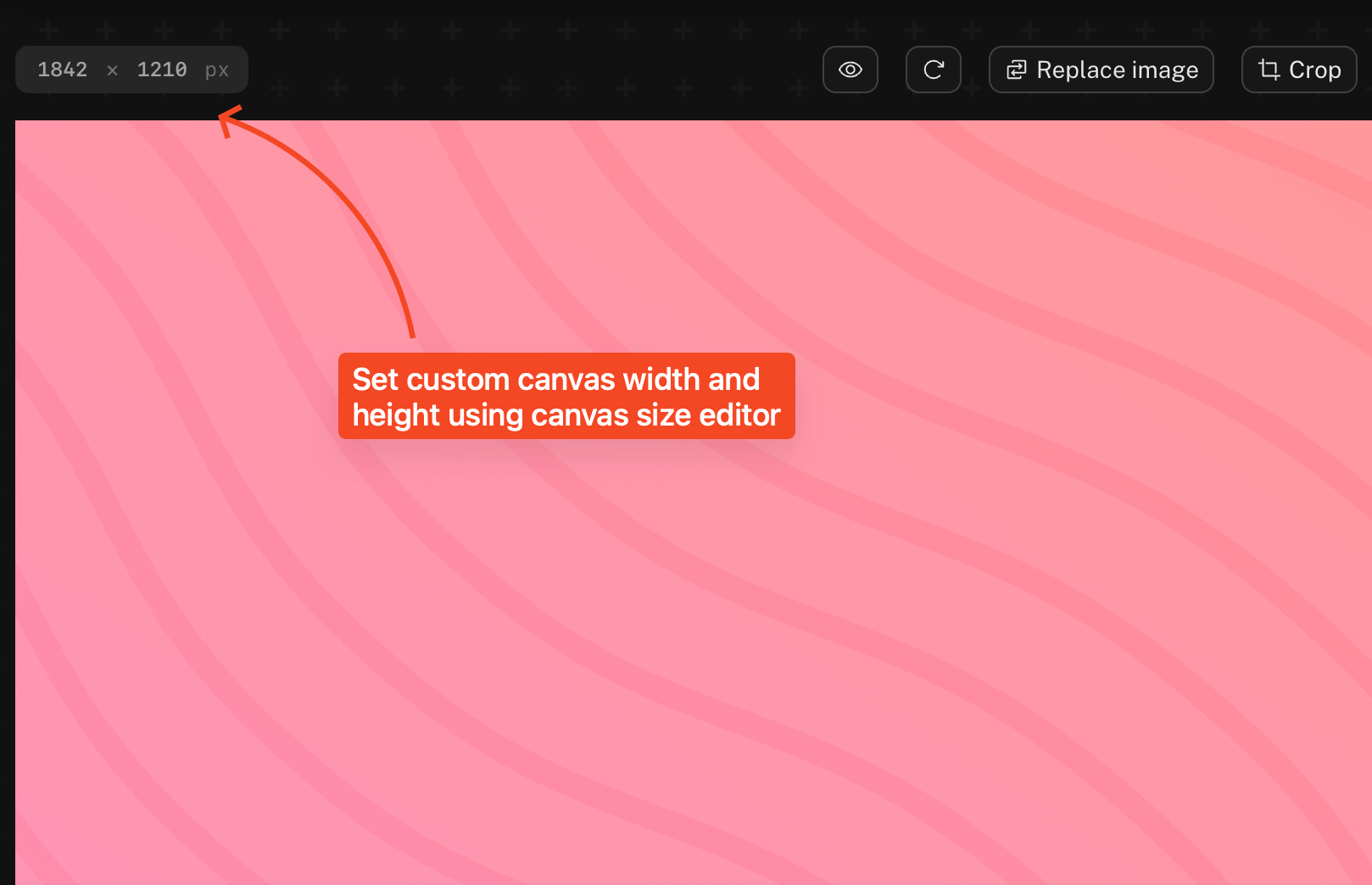
Before the canvas in the tool list, in the left you'll
see input fields for width and height.
You can enter custom width and height size in pixels
and hit "Enter" to set the size of the canvas
**Note that** canvas size cannot be set more than a certain
amount based on your browser's width. That means you cannnot
set "250000px" width or "5000px" height
# Using Patterns
> Gradient backgrounds are cool but with Patterns in Pika you can make your screenshot stand out
- URL: https://pika.style/articles/using-patterns
---
Gradient backgrounds are cool,
they make bare screenshots look much better and more presentable
And on top of it,
Pika lets you add customizable Background Patterns to your screenshots,
which can take your screenshot game to whole new level
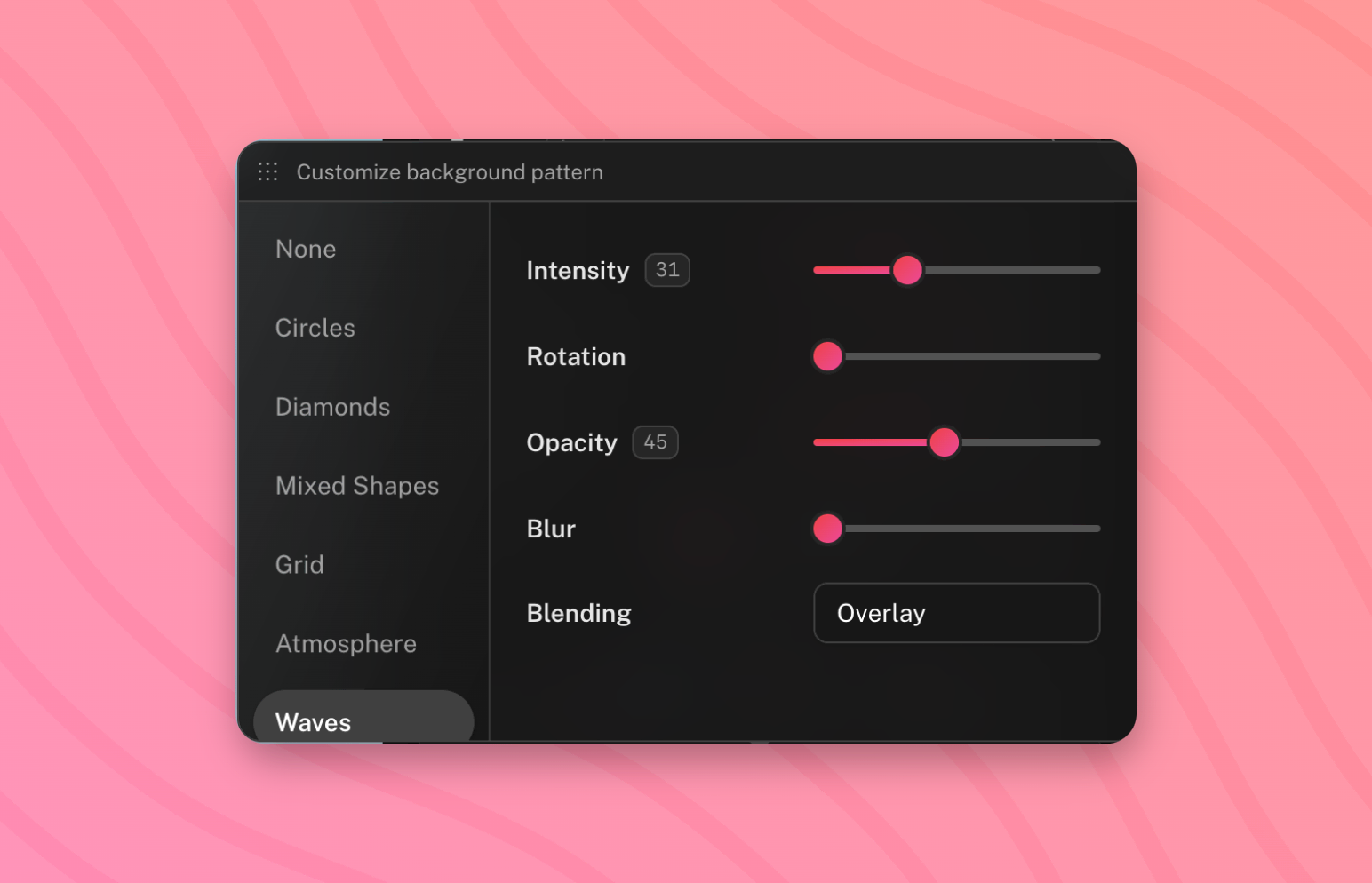
### How to use
You'll see a "Pattern" option in the sidebar in tool or template options.
When you click on it, you'll see a popover like in the above image
In this popover, you see a scrollable list of pattern types on the left,
and their corresponding options on the right
You can select any pattern from the left, and tweak it to your liking
through the controls on the right
### Controls
- **Intensity**: controls the intensity/size of the pattern
- **Rotation**: you can change the roation of some patterns using this
- **Shapes Size**: controls the size of pattern elements
- **Opacity**: controls the opacity of the pattern
- **Blur**: control the blur intensity of patterns
- **Color**: some pattern have color options, you can control the colour of pattern elements using this
- **Blending**: blending option controls the blend mode of the current pattern, it is useful to mix and match the look of the pattern with the background gradient or image
- **Randomize colors**: some Patterns like "Circles", "Mixed Shapes" etc. have this option, it randomizes the colors of the pattern elements to add more natural vibes to the overall look
- **Randomize positions**: randomized the position of some pattern elements
# Using Presets in Templates
> Save a template's style as a preset and apply it to any new screenshot in one click, alone or shared with your team in a project.
- URL: https://pika.style/articles/template-presets
---
To make it super quick and easy to apply
your customizations in Templates,
Pika has Presets feature in Templates
With Template Presets, you can customize the template
as you like. And then you can save these customizations
with a custom Preset name to apply later quickly
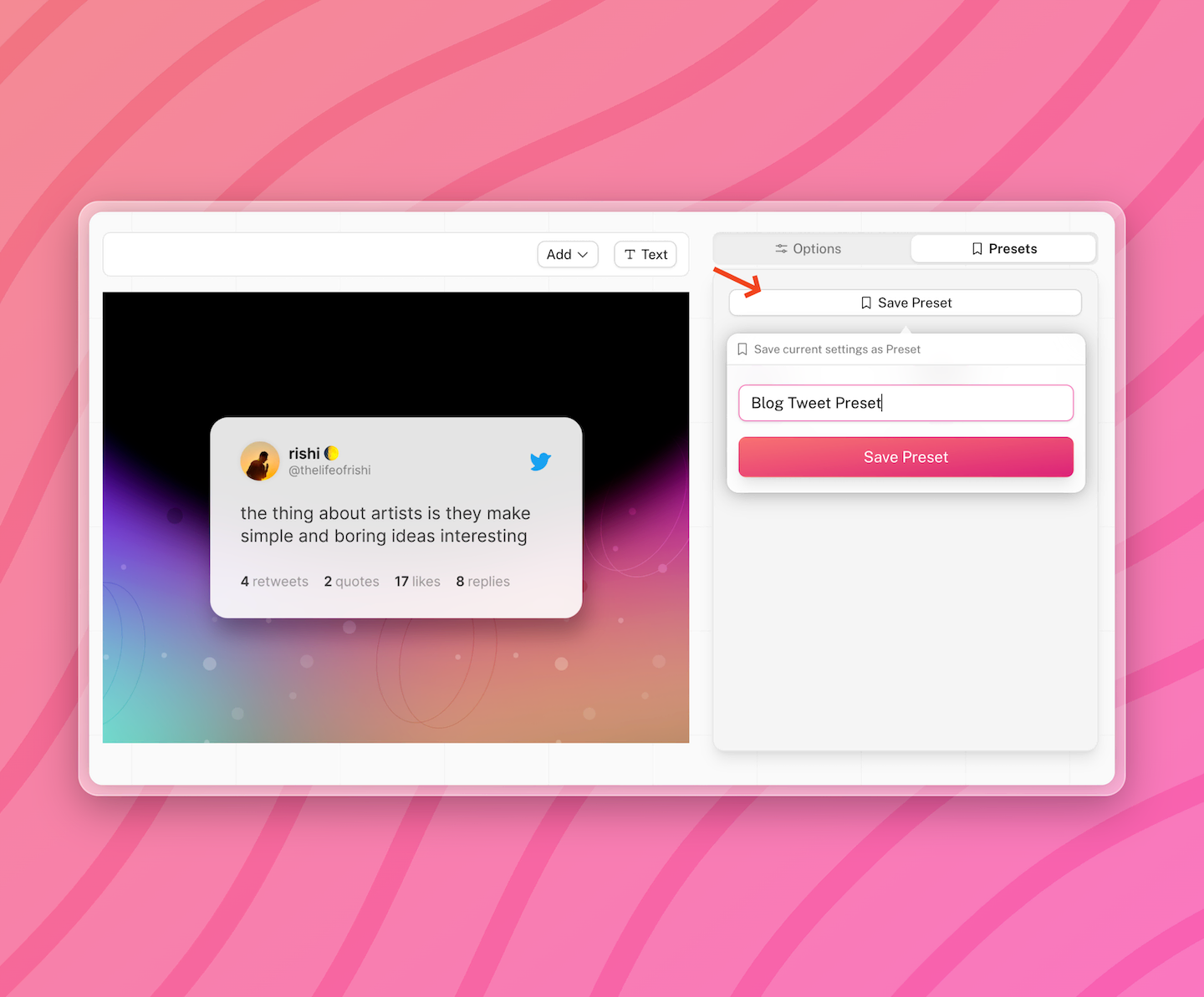
To save a Template Preset, you need to go to **Presets**
tab in settings in the right sidebar.
There you'll find a button **Save Preset**.
Once you click on that button,
you'll be asked to enter a Preset name so
you can recognize it later
All your saved presets are shown in the same **Presets**
tab. You can click on a preset to apply it, and there's an X
button to remove the preset
---
# Blog posts, in full
# How to edit a screenshot on Mac
> Crop and mark up a screenshot on Mac with Markup and Preview. Then add a background and frame in a free browser editor.
- URL: https://pika.style/blog/how-to-edit-screenshot-on-mac
- Published: 2026-10-16
- Author: Rishi Mohan
- Tags: How to
---
To edit a screenshot on a Mac, click the thumbnail that slides into the corner right after you take it. That opens Markup, where you can crop, draw arrows and add text. Click Done and the edit is saved.
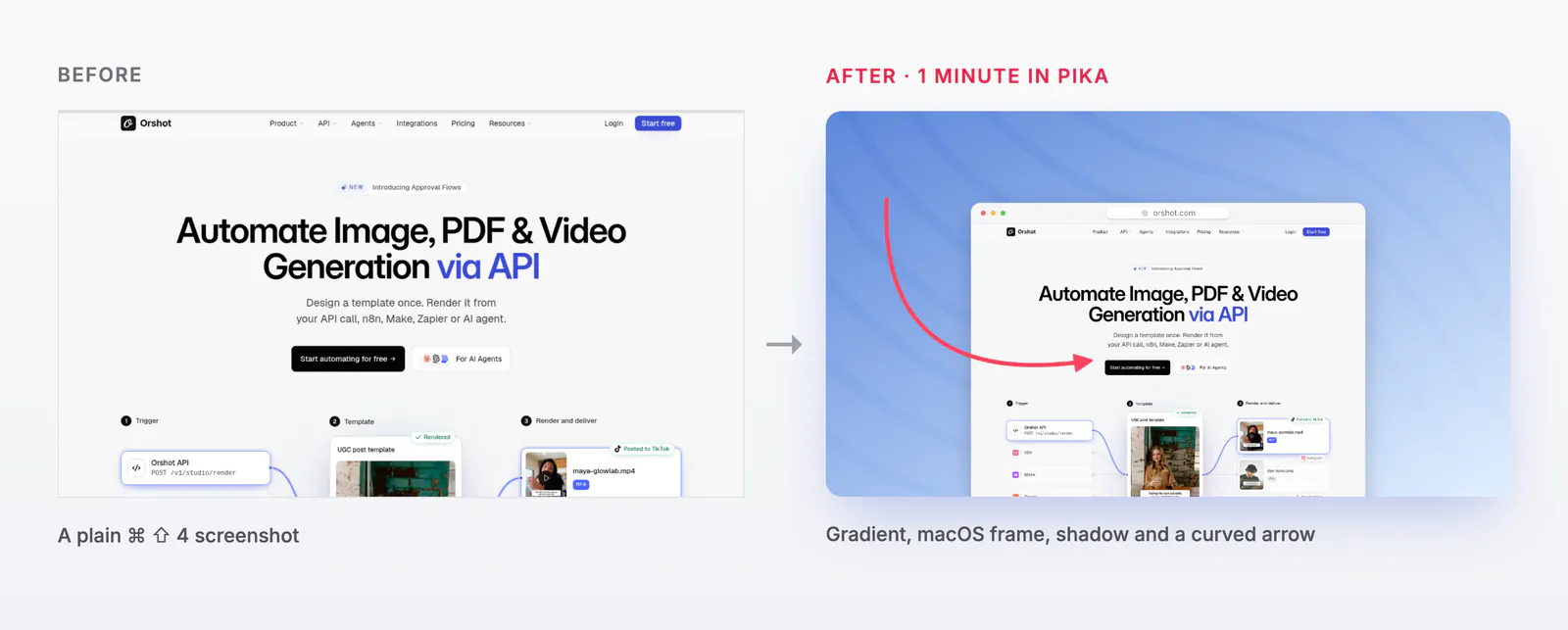
For a screenshot you already saved, double-click the file to edit it in Preview. To put it on a background with a frame and a shadow, like the right side below, you need an editor such as Pika.
## What do you want to do?
Pick the row that matches your job. Each one jumps to its part.
| What you want | Use | How |
| --- | --- | --- |
| [Crop, add arrows or text](#1-crop-and-annotate-a-screenshot-with-markup) | Markup | Click the thumbnail |
| [Resize, crop or convert a saved file](#2-edit-a-saved-screenshot-in-preview) | Preview | Double-click the file |
| [Hide or change text](#3-hide-or-change-text-in-a-screenshot) | Markup | Cover it with a filled box |
| [Add a background, frame and shadow](#4-make-a-screenshot-look-polished-with-pika) | Pika | Paste with ⌘ V |
## Take the screenshot first
Every macOS screenshot shortcut uses ⌘ Command and ⇧ Shift plus a number. Add ⌃ Control and the screenshot goes to your clipboard instead of a file.
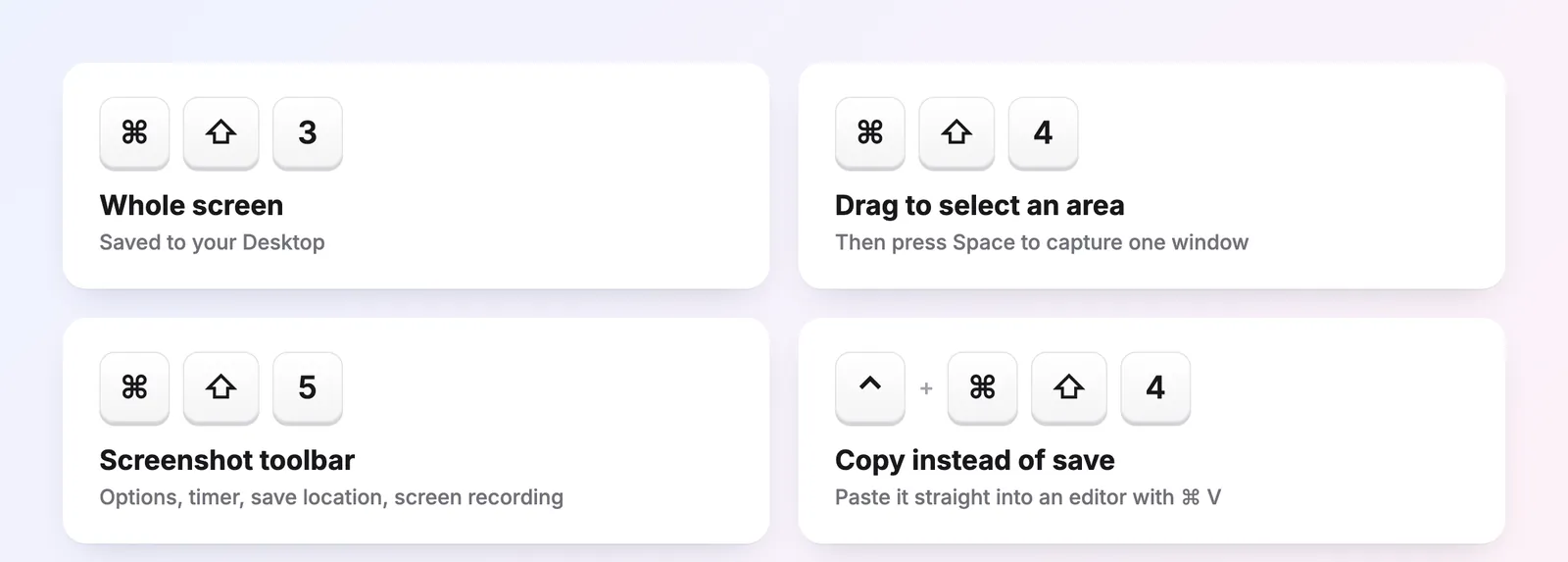
- **⌘ ⇧ 3** captures the whole screen.
- **⌘ ⇧ 4** lets you drag to select an area. Press Space after it to capture one window.
- **⌘ ⇧ 5** opens the screenshot toolbar, with a timer, screen recording and options.
- **⌃ ⌘ ⇧ 4** copies the area instead of saving it. I use this one most, since I paste straight into an editor.
macOS saves screenshots to your Desktop by default. To change the folder, press ⌘ ⇧ 5, click Options and pick one under "Save to". Apple's [shortcut guide](https://support.apple.com/en-us/102646) lists a few more.
## 1. Crop and annotate a screenshot with Markup
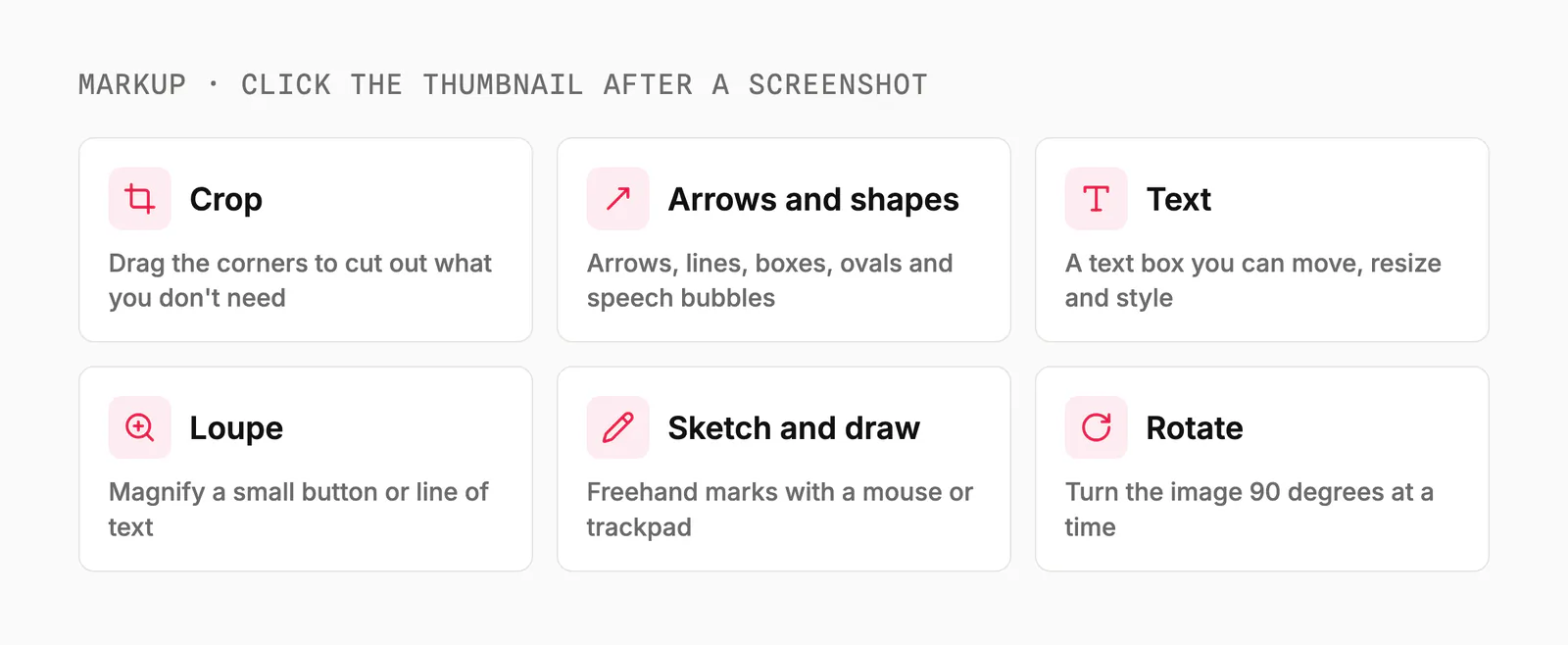
Markup is the editor built into macOS, and it opens when you click the thumbnail after a screenshot. It covers cropping, arrows, text and freehand drawing.
**Pick this if** you need a quick crop or an arrow on a screenshot you just took.
### Step 1: Click the thumbnail
The thumbnail sits in the bottom-right corner for a few seconds. If you miss it, the screenshot is saved as it is and you can edit it in Preview instead.
### Step 2: Crop and mark it up
Click the crop button and drag the corners. Then add arrows, boxes or speech bubbles from Shapes, and a text box from Text.
The loupe magnifies one part of the screenshot. It helps when the thing you're pointing at is a tiny button or a line of small text.
### Step 3: Click Done
Done saves the screenshot with your edits. ⌘ Z undoes a step before that, and the share button sends the edited image to Messages, Mail or AirDrop.
If the preview never shows up, press ⌘ ⇧ 5, click Options and turn on "Show Floating Thumbnail".
**Best for:** quick fixes right after a capture, with nothing to install.
## 2. Edit a saved screenshot in Preview
Preview opens a saved screenshot when you double-click it. Preview has the same Markup tools, plus resizing, colour adjustment and format conversion.
**Pick this if** the screenshot is already a file, or a site asks for an exact size or format.
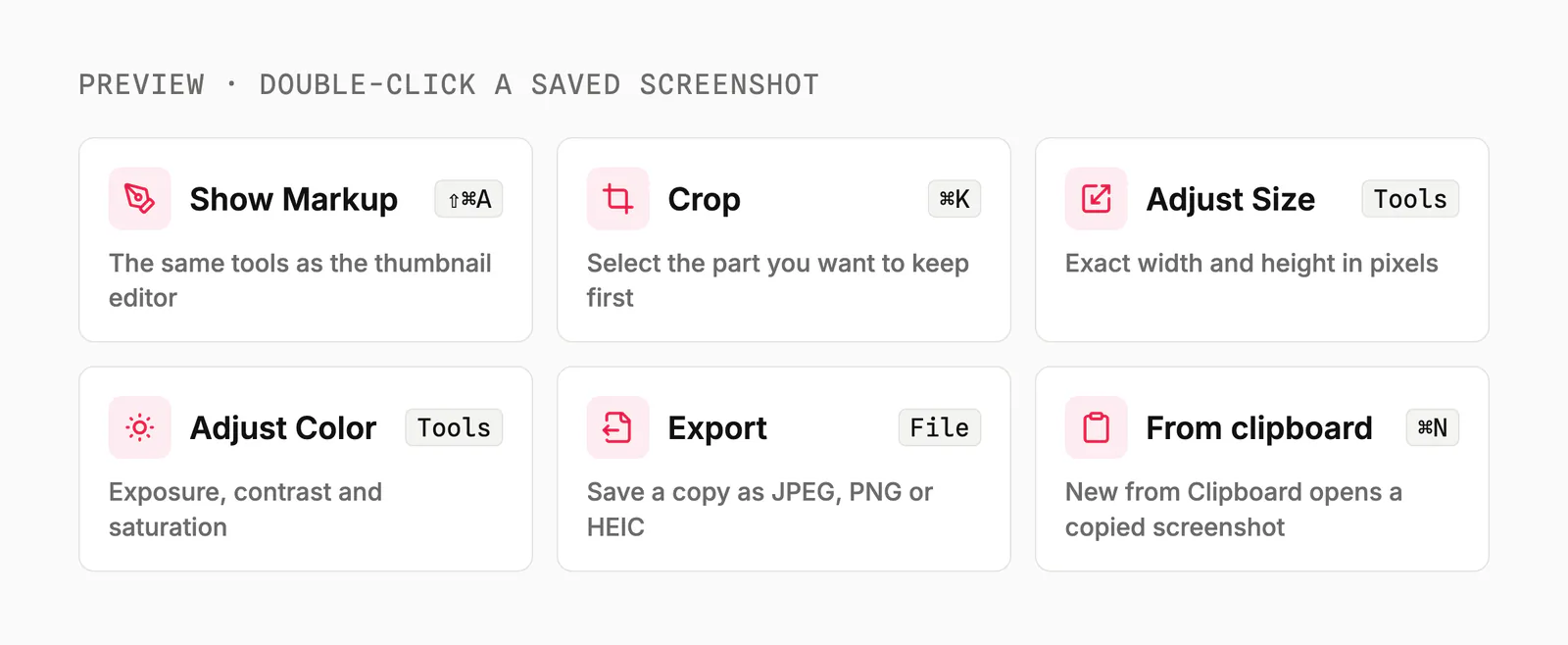
- **Markup.** Click the pen icon in the toolbar, or press ⇧ ⌘ A.
- **Crop.** Drag over the part you want to keep, then press ⌘ K.
- **Resize.** Tools → Adjust Size sets an exact width and height in pixels.
- **Fix the colours.** Tools → Adjust Color changes exposure, contrast and saturation.
- **Rotate or flip.** Both are in the Tools menu.
- **Change the format.** File → Export saves a JPEG, PNG or HEIC copy. A JPEG is usually much smaller than the PNG macOS saves.
Copied a screenshot with ⌃ ⌘ ⇧ 4? In Preview, File → New from Clipboard (⌘ N) opens it without saving a file first.
Preview saves your changes as you go. If you change your mind, File → Revert To brings back an earlier version.
**Best for:** resizing, converting and fixing screenshots you already saved.
## 3. Hide or change text in a screenshot
Markup has no blur tool, so the way to hide text on a Mac is to cover it. Draw a rectangle over the email, name or API key, then set its fill colour to solid black.
**Pick this if** you're sharing a screenshot with private details in it.
Make sure the box fully covers the text. A semi-transparent shape can still be read.
To change words in a screenshot, cover them the same way with a fill that matches the background. Then add a text box on top with the new words.
Markup can't edit the original text, because a screenshot is just pixels.
**Best for:** redacting a screenshot before you post it.
## 4. Make a screenshot look polished with Pika
Pika is a free screenshot editor that runs in Safari, Chrome or any other browser. It adds what Markup can't: backgrounds, padding, rounded corners, shadows, browser frames and sizes made for each social site.
**Pick this if** the screenshot is going into a tweet, a launch post, a deck or your docs.
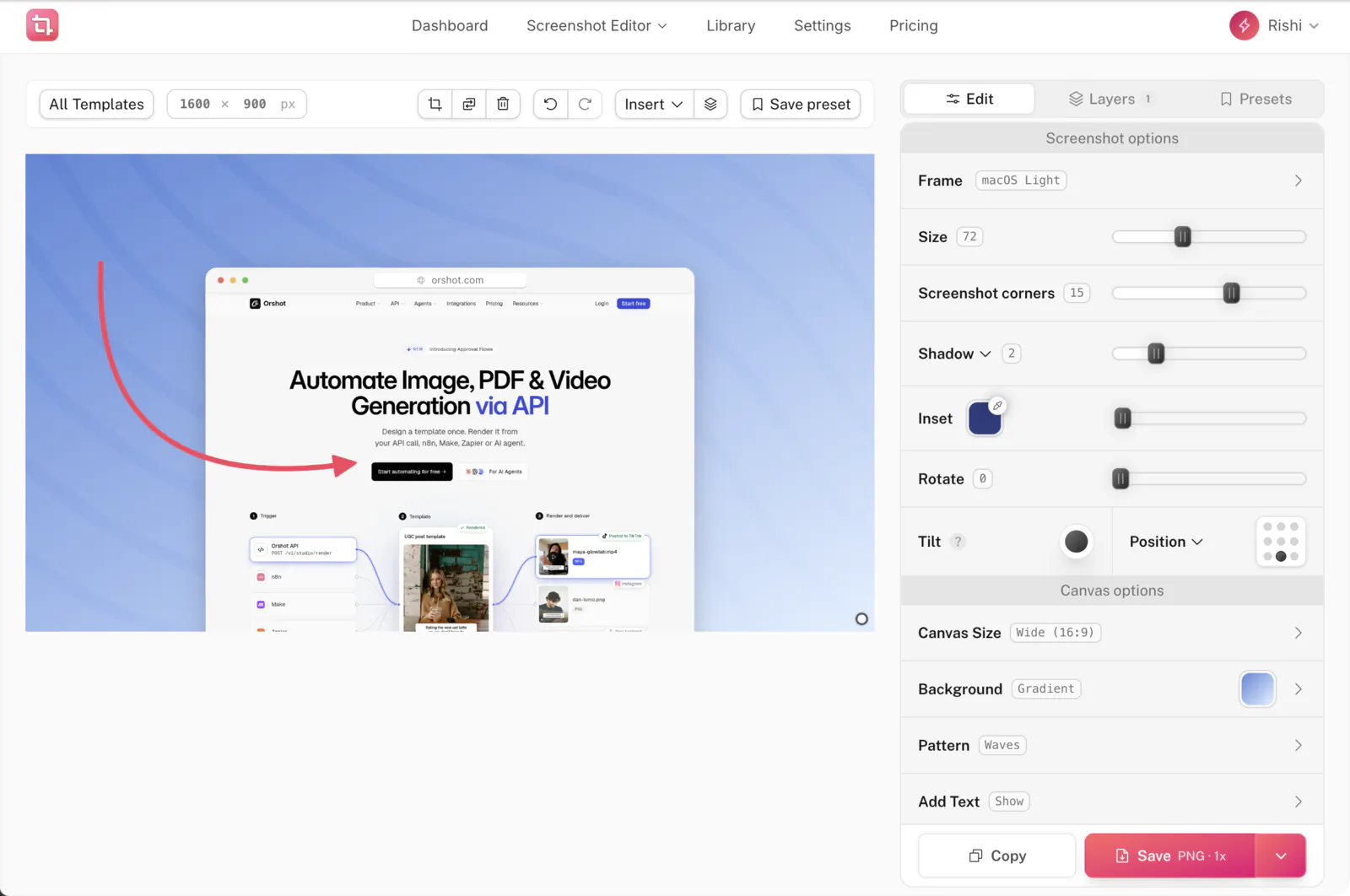
Disclosure: I built Pika. There's nothing to install and you don't need an account. The canvas is on the left and every option is in the sidebar on the right.
Open the screenshot editor
### Step 1: Paste your screenshot
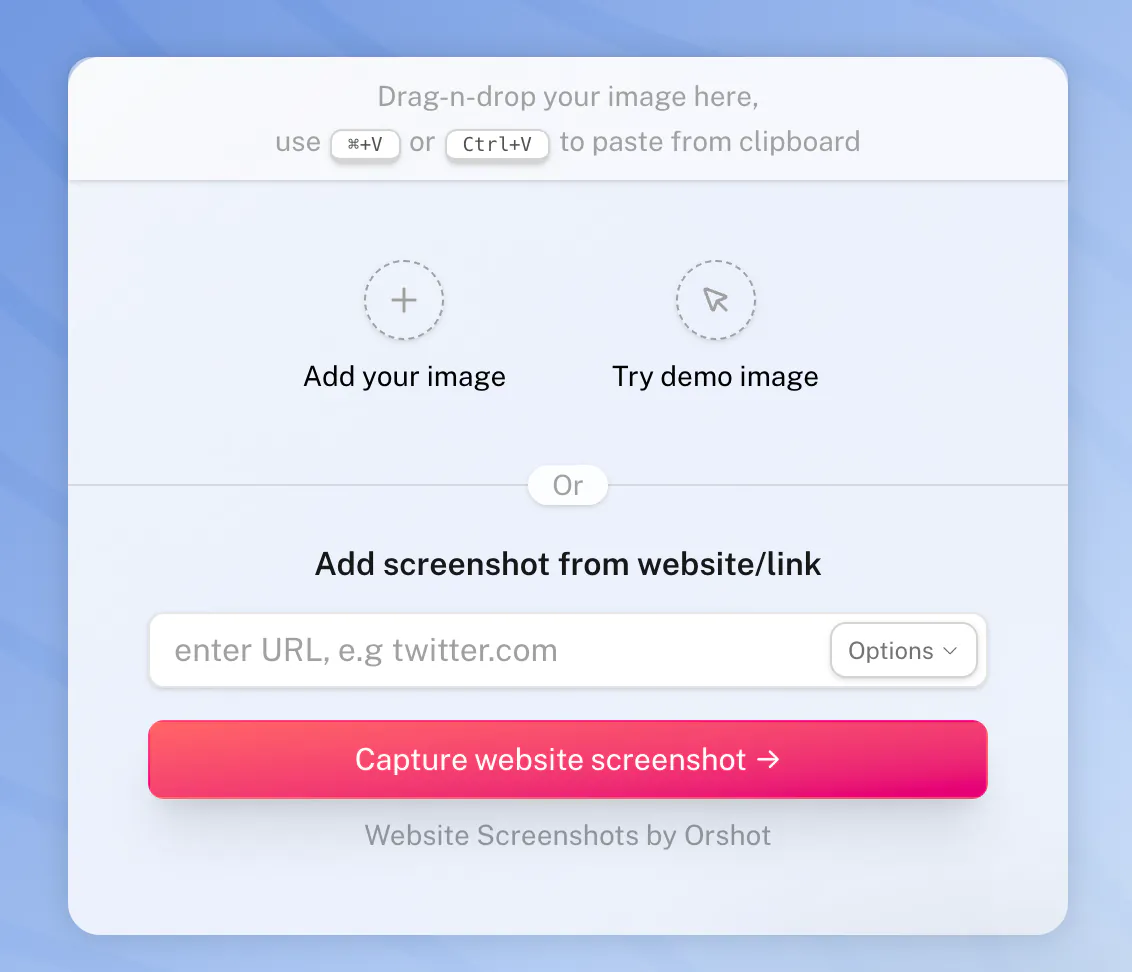
Press ⌃ ⌘ ⇧ 4 to copy an area, switch to the editor and press ⌘ V. You can also drag in a file from your Desktop.
Pika can also capture a page for you. Type a website's address and it takes the screenshot.
### Step 2: Pick a background
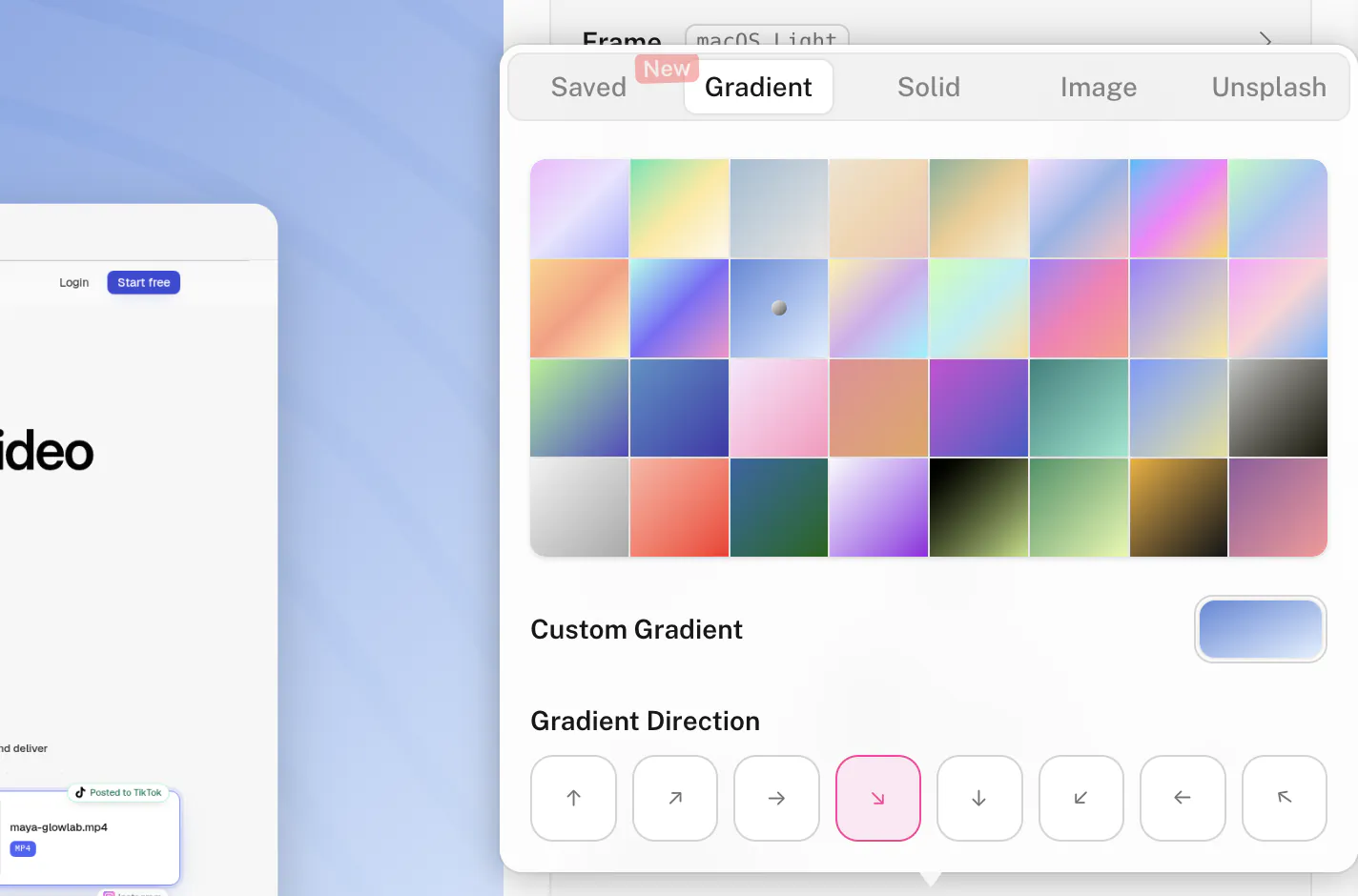
Click Background and choose a gradient, a solid colour, an image or a photo from Unsplash. You can also make your own gradient, set its direction and add a subtle pattern on top.
### Step 3: Add a window frame
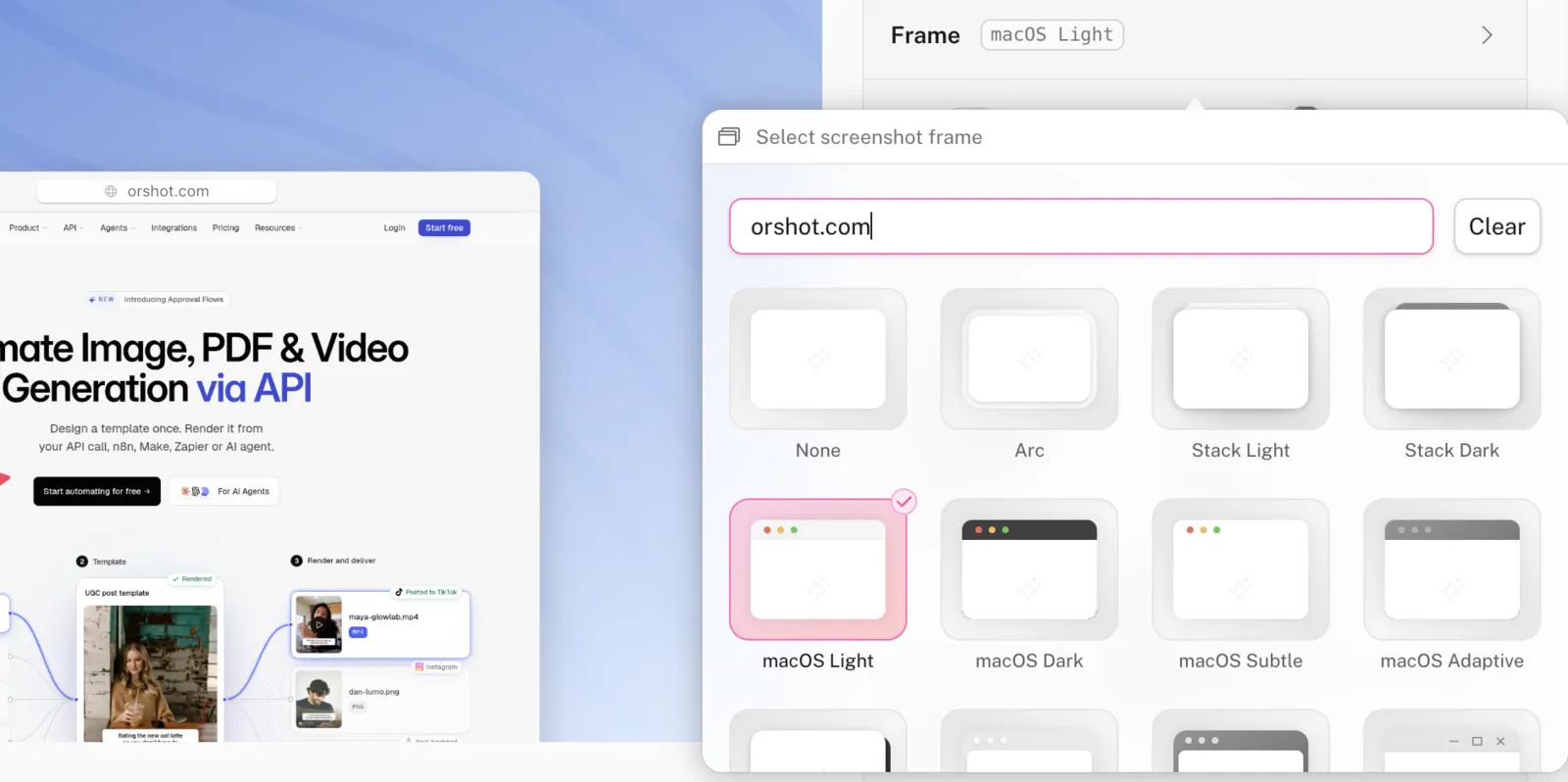
A window frame makes a screenshot read as an app at a glance. Pick macOS Light, macOS Dark, Arc, Windows or another frame, and type your own address into the URL bar.
Then drag the Size, Screenshot corners and Shadow sliders until the spacing looks right. The Position grid pins the screenshot to an edge, like the bottom-centre look in the example at the top.
### Step 4: Point things out
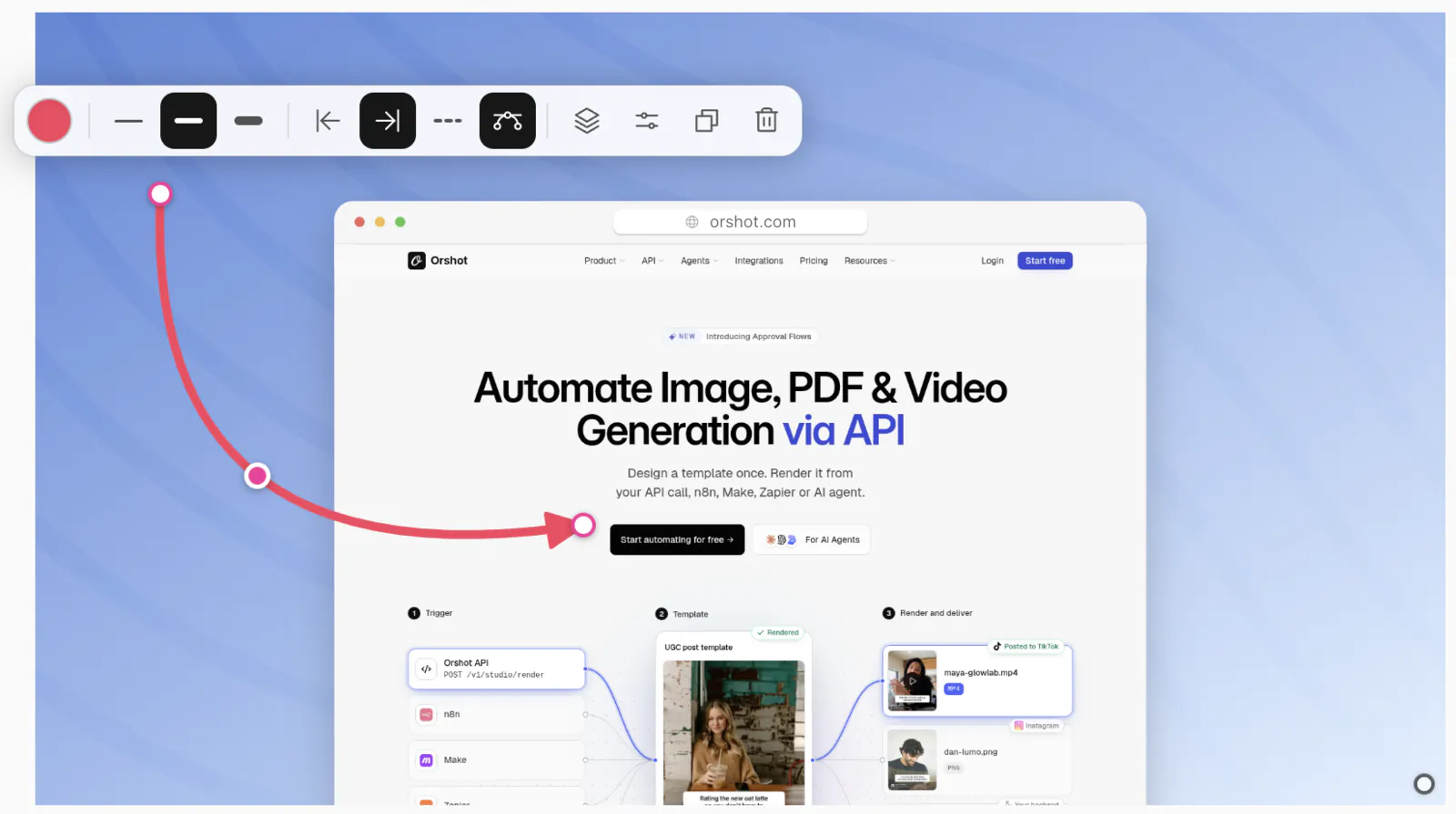
Press A and drag to draw an arrow, then pull its middle handle to bend it into a [curved arrow](/blog/screenshot-editor-arrows-and-layers). Rectangles, circles, highlights and a cursor work the same way.
Each annotation gets its own layer. Arrows, shapes and highlights are free, and text labels are part of Pro.
### Step 5: Size it for where it's going
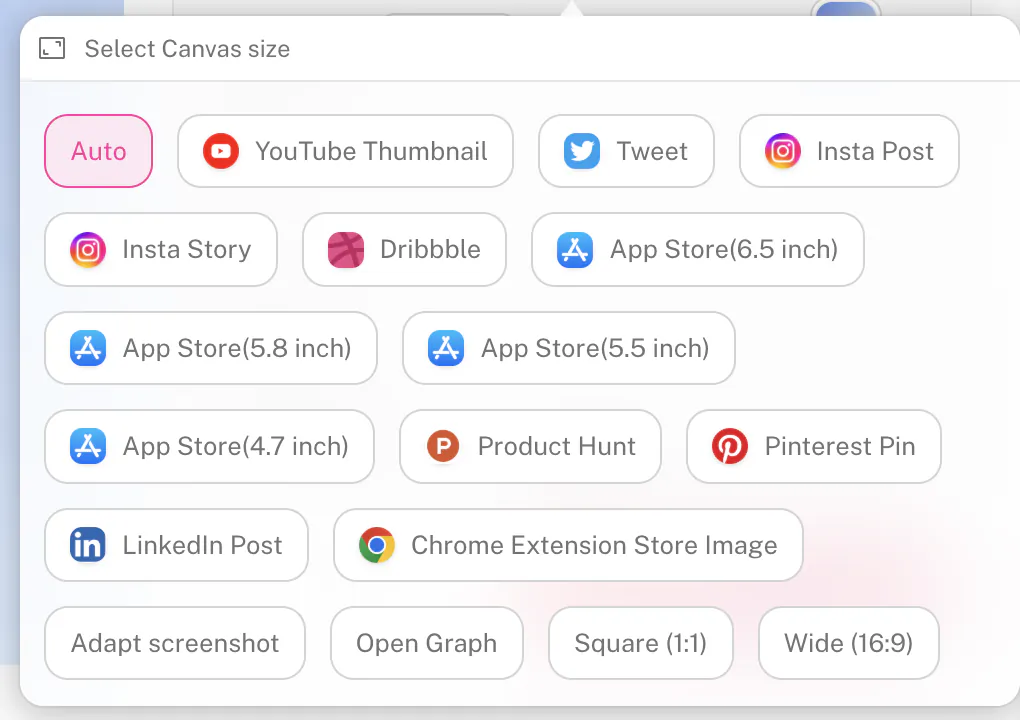
Canvas Size has presets for YouTube thumbnails, X, Instagram, LinkedIn, Dribbble, Product Hunt, Pinterest and the App Store. Pick one and the export comes out at that site's exact size.
### Step 6: Save or copy
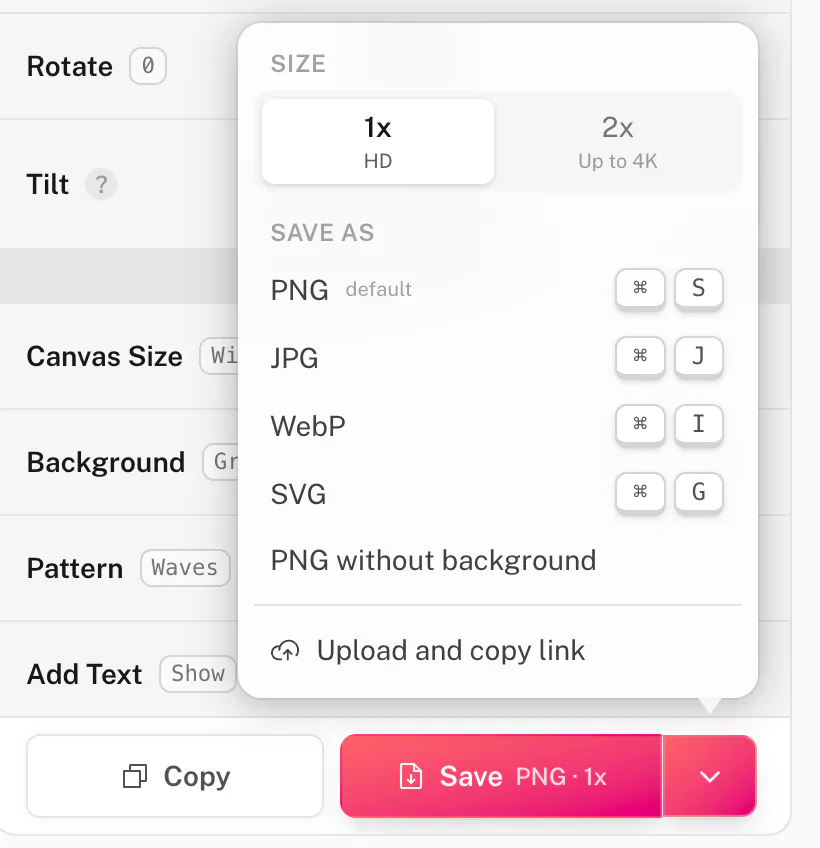
Click **Copy** to paste the image straight into Slack, X or a doc, or **Save** for a PNG. The arrow next to Save also has JPG and a PNG without the background.
### What's good and what isn't
- **Good:** free, nothing to install, and backgrounds, frames, arrows and PNG or JPG export all work without an account.
- **Good:** canvas presets mean you never look up social image sizes again.
- **Not so good:** free exports include a small "designed in Pika.style" watermark.
- **Not so good:** text labels, 2x and 4K export, WebP, SVG and share links need [Pika Pro](/pricing).
- **Not so good:** Pika has no blur tool either, so redact in Markup first.
**Best for:** making a screenshot look designed in about a minute, sized for wherever it's going.
## Skip the copy and paste
Pika has three shortcuts that send a screenshot straight to the editor. They're worth it if you edit screenshots every day.
- **[Pika for Mac](/tools/macos-app).** A menu bar app: select part of your screen and it opens in Pika's editor. macOS asks for screen recording permission the first time.
- **[Raycast extension](/tools/pika-raycast).** Opens an image file, a website or an image URL in Pika from Raycast.
- **[Chrome extension](/tools/browser-extensions).** Captures the tab you're on in one click. It also works in Edge, Brave and Arc.
## Common questions
### Where do screenshots go on a Mac?
Screenshots go to your Desktop by default, named "Screenshot" followed by the date and time. To save them somewhere else, press ⌘ ⇧ 5, click Options and pick a folder under "Save to". The new folder is used for every screenshot after that.
### How do I crop a screenshot on Mac without extra software?
Click the thumbnail after taking the screenshot, click the crop button in Markup and drag the corners. For a saved screenshot, open it in Preview, drag over the part you want and press ⌘ K. Both tools come with every Mac.
### How do I add text to a screenshot on Mac?
Open the screenshot in Markup or Preview and click the Text button, the one with a T. A text box appears that you can drag, resize and restyle from the font menu. Click Done in Markup, or just close Preview, to keep the text.
### How do I blur part of a screenshot on Mac?
macOS can't blur part of a screenshot, since Markup and Preview have no blur tool. Draw a rectangle over the private part instead and set its fill to a solid colour. A solid box is safer than a blur, which can sometimes be reversed.
### Can I edit the text in a screenshot on Mac?
No. A screenshot is an image, so Markup can't change the words in it. Cover the old text with a rectangle filled in the background colour, then add a text box with the new words on top. Matching the font closely takes a few tries.
### Can I undo changes to a screenshot I already saved?
Yes. Open the screenshot in Preview and choose File → Revert To, then pick an earlier version from the list. Preview keeps versions automatically, so this works even after you closed the file.
### Is there a free screenshot editor for Mac?
Yes. Markup and Preview are built into every Mac and cover cropping, arrows and text. For backgrounds, frames and mockups, Pika's screenshot editor is free in any browser. Our list of [free screenshot editors](/blog/free-screenshot-editor-tools) has a few more options.
### What is Pika?
Pika is a free online screenshot editor that turns screenshots into polished images with backgrounds, browser frames, shadows and annotations. Pika runs in the browser, with a Mac menu bar app and Chrome and Raycast extensions. Pika Pro removes the watermark and adds 4K export and saved presets.
# Curved arrows, layers and a simpler screenshot editor
> Pika's screenshot editor now has curved arrows, text backgrounds, layers, undo, a cleaner Save button and work that survives a reload.
- URL: https://pika.style/blog/screenshot-editor-arrows-and-layers
- Published: 2026-10-08
- Author: Rishi Mohan
- Tags: Changelog
---
Adding an arrow or a label to a screenshot should take a few seconds. In Pika it took longer than it should have: shapes landed in a fixed spot, arrows were straight, and fixing a mistake meant starting over.
So I rebuilt how annotations work in the [screenshot editor](/templates/screenshot-editor). Here's what changed, starting with the things you'll use most.
## Arrows and lines that curve
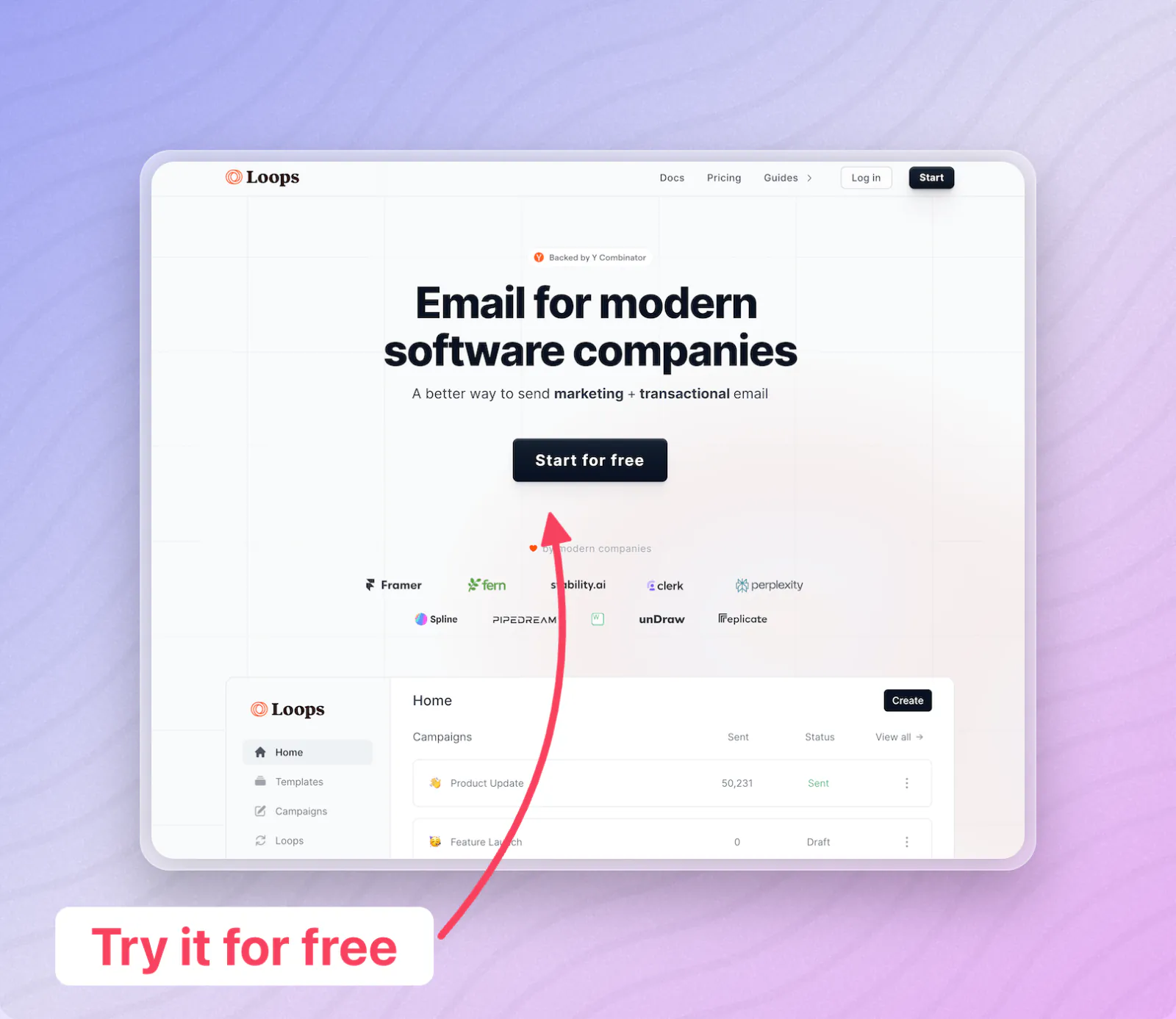
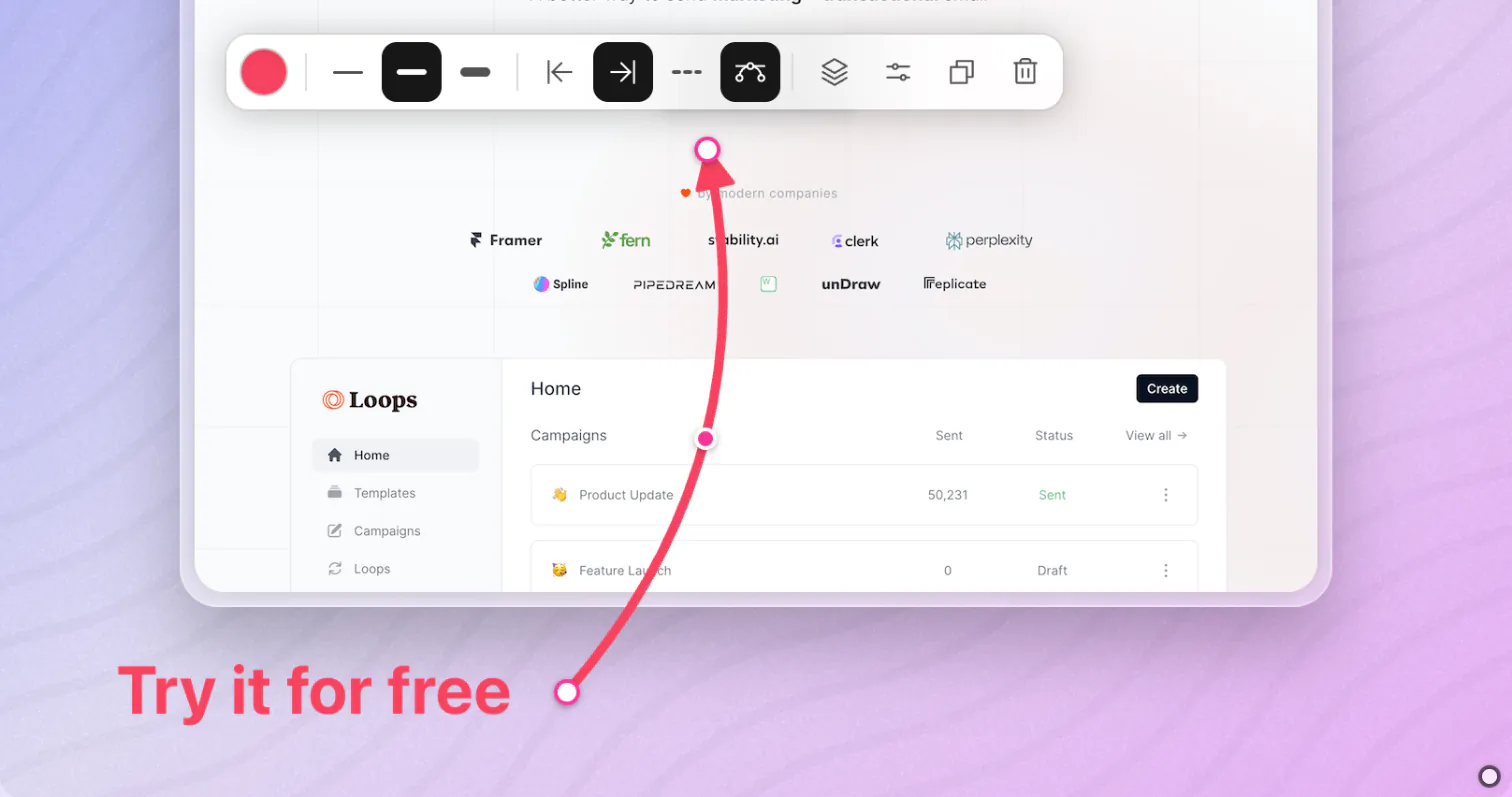
Arrows and lines now have a handle in the middle. Drag it to bend the line into a curve. Drag either end to stretch it, and the curve keeps its shape instead of flattening out. The arrowhead follows the curve, so it always points where the line is going. Double-click the middle handle to make it straight again.
From the toolbar above the arrow you can change the colour and thickness, put arrowheads on one end or both, or make it dashed. Hold Shift while dragging to snap the angle.
## Text with a background
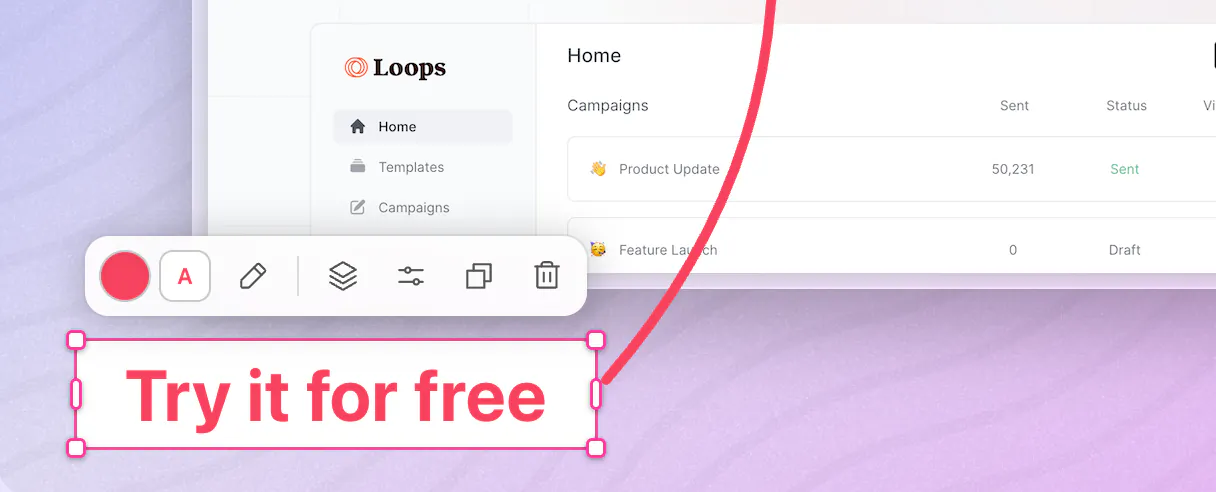
Text can now have a background colour, which makes a label readable on top of a busy screenshot. Pick the text colour and the background from the toolbar that appears when you select it, and double-click (or press Enter) to edit the words in place.
## Draw shapes where you want them
Pick a tool from the new Insert menu, or press its key (A for arrow, R for rectangle, T for text and so on), then drag on the canvas. The shape is drawn exactly where you drag, at the size you want. When you use a key, a short "Added arrow" note confirms it.
Every shape gets the same small toolbar when selected: colour, style, layer order, duplicate and delete. Hold Shift or ⌘ to select several and move them together.
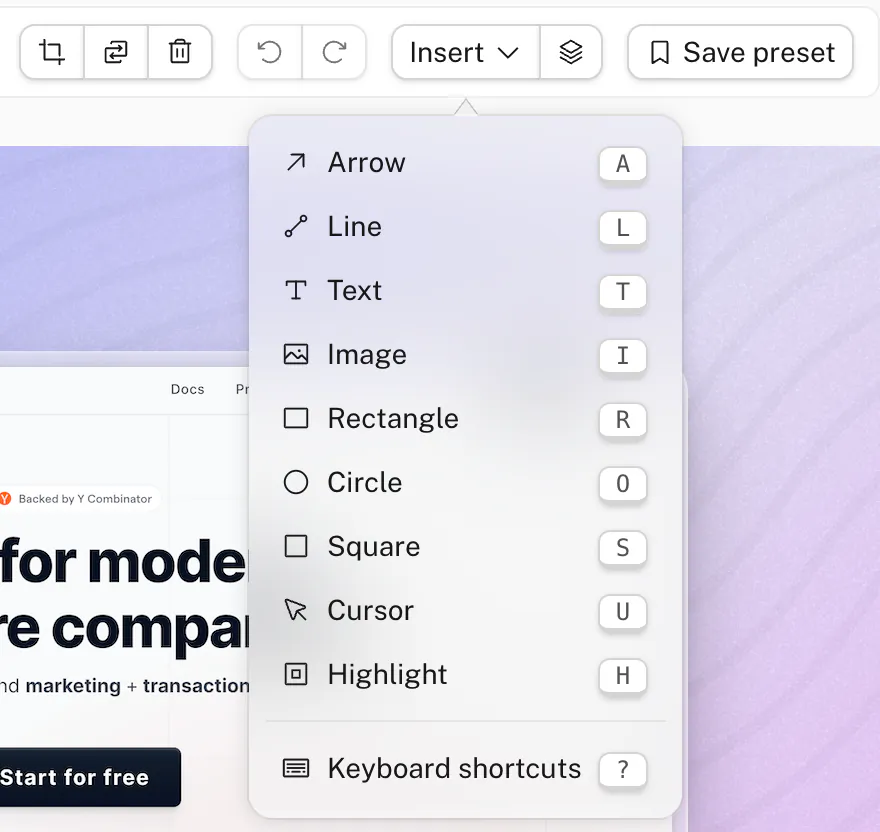
Every annotation is free except text, which is part of Pro.
## A simpler Save and Copy
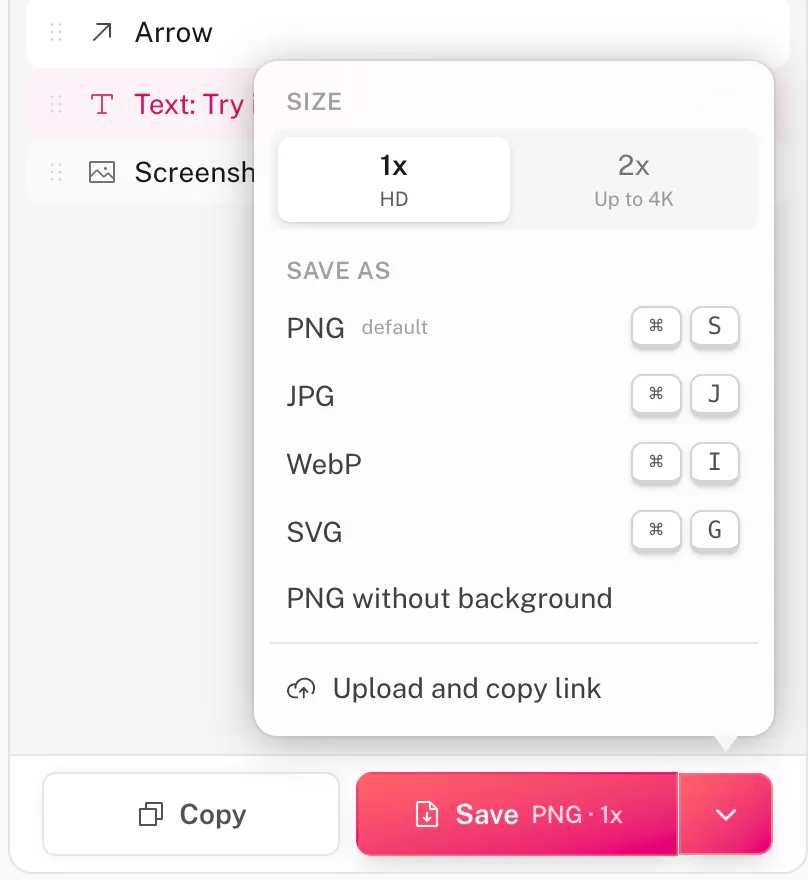
The export buttons were crowded, so now there are just two: **Copy** and **Save**. The Save button shows what you'll get, like "PNG · 1x". The arrow next to it opens everything else: 1x or 2x size, PNG, JPG, WebP or SVG, PNG without the background, and upload with a shareable link. Pika remembers the format you pick, and the change applies to every Pika tool.
Canvas sizes made for a platform, like a YouTube thumbnail, now export at that platform's exact pixel size.
## Undo, and your work survives a reload
You can undo and redo any change with ⌘Z and ⌘⇧Z, or the buttons above the canvas. If you close the tab or reload by accident, your screenshot, annotations and settings come back where you left them. This is saved in your browser only.
## Layers
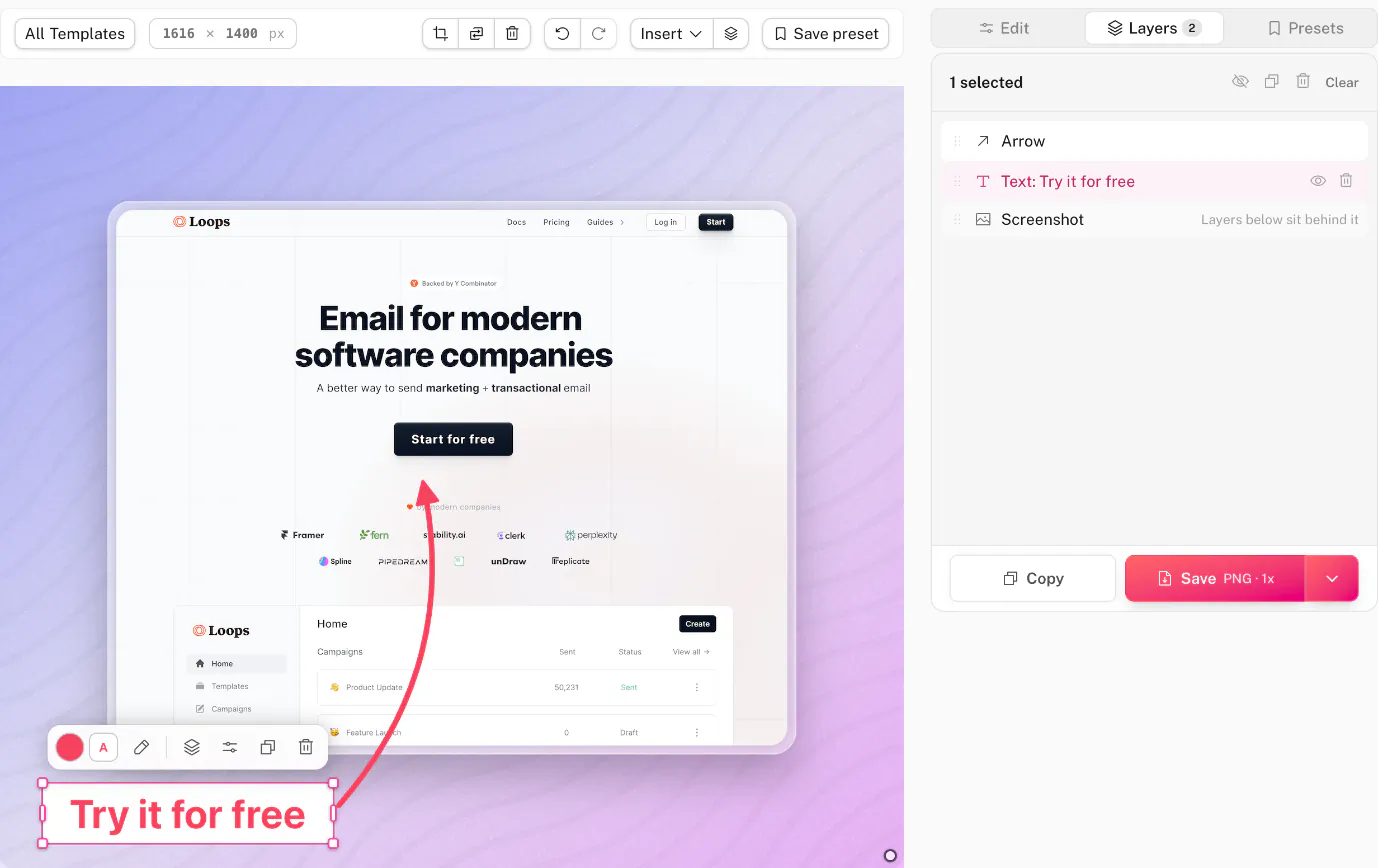
The new Layers tab lists every annotation. Drag a layer up or down to change what's on top. Drag one below the screenshot to tuck it behind. You can also hide, duplicate or delete layers, or select several at once.
## Move the screenshot by dragging
You can now drag the screenshot itself around the canvas. It snaps to the centre and to the spots in the Position grid, and guides show where it will land. Hold Shift to keep it on one axis. Free accounts snap to the nearest grid spot, and Pro can place it anywhere.
## Crop, replace and shortcuts
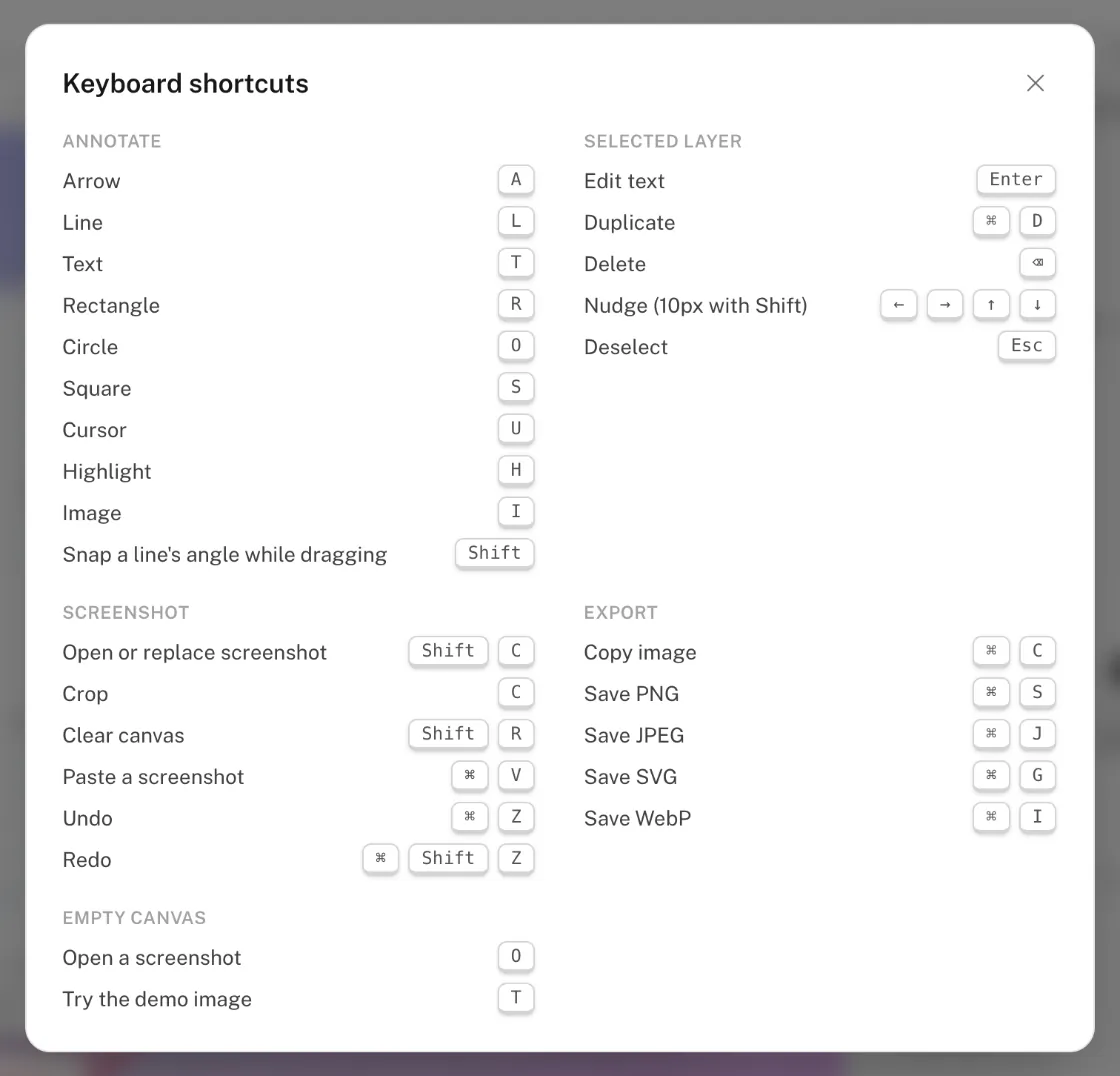
Crop, replace and clear now sit in the toolbar above the canvas, next to the image size in pixels. Press **?** to see every keyboard shortcut in one place.
## Presets in one place
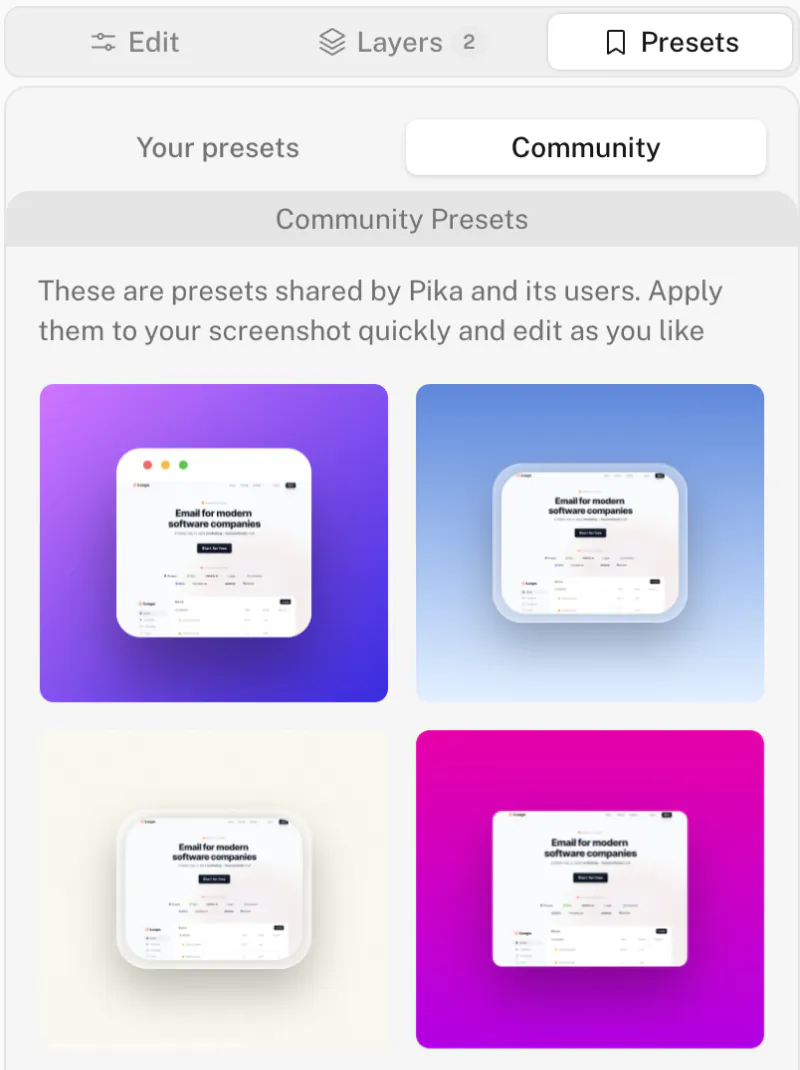
Your presets and community presets now share one Presets tab, and community presets load much faster. When you save a preset, you can tick "Include annotations" to keep your arrows and labels in it too.
## Smaller fixes
- Selection outlines, handles and hidden layers never end up in the exported image.
- Tilt can be adjusted with the keyboard.
- Dragging shapes is smoother on large canvases.
- Clearer messages when a capture or export fails.
Open the screenshot editor
# The 3 best React color pickers
> Colorshot vs react-colorful vs react-best-gradient-color-picker with real bundle sizes and gradient support
- URL: https://pika.style/blog/best-react-color-picker
- Published: 2026-10-03
- Author: Rishi Mohan
- Tags: Lists
---
Pika has a color picker in almost every template. Backgrounds, text, frames, shadows, the browser bar. Over the years I've tried most of the React color pickers on npm to power them, and these three are the ones worth installing.
They're good at different things, so this isn't a ranking from best to worst. It's which one I'd pick for which job. Download counts are weekly numbers from npm at the time of writing, and sizes are what each picker adds to your bundle (built with esbuild, minified, gzipped, React left out).
## Quick comparison
| | Colorshot | react-colorful | react-best-gradient-color-picker |
| --- | --- | --- | --- |
| npm package | `@orshot/colorshot` | `react-colorful` | `react-best-gradient-color-picker` |
| Weekly downloads | n/a | 7.26 million | 72,260 |
| Maintenance | Active | Active | No recent releases |
| Gzipped size | 34.4 KB JS + 7.7 KB CSS | 3.5 KB | 69.9 KB |
| Gradients | Linear, radial, conic | No | Linear, radial |
| Value in and out | Any CSS color or gradient string | Hex, RGB, HSL, HSV (strings or objects) | rgba() or gradient string |
| Vue | Yes, same package | No (React and Preact) | No |
| License | MIT | MIT | MIT |
## 1. Colorshot
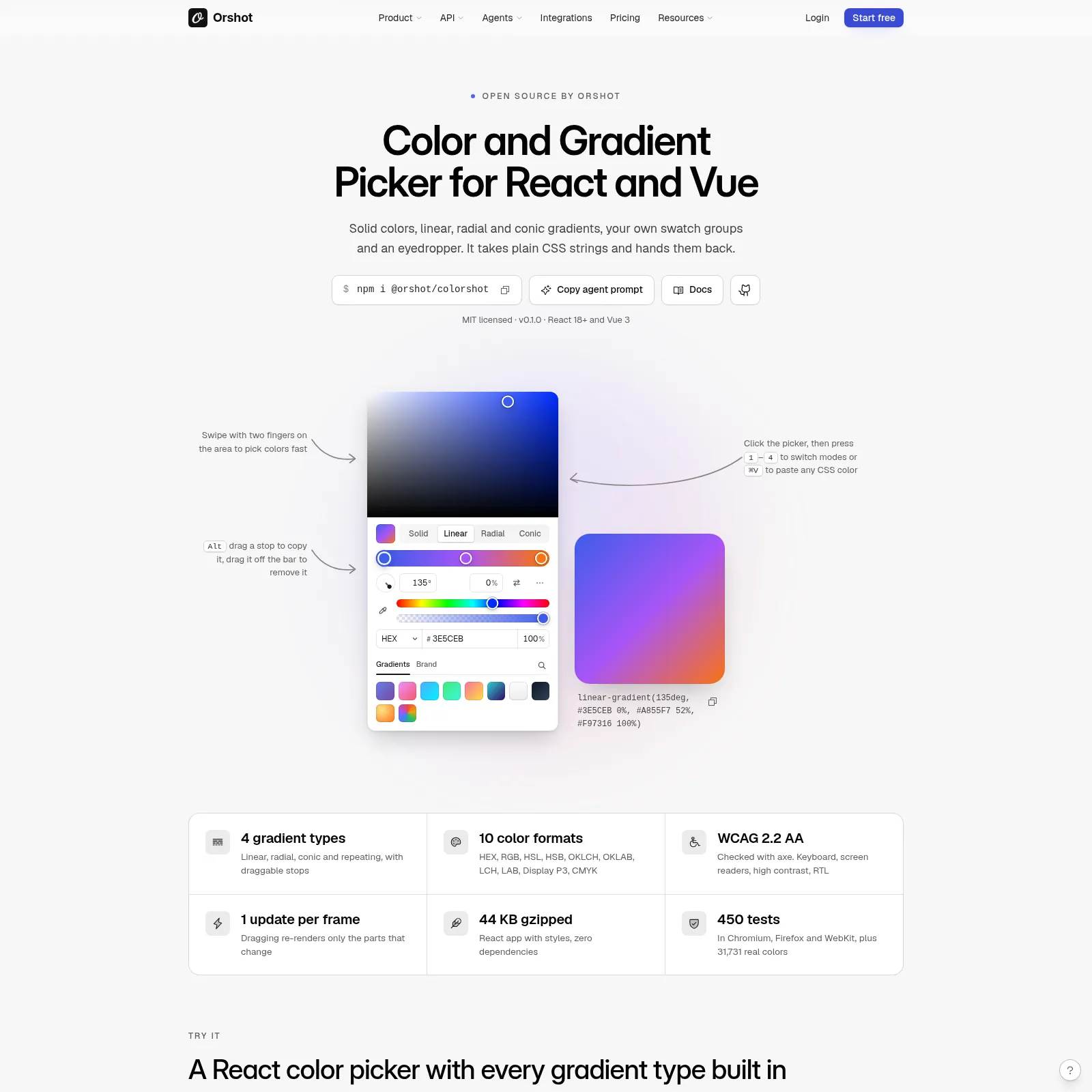
Colorshot is the [React color picker](https://orshot.com/open-source/colorshot) I wrote for Pika and Orshot. It handles solid colors and linear, radial and conic gradients in one picker, and it only reads and writes plain CSS strings. You pass it `linear-gradient(135deg, #3E5CEB, #22C55E)` and you get the same kind of string back, ready to drop into a `style` prop or save to a database.
```bash
npm i @orshot/colorshot
```
```jsx
"use client";
import { useState } from "react";
import { ColorPicker } from "@orshot/colorshot/react";
import "@orshot/colorshot/styles.css";
export function FillPicker() {
const [fill, setFill] = useState("linear-gradient(135deg, #3E5CEB, #22C55E)");
return (
save(value)} // once, when the drag ends
/>
);
}
```
A few things I needed for Pika that it does out of the box:
- **Every CSS color format.** Hex, RGB, HSL, OKLCH and Display P3 all work as input, and `outputFormat` controls what comes back. Pika keeps hex so old saved presets still load.
- **Gradient stops you can use with a keyboard.** Each stop is tabbable, Enter adds a new one and Delete removes it. The picker uses proper slider, radio and tab roles for screen readers, and it supports RTL and Windows high contrast (forced-colors) mode.
- **An eyedropper** through the browser's EyeDropper API, swatch groups with recent colors, and an optional WCAG contrast badge for text colors.
- **Safe values.** Text it can't read is shown as unsupported instead of being passed through, and `isSafeCssValue()` lets you check a stored value before writing it into HTML or CSS.
It's one package for React and Vue. `@orshot/colorshot/react` and `@orshot/colorshot/vue` are separate entries, so a React app never bundles the Vue code, and the core helpers (`parseColor`, `formatColor`, `contrastRatio` and friends) have no framework at all and run on the server.
**Where you'll see it:** every color picker in Pika runs on Colorshot today, including the custom gradient backgrounds in the [screenshot editor](https://pika.style/templates/screenshot-editor). Orshot Studio uses it too. Pika loads it the first time you open a picker, so pages that never show one don't pay for it.
**The trade-off:** it's slightly heavier than a solid-only picker, about 34 KB of JavaScript and 7.7 KB of CSS gzipped for the full React picker. For the features and control you get, that's a fair price, and it's held up well in Pika.
The docs, a live demo of every prop and copy-paste setups are on the Colorshot page linked above, and the source is on [GitHub](https://github.com/rishimohan/colorshot).
## 2. react-colorful
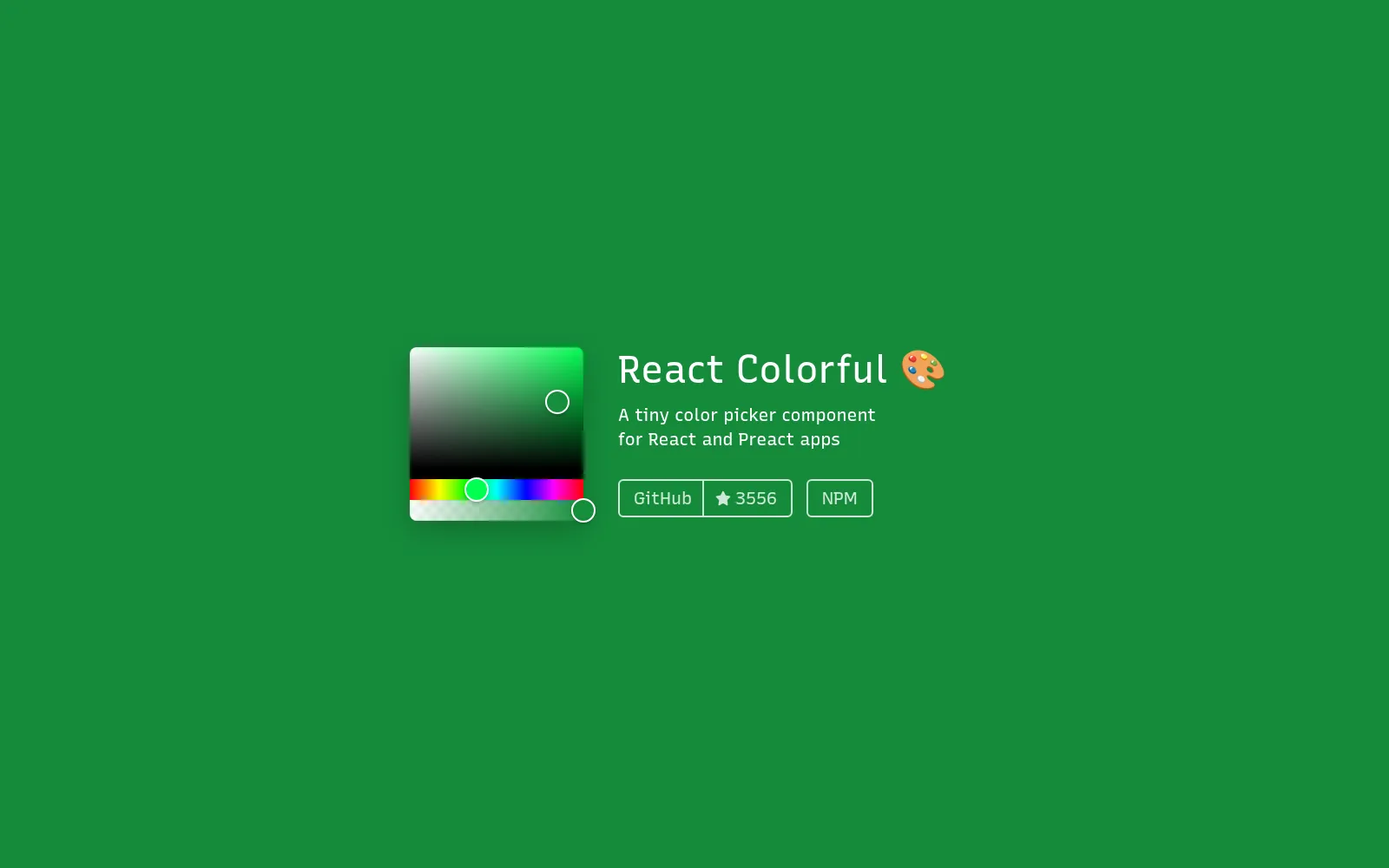
react-colorful by Vlad Shilov is the default pick for a reason. It's tiny (the `HexColorPicker` measured 3.5 KB gzipped), has no dependencies, is written in TypeScript with full test coverage, and follows WAI-ARIA so the saturation area and hue slider work with a keyboard and screen readers. At 7.26 million downloads a week it's by far the most used picker on this list, and it's still actively maintained.
```jsx
import { useState } from "react";
import { HexColorPicker, HexColorInput } from "react-colorful";
export function BrandColor() {
const [color, setColor] = useState("#3E5CEB");
return (
<>
);
}
```
It ships a picker per color model (hex, RGB, HSL, HSV, with and without alpha) so you only import the one you use. It doesn't do gradients, format menus or an eyedropper, and it doesn't try to. You build the rest of the UI around it.
**Pick it when** you need a solid color and care about every kilobyte. A theme color setting, a tag color, a single brand color field. For that job it's still the best choice and I'd use it over Colorshot.
## 3. react-best-gradient-color-picker
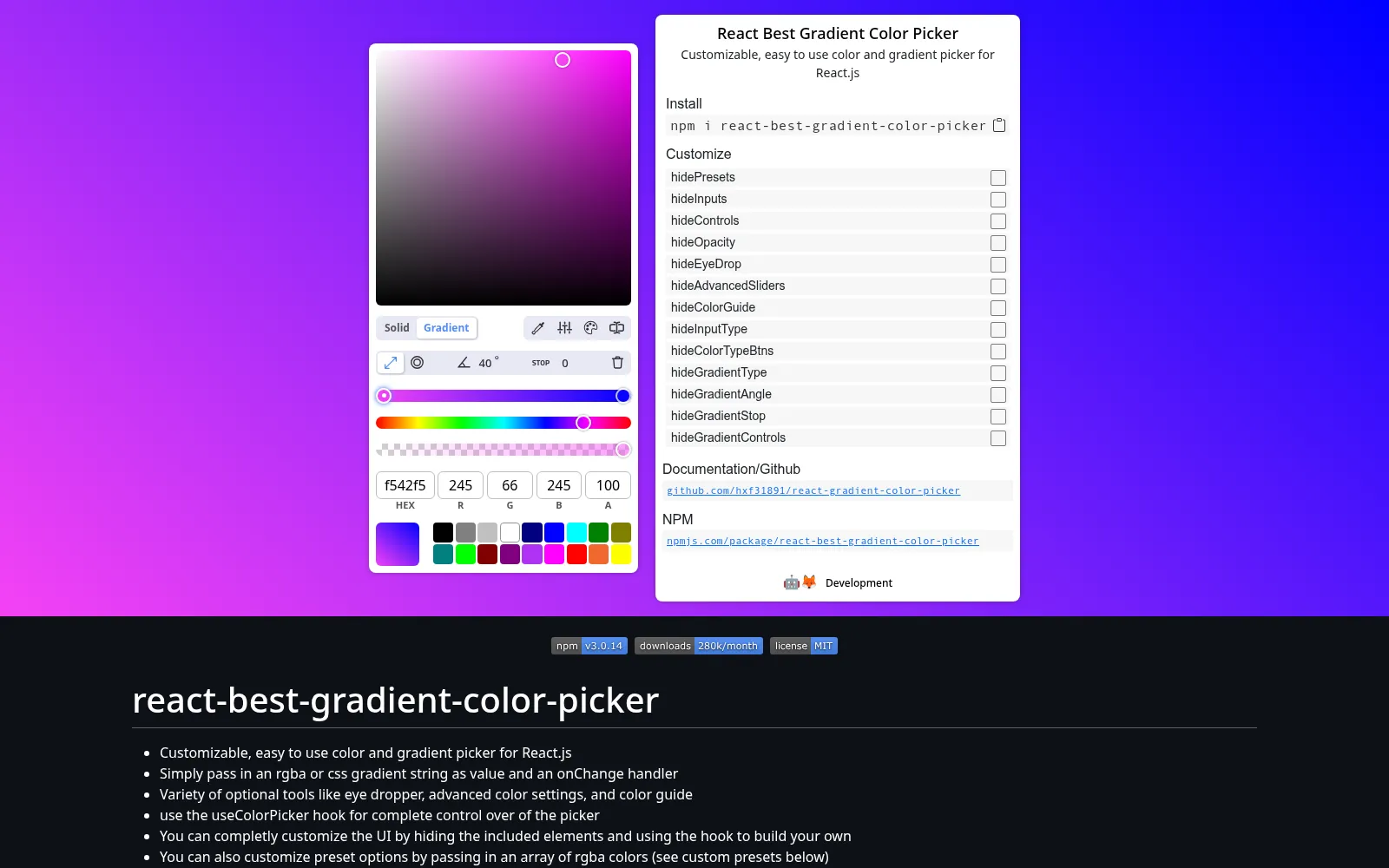
If you want a full gradient editor in React and don't want to build one, react-best-gradient-color-picker has been the go-to for a few years. You pass in an `rgba()` color or a CSS gradient string, and you get one back.
```jsx
import { useState } from "react";
import ColorPicker from "react-best-gradient-color-picker";
export function Background() {
const [color, setColor] = useState("linear-gradient(90deg, rgba(62,92,235,1) 0%, rgba(34,197,94,1) 100%)");
return ;
}
```
It comes with a lot in the box: solid and gradient modes, linear and radial gradients, presets, extra sliders for saturation, lightness and brightness, and a color guide that suggests pairings. The `useColorPicker` hook lets you drive it from your own buttons, and nearly every part of the UI can be hidden with a `hide*` prop. Its eyedropper uses the EyeDropper API where the browser has it and falls back to html2canvas where it doesn't, so it also works in Safari and Firefox.
**Keep in mind:** it doesn't support conic gradients, and it hasn't had a release in a while. It's also the largest of the three at 69.9 KB gzipped, and about 47 KB of that is html2canvas, bundled for the eyedropper fallback. If you need the eyedropper everywhere and only work with linear and radial gradients, that can be a fair trade.
## What about react-color?
react-color still gets 2.42 million downloads a week, but it hasn't had a release in years. For a new project I'd go with one of the three above. If you like its picker styles, [@uiw/react-color](https://github.com/uiwjs/react-color) has most of them (Sketch, Chrome, GitHub, Compact, Circle, Block, Material and a few more), is actively maintained and lets you install one style at a time. `@uiw/react-color-sketch` on its own is 7.1 KB gzipped.
## Adding a color picker to shadcn/ui
shadcn/ui doesn't ship a color picker, so most projects put one inside a `Popover` and style it with the theme tokens. Two easy routes:
**With react-colorful**, use your existing Popover and Input:
```jsx
import { HexColorPicker } from "react-colorful";
import { Popover, PopoverContent, PopoverTrigger } from "@/components/ui/popover";
import { Input } from "@/components/ui/input";
export function ColorInput({ value, onChange }) {
return (
onChange(e.target.value)} />
);
}
```
**With Colorshot**, `ColorField` already is a swatch that opens the picker in a popover (it stays on screen, closes on Escape and returns focus). Map the theme tokens once in your global CSS and it matches the rest of your components:
```css
[data-colorshot],
[data-colorshot-field] {
--cs-accent: var(--primary);
--cs-bg: var(--popover);
--cs-fg: var(--popover-foreground);
--cs-border: var(--border);
--cs-radius: var(--radius);
}
```
```jsx
import { ColorField } from "@orshot/colorshot/react";
;
```
On older shadcn/ui themes that store tokens as bare HSL numbers, wrap each one in `hsl()`.
## Which one should you use?
- **A single solid color, smallest bundle:** react-colorful.
- **Gradients (including conic), any CSS color format, or React and Vue from one package:** Colorshot.
- **A full gradient UI with an eyedropper that works in every browser, and only linear or radial gradients:** react-best-gradient-color-picker.
- **The look of react-color without the unmaintained package:** @uiw/react-color.
If you want to see Colorshot in a real app first, open any template in Pika and click a color. That's it.
# The 3 best image editors for React
> Konva vs Orshot Embed vs Fabric.js for adding an image editor to a React app with real bundle sizes and download numbers
- URL: https://pika.style/blog/best-react-image-editor
- Published: 2026-10-03
- Author: Rishi Mohan
- Tags: Lists
---
Sooner or later someone asks for it: "Can users just edit the image right here in the app?" Add text, move a logo, swap a photo, export a PNG. It sounds like a weekend. It isn't.
I've built this a few times now. Pika's editor is plain DOM and CSS turned into a PNG with dom-to-image, which works because every Pika template has a fixed layout. Orshot Studio is a full free-form design editor, and that one took a lot longer. So here are the three options I'd look at for a React app, and when each one is the right call.
Downloads are weekly numbers from npm at the time of writing, and sizes are what each package adds to your bundle (built with esbuild, minified, gzipped, React left out).
## Quick comparison
| | Konva + react-konva | Orshot Embed | Fabric.js |
| --- | --- | --- | --- |
| What it is | Canvas library with React bindings | Hosted design editor in an iframe | Canvas library with an object model |
| You build the editor UI | Yes | No | Yes |
| Weekly downloads | 2.54M (react-konva) | n/a (hosted) | 1.24M |
| Maintenance | Active | Hosted, always current | Active |
| Gzipped size | About 105 KB | 1.8 KB (the editor loads in the iframe) | About 93 KB |
| Text editing on canvas | Build it (textarea overlay) | Built in | Built in |
| Export | PNG, JPEG, JSON | PNG, PDF, HTML, plus render API | PNG, JPEG, SVG, JSON |
| License / price | MIT | From $39/month | MIT |
## 1. Konva with react-konva
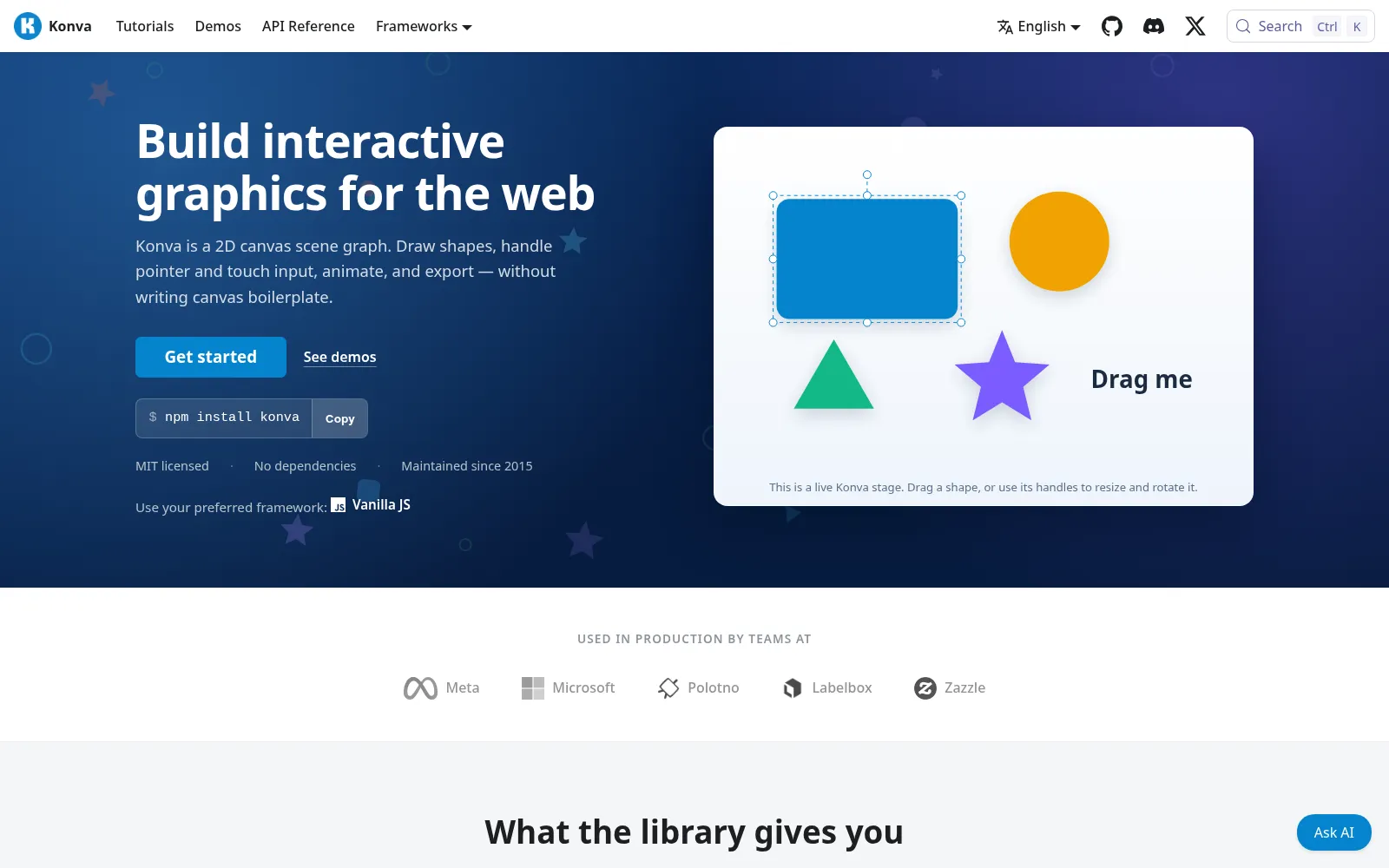
[Konva](https://github.com/konvajs/konva) is a 2D canvas library, and [react-konva](https://github.com/konvajs/react-konva) lets you write the canvas as React components. Your layers are just state, so a design is an array of objects you map over. If your app is already React, this is the most natural way to build an editor. It's also the most used of the three by a wide margin, with 3.35 million weekly downloads for `konva` and 2.54 million for `react-konva`.
```bash
npm i konva react-konva use-image
```
```jsx
import { useEffect, useRef, useState } from "react";
import { Stage, Layer, Image as KonvaImage, Text, Transformer } from "react-konva";
import useImage from "use-image";
export function Editor() {
const [photo] = useImage("/photo.jpg", "anonymous");
const [selected, setSelected] = useState(null);
const stageRef = useRef(null);
const trRef = useRef(null);
// Show resize and rotate handles on the selected layer
useEffect(() => {
trRef.current.nodes(selected ? [selected] : []);
}, [selected]);
const exportPng = () => stageRef.current.toDataURL({ pixelRatio: 2 });
return (
e.target === e.target.getStage() && setSelected(null)}
>
setSelected(e.target)} />
setSelected(e.target)} />
);
}
```
You get dragging, the `Transformer` for resize and rotate handles, groups, filters, hit detection and good performance with a lot of shapes. `stage.toJSON()` saves a design and `toDataURL()` exports it.
What you don't get is the editor around it. Inline text editing is the usual surprise: Konva draws text but doesn't edit it, so you position a `textarea` over the text node yourself. Undo and redo, snapping guides, layers panels, font loading and a toolbar are all yours to build too. There's also no SVG export.
**Pick it when** you want full control and you're ready to own the editor. It's a proven base: Polotno, one of the bigger commercial design editor SDKs, is built on Konva and react-konva.
## 2. Orshot Embed
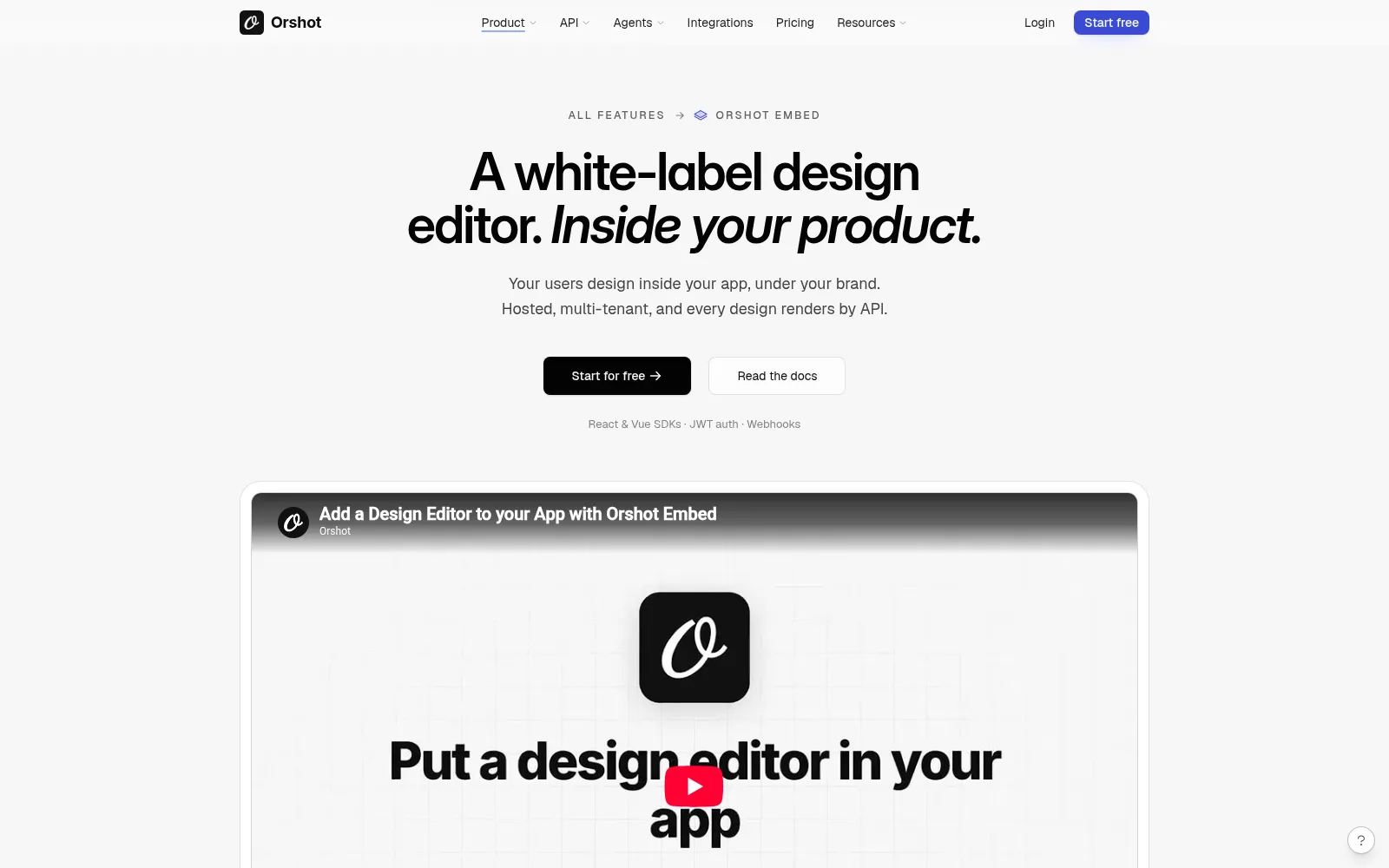
[Orshot Embed](https://orshot.com/features/orshot-embed) is the editor I work on. Orshot is an API for automated image, PDF and video generation from templates, and Embed puts its design editor (Orshot Studio) inside your app. Instead of building an editor, you drop in a component and get one that's already done: text and image layers, shapes, brand fonts and colors, templates, multi-page designs, and PNG or PDF downloads.
```bash
npm i @orshot/embed-react
```
```jsx
import { OrshotEmbed } from "@orshot/embed-react";
export function DesignEditor() {
return (
);
}
```
The React package is a 1.8 KB wrapper around an iframe, so the editor doesn't land in your bundle. You control what users can do with permission settings, each user can get their own templates, uploads, fonts and colors, and webhooks tell your backend when a design is created or saved. Because the designs are Orshot templates, the same design your user made can be rendered from the API later, as an image, a PDF or a video, with new text and images each time.
**The trade-off:** it's a hosted editor, so you configure it rather than change its code, and the designs live on Orshot. Embed starts on the $39/month plan with Orshot branding. White-labeling, webhooks and per-user data come with the $160/month plan.
**Pick it when** the editor is a feature of your product, not the product itself, and you'd rather ship it this week than maintain it for the next year.
## 3. Fabric.js
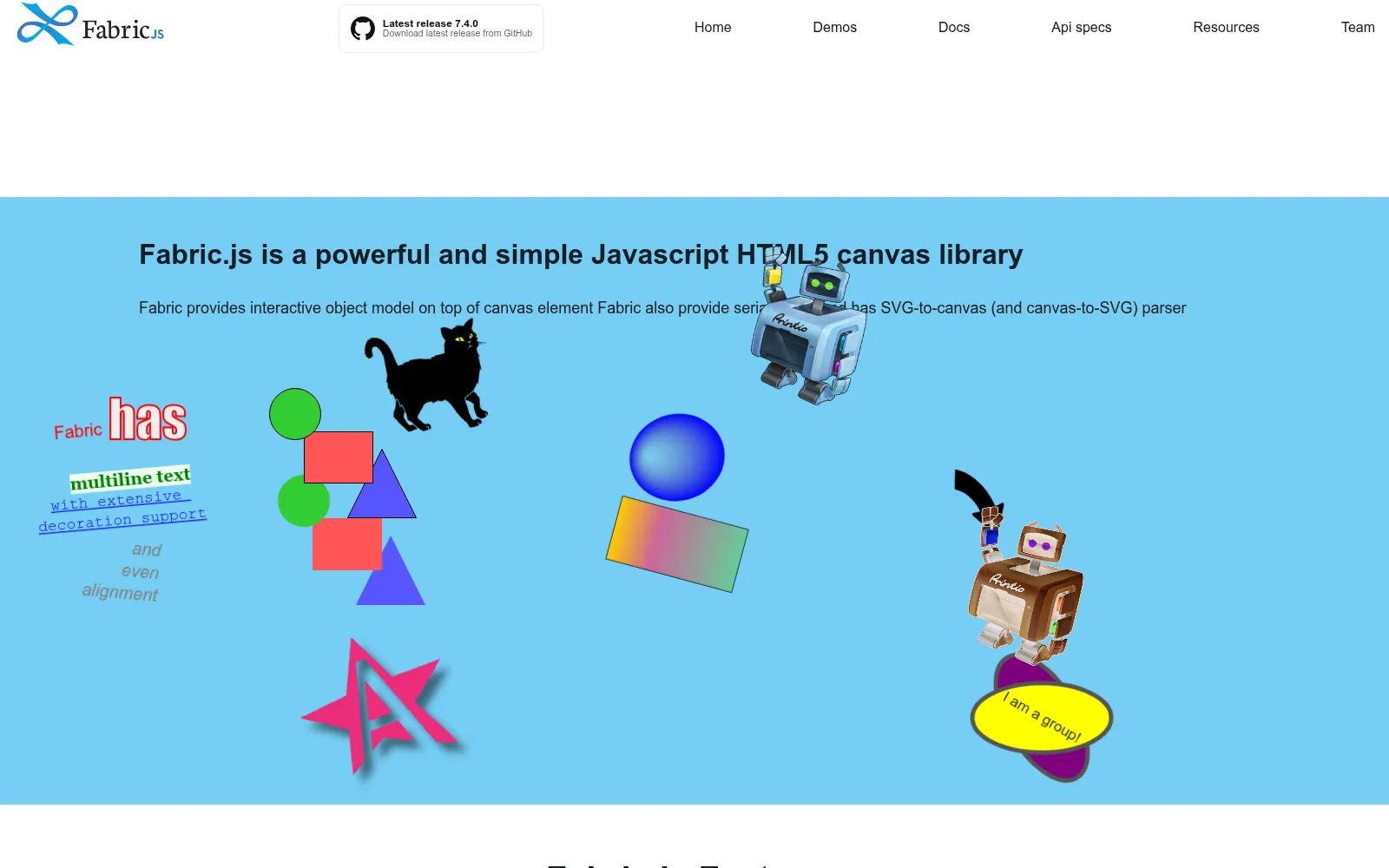
[Fabric.js](https://github.com/fabricjs/fabric.js) is the other big canvas library, and it's been around for well over a decade. Where Konva gives you shapes to arrange, Fabric gives you an interactive object model out of the box: click to select, handles to resize and rotate, multi-select, and text you can double-click and type into. Version 6 rewrote it in TypeScript with ES modules, and it's still actively maintained.
```bash
npm i fabric
```
```jsx
import { useEffect, useRef } from "react";
import { Canvas, FabricImage, Textbox } from "fabric";
export function Editor() {
const elRef = useRef(null);
const canvasRef = useRef(null);
useEffect(() => {
const canvas = new Canvas(elRef.current, { width: 800, height: 500 });
canvasRef.current = canvas;
FabricImage.fromURL("/photo.jpg", { crossOrigin: "anonymous" }).then((img) => {
canvas.add(img);
canvas.sendObjectToBack(img);
});
canvas.add(new Textbox("Double-click to edit", { left: 40, top: 40, width: 320, fontSize: 32 }));
return () => {
canvas.dispose();
};
}, []);
const exportPng = () => canvasRef.current.toDataURL({ format: "png", multiplier: 2 });
return ;
}
```
It also imports and exports SVG, serializes the whole canvas to JSON with `canvas.toJSON()` and `loadFromJSON()`, and has image filters built in. That's a lot less to build than with Konva for a classic design editor.
The catch in a React app is that Fabric isn't React. There are no official bindings, so the canvas lives in a ref and you keep its objects in sync with your React state by hand. It's also about 93 KB gzipped, and most of that stays even if you only import a few classes.
**Pick it when** you want inline text editing, selection and SVG support without building them, and you're fine managing the canvas outside React's state.
## Other editors worth knowing
These didn't make the top three for a React app, but they're good at what they do:
- **Polotno** is a complete design editor SDK built on Konva, with templates, text, images and a side panel, and 35K weekly downloads. It's a commercial license you host and maintain yourself. I wrote up how it compares with a hosted editor, costs included, in this [Polotno alternative](https://orshot.com/blog/polotno-studio-alternative) post.
- **img.ly CreativeEditor SDK (CE.SDK)** is a polished commercial editor for the browser and mobile, at 62K weekly downloads. You run the rendering and backend around it, and pricing is through their sales team. Here's the full [img.ly alternative](https://orshot.com/blog/imgly-sdk-alternative) comparison if you're weighing it up.
- **Filerobot Image Editor** (MIT, 64K weekly downloads) and **Pintura** (commercial, by PQINA) are photo editors rather than design editors: crop, rotate, filters, annotations. If users only need to fix a photo before upload, start here. TOAST UI Image Editor is still popular, but it hasn't had a release in years.
## Which one should you use?
- **You want to build your own editor in React:** Konva with react-konva.
- **You want a finished editor in your app this week:** Orshot Embed.
- **You want selection, inline text editing and SVG without building them:** Fabric.js.
- **Users only crop and filter photos:** Filerobot or Pintura.
If you're still unsure, try the hardest feature first. For most teams that's editing text on the canvas, with fonts that load correctly and an export that matches the screen. Whichever option makes that easiest is usually the right one. If it comes down to the two canvas libraries, my [Konva vs Fabric.js](https://orshot.com/blog/konva-vs-fabric-js) comparison builds the same features in both, text editing and export included.
# How to convert tweet to image
> Learn how to turn tweet to beautiful image using this free tool. Paste tweet link, customize the image and export the image
- URL: https://pika.style/blog/convert-tweet-to-image
- Published: 2024-12-20
- Author: Rishi Mohan
- Tags: How to
---
For founders, bloggers, and SaaS owners, converting tweets into images can enhance visibility, shareability, and engagement, ultimately driving more traffic and interest to your brand
In this tutorial, we’ll discuss why it’s essential to convert tweets to images and provide a step-by-step guide on how to do it using the [Pika Tweet to Image tool](https://pika.style/templates/tweet-image)
## Convert a Tweet to an Image Using Pika
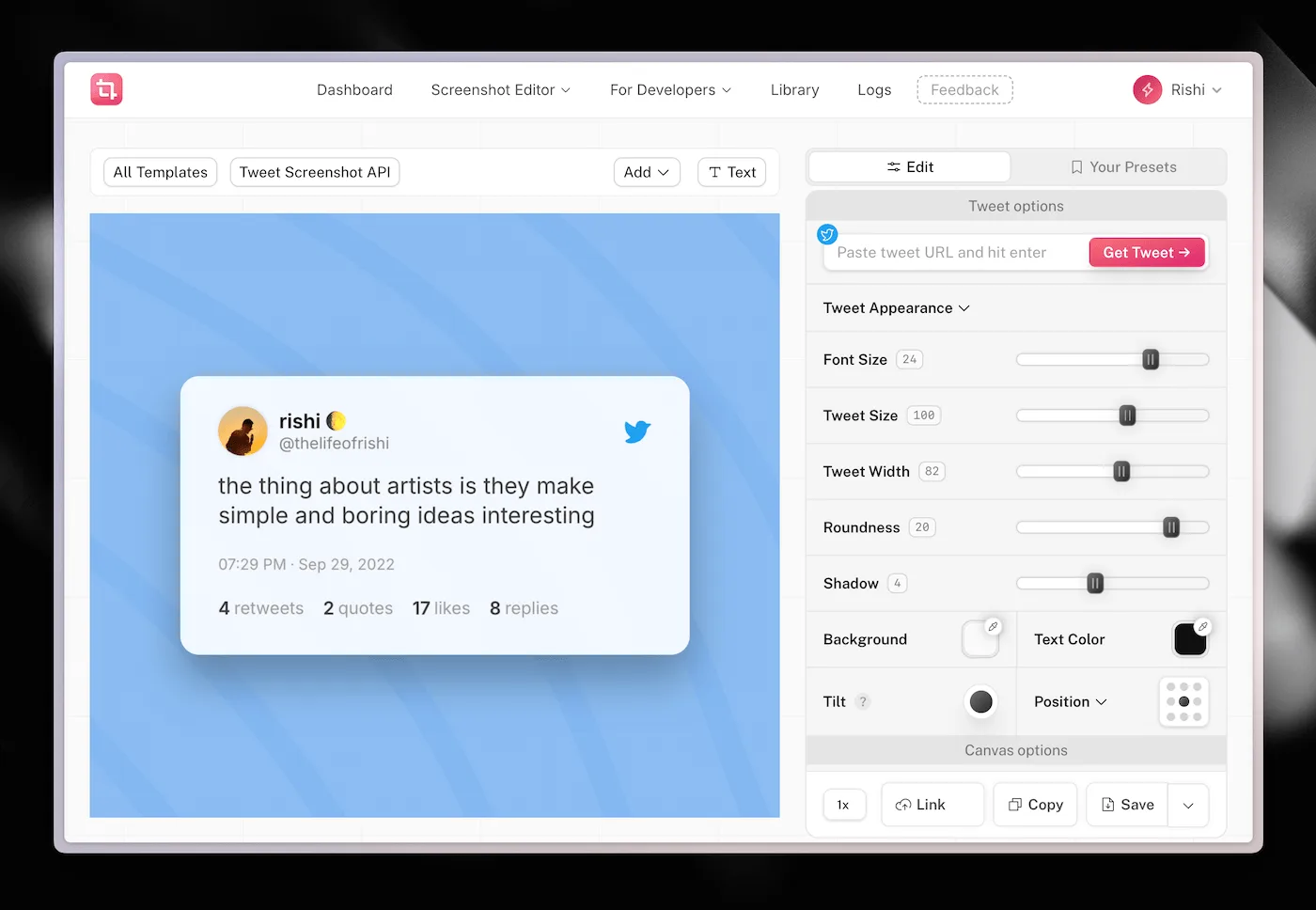
Converting a tweet to an image with the Pika Tweet to Image tool is straightforward and user-friendly. Here’s how you can do it in just a few steps:
**Step 1: Copy the Tweet URL**
1. Open Twitter and find the tweet you want to convert
2. Click on the share icon (the upward arrow) on the tweet
3. Select “Copy link to Tweet” to copy the tweet’s URL
**Step 2: Visit Pika Tweet to Image**
1. Open your web browser and navigate to the [Pika Tweet to Image](https://pika.style/templates/tweet-image) tool
**Step 3: Paste the Tweet URL**
1. On the Pika Tweet to Image tool, you’ll see an input field for the tweet URL.
2. Paste the URL you copied in Step 1 into this field
**Step 4: Customize Your Image**
1. Pika offers various customization options to enhance the visual appeal of your tweet image. You can:
▪ **Customize Fonts and Colors**: Adjust the font style and colors to match your branding or personal preference
▪ **Set Image Size**: Modify the dimensions of the image to suit the platforms where you plan to share it
**Step 5: Generate the Image**
1. After making your customizations, click the **“Copy/Save Image”** button
2. Pika will create a visually appealing image based on your specifications
3. Share this image on your social media channels, blogs, or use it in your presentations and marketing materials
Here's a quick video to demo how it all works:
Video: https://youtu.be/M4yQQsReCHU
## How you can use it
• **Promote Insights**: Founders can share tweet images highlighting industry insights or company updates to engage potential customers and investors
• **Enhance Blog Posts**: Bloggers can integrate tweet images into articles to provide visual examples of trends or conversations, making the content more engaging
• **Showcase Customer Testimonials**: SaaS owners can convert positive customer feedback into images to enhance credibility and trust in their marketing efforts
• **Create Marketing Materials**: Use tweet images in presentations or social media ads to convey key messages effectively
For founders, bloggers, and SaaS owners, converting tweets to images is a powerful strategy to enhance visibility and engagement on social media
With the Pika Tweet to Image tool, you can easily create visually stunning images that capture the essence of your tweets and resonate with your audience. By leveraging this simple yet effective process, you can strengthen your brand presence, drive traffic, and share valuable insights more effectively
[**→ Try Pika Tweet to Image tool**](https://pika.style/templates/tweet-image)
# Create beautiful images from code snippets
> Turn a code snippet into a clean, shareable image with syntax highlighting, auto-indentation and themes, using Pika's free code image tool.
- URL: https://pika.style/blog/code-snippet-to-image
- Published: 2024-12-18
- Author: Rishi Mohan
- Tags: How to
---
As a developer, designer, or marketer, you understand the importance of presenting your code in a visually appealing way. Whether it's for a presentation, social media post, or landing page, a well-designed code screenshot can make all the difference
That's where [Pika's Code to Image template](https://pika.style/templates/code-image) comes in - a free tool that simplifies the process of designing beautiful images from screenshots and code snippets
Pika's Code to Image is a powerful tool that allows users to create aesthetically pleasing visuals from code snippets and screenshots. With its user-friendly interface and robust features, it's a perfect tool for developers, designers, and marketers looking to enhance their presentations without extensive graphic design skills
## Key Features
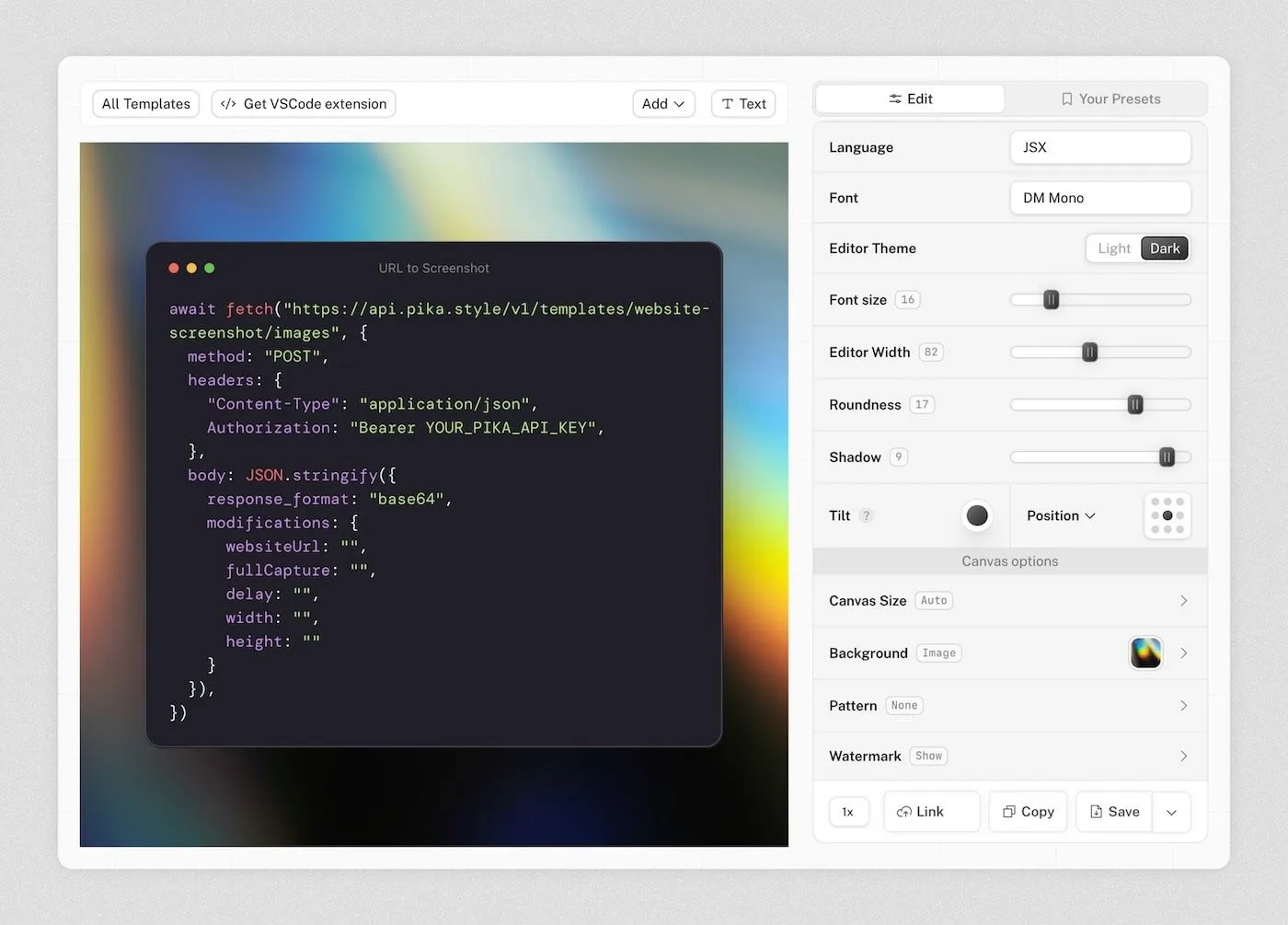
So, what makes Pika so special? Here are some of its key features:
### Customization Options
Users can apply various styles, including rounded corners, background gradients, shadows, and overlays, to create unique images tailored to specific needs
You get to chose a **custom monospace font** for your code from fonts like DM Mono, IBM Plex Mono, Space Mono etc. You can also chose **editor color scheme** between Dark and Light
You can also select from dozens of languages for your code, all come with their own syntax highlighting themes
### Ease of Use
The app saves user preferences locally, streamlining the design process for future sessions. Keyboard shortcuts also enhance efficiency, enabling quick actions like pasting screenshots or saving images.
### Integration with VSCode
Pika comes with [VSCode Code to Image extension](https://pika.style/tools/vscode-extension), allowing users to capture and edit screenshots directly from their development environments
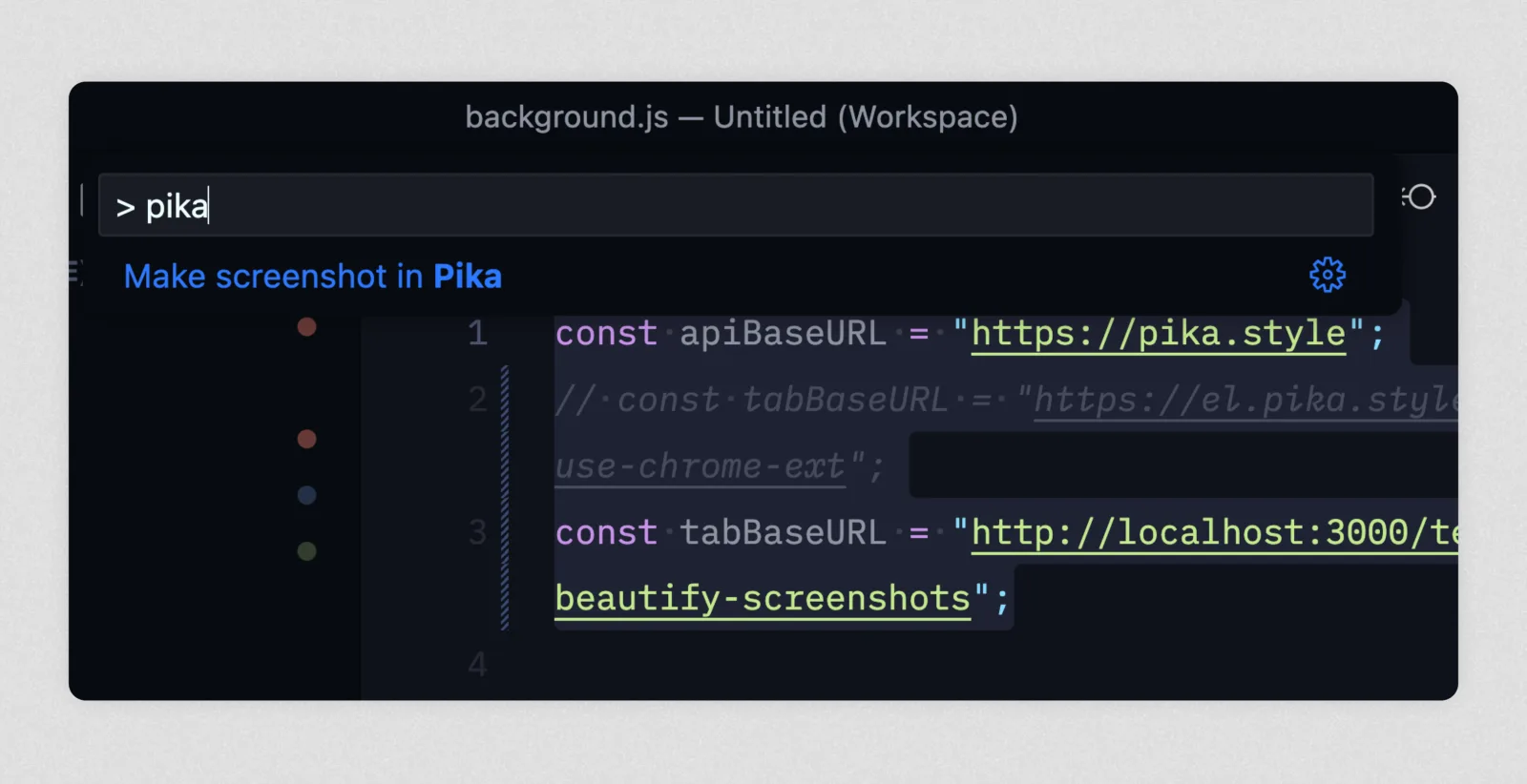
You just select the code, hit **Cmd + Shift + P**, search for `_Make screenshot in Pika_` and hit enter. It'll open the selected code snippet in Pika with language auto-selected
## How to Convert Code to Image
So, how does Pika work its magic? Here's a step-by-step guide:
1. **Input**: Add code snippets into Pika's canvas. You can either paste it in the canvas or open code snippet in Pika from VSCode using [Pika VSCode extension](https://pika.style/tools/vscode-extension)
2. **Styling**: Customization options are available on the right side of the editor, where you can modify font, theme, backgrounds, add shadows, and more
3. **Exporting**: Once satisfied with the design, you can save the image in various formats or copy it directly to their clipboard
Here's a quick video which shows how to use Code to Image template and all the customizations that you can do with it
Video: https://youtu.be/MAyqINk802o?si=KPRMeL3bFQ5ugy73
## Use Cases for Pika
Pika is ideal for a variety of use cases, including:
• **Developers**: Quickly generating code images from editors like VSCode.
• **Marketers**: Creating engaging visuals for social media posts or landing pages.
• **Educators**: Designing illustrative content for presentations or educational materials
[**Try Pika's Code to Image →**](https://pika.style/templates/code-image)
# How to take website screenshot in Next.js
> Two ways to take website screenshots in Next.js: run Puppeteer yourself, or call Orshot's screenshot API from an App Router route handler.
- URL: https://pika.style/blog/take-screenshots-nextjs
- Published: 2024-08-16 (updated 2026-10-02)
- Author: Rishi Mohan
- Tags: How to
---
Taking screenshots manually is a big hassle, especially if you take a lot of them regularly with a [website screenshot generator](https://pika.style/tool/website-screenshot-generator). In this post, we'll see how you can use Next.js to take website screenshots programmatically in a few seconds.
## Website **screenshots in Next.js**
There are several ways to take website screenshots in Next.js, but in this post we'll cover two: running Puppeteer yourself, and calling [Orshot](https://orshot.com), an image generation API with a ready-made website screenshot template.
Both examples use the App Router, so the server code lives in a route handler under `app/`.
### Using Puppeteer to take screenshots in Next.js
Puppeteer drives a headless Chrome, so you can open a page and save what it renders. Here's how to set it up in Next.js.
**Install Puppeteer**: Install it with npm, or with yarn or pnpm if you prefer. The package downloads its own copy of Chrome the first time it installs.
```bash
npm install puppeteer
```
**Create a route handler for taking screenshots**: Create `app/api/screenshot/route.js` and add the following code:
```javascript
// app/api/screenshot/route.js
import puppeteer from "puppeteer";
export async function GET(request) {
const url = request.nextUrl.searchParams.get("url");
if (!url) {
return Response.json({ error: "URL is required" }, { status: 400 });
}
const browser = await puppeteer.launch();
try {
const page = await browser.newPage();
await page.setViewport({ width: 1280, height: 800 });
await page.goto(url, { waitUntil: "networkidle2" });
const screenshot = await page.screenshot({ type: "png" });
return new Response(screenshot, {
headers: { "Content-Type": "image/png" },
});
} catch (error) {
return Response.json({ error: "Failed to take screenshot" }, { status: 500 });
} finally {
await browser.close();
}
}
```
Pass `fullPage: true` to `page.screenshot()` if you want the whole page instead of the visible area.
**Call the route from your frontend**: Since the route returns an image, the simplest client is an `` tag pointing at it. Here's a small client component that does that:
```jsx
// app/page.js
"use client";
import { useState } from "react";
export default function Home() {
const [url, setUrl] = useState("");
const [imageSrc, setImageSrc] = useState("");
function captureScreenshot(event) {
event.preventDefault();
setImageSrc(`/api/screenshot?url=${encodeURIComponent(url)}`);
}
return (
);
}
```
**Run your application**: Start the dev server and try a URL.
```bash
npm run dev
```
That's the basic setup. From here you can tune the viewport, wait for specific elements, or loop over a list of URLs from a JSON file if you need many screenshots at once.
**Note:** this works locally and on a server or VPS, but not as-is on serverless platforms like Vercel or Netlify. The Chrome that Puppeteer downloads is too big for a serverless function, so you'd have to switch to `puppeteer-core` with a slimmed-down Chromium build, or host the route somewhere that can run a full browser. On top of that, you handle slow pages, cookie banners, fonts and crashes yourself.
### Using Orshot to take screenshots in Next.js
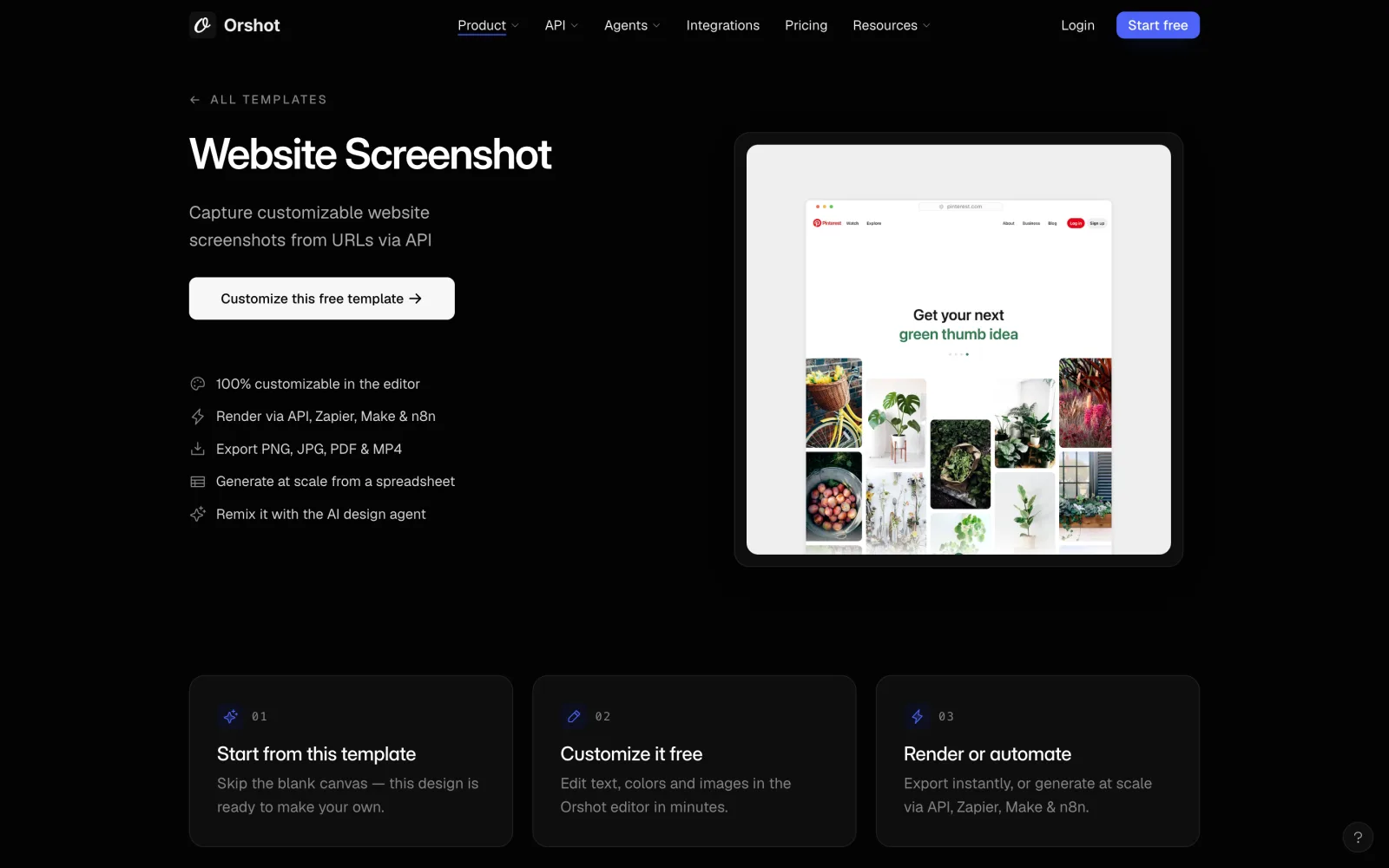
If you'd rather not run a browser, call a screenshot API instead. [Orshot](https://orshot.com) is made by the team behind Pika, and Pika's screenshot API now lives there. Its [Website Screenshot](https://orshot.com/templates/website-screenshot) template captures any URL as PNG, JPG, WebP, AVIF or PDF, and since it's a plain HTTPS request, it runs fine on Vercel and other serverless hosts.
### Step 1: Set up a Next.js project and an API key
If you don't already have a Next.js project, create one:
```bash
npx create-next-app@latest your-project-name
cd your-project-name
```
Then [get an Orshot API key](https://orshot.com/docs/quick-start/get-api-key) from the API Keys page in your dashboard (the free plan includes 100 credits a month) and add it to `.env.local`:
```bash
ORSHOT_API_KEY=your_orshot_api_key
```
Keep the key on the server. Only code in route handlers, server actions and Server Components should read it.
### Step 2: Create a route handler
Create `app/api/screenshot/route.js`. It takes a URL from the client, asks Orshot for a screenshot, and returns the image URL:
```javascript
// app/api/screenshot/route.js
// Full-page captures can take a few seconds, so allow a longer run time
export const maxDuration = 60;
export async function POST(request) {
const { url, fullCapture = false } = await request.json();
let websiteUrl;
try {
websiteUrl = new URL(url).toString();
} catch {
return Response.json({ error: "A valid URL is required" }, { status: 400 });
}
const response = await fetch("https://api.orshot.com/v1/generate/images", {
method: "POST",
headers: {
"Content-Type": "application/json",
Authorization: `Bearer ${process.env.ORSHOT_API_KEY}`,
},
body: JSON.stringify({
templateId: "website-screenshot",
response: { type: "url", format: "png" },
modifications: {
websiteUrl,
fullCapture,
delay: 500,
width: 1280,
height: 800,
},
}),
});
const result = await response.json();
if (!response.ok) {
return Response.json({ error: result.error }, { status: response.status });
}
// With response.type "url", data.content is a link to the hosted image
return Response.json({ image: result.data.content });
}
```
What the request does:
- `templateId: "website-screenshot"` picks Orshot's screenshot template.
- `response.type` is `"url"` here, so you get back a link to the hosted image. Use `"base64"` for a data URI or `"binary"` for the raw file. `response.format` can be `png`, `jpg`, `webp`, `avif` or `pdf`.
- `websiteUrl` is the only required modification. `fullCapture: true` captures the whole page, `delay` waits (in milliseconds) before capturing, which helps on slow or animated pages, and `width` and `height` set the size.
The template also takes `captureElement`, a CSS selector to capture one element, and `blockMedia` to skip videos for a lighter capture. The [template page](https://orshot.com/templates/website-screenshot) lists every option.
Every request uses credits from your plan, so before you ship this, put the route behind your app's auth or add a rate limit so strangers can't use it.
### Step 3: Call the route from a component
Now a client component that posts a URL to the route and shows the result:
```jsx
// app/page.js
"use client";
import { useState } from "react";
export default function Home() {
const [url, setUrl] = useState("https://pinterest.com");
const [fullCapture, setFullCapture] = useState(false);
const [image, setImage] = useState(null);
const [error, setError] = useState(null);
const [loading, setLoading] = useState(false);
async function takeScreenshot(event) {
event.preventDefault();
setLoading(true);
setError(null);
try {
const response = await fetch("/api/screenshot", {
method: "POST",
headers: { "Content-Type": "application/json" },
body: JSON.stringify({ url, fullCapture }),
});
const data = await response.json();
if (response.ok) {
setImage(data.image);
} else {
setError(data.error || "Something went wrong");
}
} catch {
setError("Something went wrong");
} finally {
setLoading(false);
}
}
return (
);
}
```
### Step 4: Run the project
Start the development server and take your first screenshot:
```bash
npm run dev
```
### Prefer a server action?
If the screenshot is only used inside your own app, a server action saves you the route and the `fetch` on the client. Put it in its own file:
```javascript
// app/actions.js
"use server";
export async function takeScreenshot(websiteUrl) {
const response = await fetch("https://api.orshot.com/v1/generate/images", {
method: "POST",
headers: {
"Content-Type": "application/json",
Authorization: `Bearer ${process.env.ORSHOT_API_KEY}`,
},
body: JSON.stringify({
templateId: "website-screenshot",
response: { type: "url", format: "png" },
modifications: { websiteUrl, width: 1280, height: 800 },
}),
});
const result = await response.json();
if (!response.ok) throw new Error(result.error);
return result.data.content;
}
```
Then call it from a client component with `const image = await takeScreenshot(url)`. Server actions are public endpoints too, so the same advice about auth and rate limits applies.
Like with Puppeteer, if you need many screenshots at once, loop over a list of URLs. If that list lives in a spreadsheet, Orshot also connects to [Zapier, Make and n8n](https://orshot.com/integrations), so you can skip the code for that part.
## Puppeteer or a screenshot API?
Both work. Here's how they compare in practice.
**Hosting:** Puppeteer needs a server that can run Chrome. With Orshot, the browser runs on Orshot's side, so your Next.js app can stay on Vercel or any serverless host.
**Setup and upkeep:** With Puppeteer, you own the browser: memory, timeouts, fonts, crashes and Chrome updates. With an API, it's one `fetch` call.
**Control:** Puppeteer lets you do anything a browser can, like logging in, clicking through a flow or running custom scripts before the capture. An API gives you the options it exposes, which cover most screenshot needs: full page, delay, size, a single element and the output format.
**Cost:** Puppeteer is free apart from your hosting. Orshot has a free plan with 100 credits a month, and paid plans for more volume.
**More than screenshots:** Orshot also has templates for [beautified screenshots](https://orshot.com/templates/beautify-screenshot), Open Graph images, social posts, PDFs and videos, all through the same endpoint.
## Conclusion
Now you know two ways to take website screenshots in Next.js. If you already run a server and want full control over the browser, Puppeteer is a good fit. If you'd rather not run Chrome yourself or you deploy to a serverless platform, [Orshot's screenshot API](https://orshot.com/templates/website-screenshot) gets you there with a single request, and you can start on the free plan.
If you want to make a screenshot look nicer before you share it, drop it into Pika's [screenshot editor](https://pika.style/templates/screenshot-editor) to add a background, padding, rounded corners and a shadow. For more options, see our list of the [best screenshot APIs](https://pika.style/blog/best-screenshot-api).
# We've decided to make less money
> Today we're updating Pika's pricing and we have a good news for all our existing users. We've decided to make less money and add more value for our customers
- URL: https://pika.style/blog/pricing-update-august-24
- Published: 2024-08-13
- Author: Rishi Mohan
- Tags: Changelog
---
Today we're updating Pika's pricing and we have a good news for all our existing and new users. We've decided to make less money and add more value for our customers, which means **at the same price you'll get more from Pika**
Primarily, **there's increase in the Pika API usage for the same pricing**. The changes are as follows:
- For $15 a month, you now get 2,500 requests per month(50 before)
- For $25 a month, you now get 4,000 requests per month(500 before)
- For $40 a month, you now get 8,000 requests per month(1,500 before)
- For $80 a month, you now get 12,000 requests per month(5,000 before)
- For $120 a month, you now get 20,000 requests per month(10,000 before)
- For $180 a month, you now get 32,000 requests per month(20,000 before)
You can [view the new pricing on pricing page](https://pika.style/pricing)
Pika makes it ease peasy to generate beautiful marketing images via through [Pika Editor](https://pika.style/templates/screenshot-editor) or [Pika API](https://pika.style/image-generation-api). And this step is so Pika's customers get the best of Pika at affordable pricing
# 5+ Best screenshot API [2026]
> We compare the best screenshot APIs in 2026, including Orshot, ScreenshotOne, URLBox, ScreenshotAPI and Abstract API, with pricing and code.
- URL: https://pika.style/blog/best-screenshot-api
- Published: 2024-08-02 (updated 2026-10-02)
- Author: Rishi Mohan
- Tags: Lists
---
Whether you need to track website changes, capture visual data, create thumbnails or build a tool that requires taking screenshots programmatically, a screenshot API is essential. There are several screenshot APIs available in the market, each with its pros and cons.
In this blog, we'll dive deep into what a screenshot API is, explore some of the best options available in 2026, and help you decide which one might be the best fit for your needs.
## What is a Screenshot API?
A screenshot API allows you to programmatically capture screenshots of web pages. Screenshot API can be useful for various applications, such as generating previews, monitoring website changes, or capturing visual content for reports.
By utilizing a screenshot API, you can automate the process and integrate it seamlessly into your workflows.
## Best Screenshot APIs
### Orshot
[Orshot](https://orshot.com) is an API for generating images, PDFs and videos from templates, made by the team behind Pika. Pika's screenshot API now lives in Orshot, so if you used it before, the templates and parameters are the same.

Its [Website Screenshot](https://orshot.com/templates/website-screenshot) template captures any URL as PNG, JPG, WebP or PDF. You can take a full-page capture, wait for slow pages with a delay, set the output size, capture a single element with a CSS selector, and block video for a faster, lighter capture.
Orshot works from any language with fetch() or equivalent, and there are official SDKs for Node.js, Python, PHP and Ruby.
**Here's a quick example of code for Orshot's screenshot API:**
```javascript
const response = await fetch("https://api.orshot.com/v1/generate/images", {
method: "POST",
headers: {
"Content-Type": "application/json",
Authorization: "Bearer YOUR_ORSHOT_API_KEY",
},
body: JSON.stringify({
templateId: "website-screenshot",
response: { type: "base64", format: "png" },
modifications: {
websiteUrl: "https://YourWebsite.com",
fullCapture: false,
delay: 500,
width: 1200,
height: 1000,
},
}),
});
const { data } = await response.json();
// data.content is the image, e.g. "data:image/png;base64,..."
```
You can also use Orshot's [beautify screenshot](https://orshot.com/templates/beautify-screenshot) template to add a background, padding, rounded corners and a shadow to a screenshot, the same kind of styling Pika's editor does, but through the API. You need the screenshot's URL (or base64) first, which the code above gives you.
**Here's a quick example of code for Orshot's beautify screenshot API:**
```javascript
await fetch("https://api.orshot.com/v1/generate/images", {
method: "POST",
headers: {
"Content-Type": "application/json",
Authorization: "Bearer YOUR_ORSHOT_API_KEY",
},
body: JSON.stringify({
templateId: "beautify-screenshot",
response: { type: "url", format: "png" },
modifications: {
screenshotImage: "https://assets.pika.style/cdn/api-templates/sample-images/website-screenshot.png",
padding: 50,
borderRadius: 10,
screenshotShadow: "0 0 12px rgba(0,0,0,0.1)",
backgroundColor: "#fff",
backgroundPattern: "waves",
width: 1200,
height: 1000,
},
}),
});
```
**Link to official guide/documentation:**
- [Render a template via API](https://orshot.com/docs/api-reference/render-from-template) (fetch and cURL)
- [Official SDKs](https://orshot.com/docs/sdks) for [Node.js](https://www.npmjs.com/package/orshot), [Python](https://pypi.org/project/orshot/), [PHP](https://packagist.org/packages/rishimohan/orshot) and [Ruby](https://rubygems.org/gems/orshot)
- [Website Screenshot template](https://orshot.com/templates/website-screenshot)
If you are a non-programmer or someone like me who just hates to code, Orshot also connects to [Zapier, Make and n8n](https://orshot.com/integrations), so you can capture screenshots from a spreadsheet or any other trigger without writing code. And for the odd one-off capture, Pika's free [website screenshot generator](https://pika.style/tool/website-screenshot-generator) runs on the same API.
**Pricing:** The free plan includes 100 credits a month with no card required, and a website screenshot uses 1 credit. Paid plans start at $39 a month for 1,500 credits.
Do give [Orshot's screenshot API](https://orshot.com/templates/website-screenshot) a try; you can start on the free plan!
### ScreenshotAPI.net
ScreenshotAPI provides a straightforward and easy way to capture screenshots. It supports a wide range of customization options, such as viewport dimensions and delay settings, ensuring you get the exact shot you require.
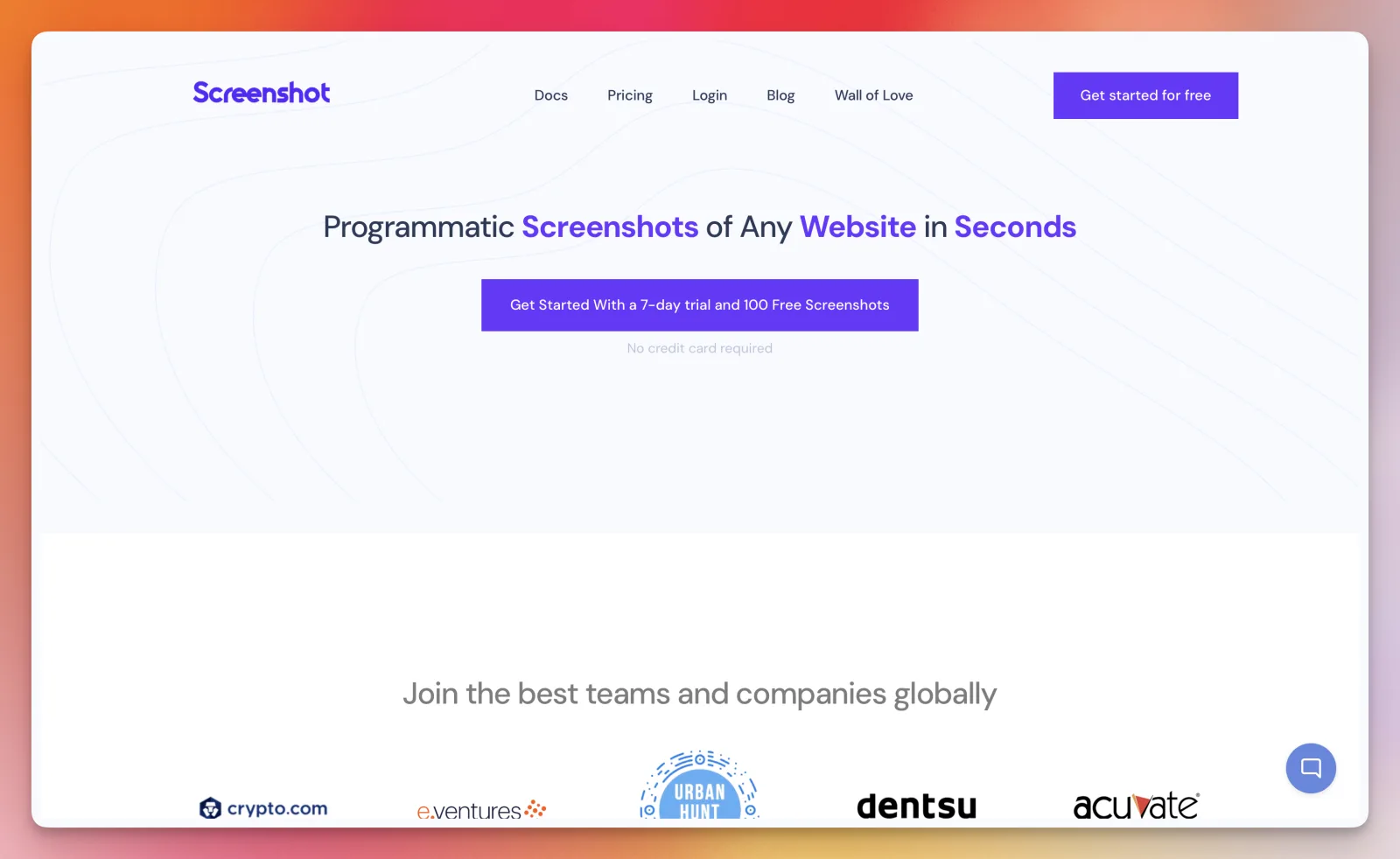
It's a good fit if you want a simple, low-cost screenshot API and don't need much beyond the capture itself.
**Pricing:** There's no free plan, but there's a 7-day free trial with 100 screenshots. Paid plans start at $9 a month for 1,000 screenshots.
### ScreenshotOne
ScreenshotOne is another popular screenshot API made by [Dmytro Krasun](https://x.com/DmytroKrasun) (a fellow Indie-Hacker).
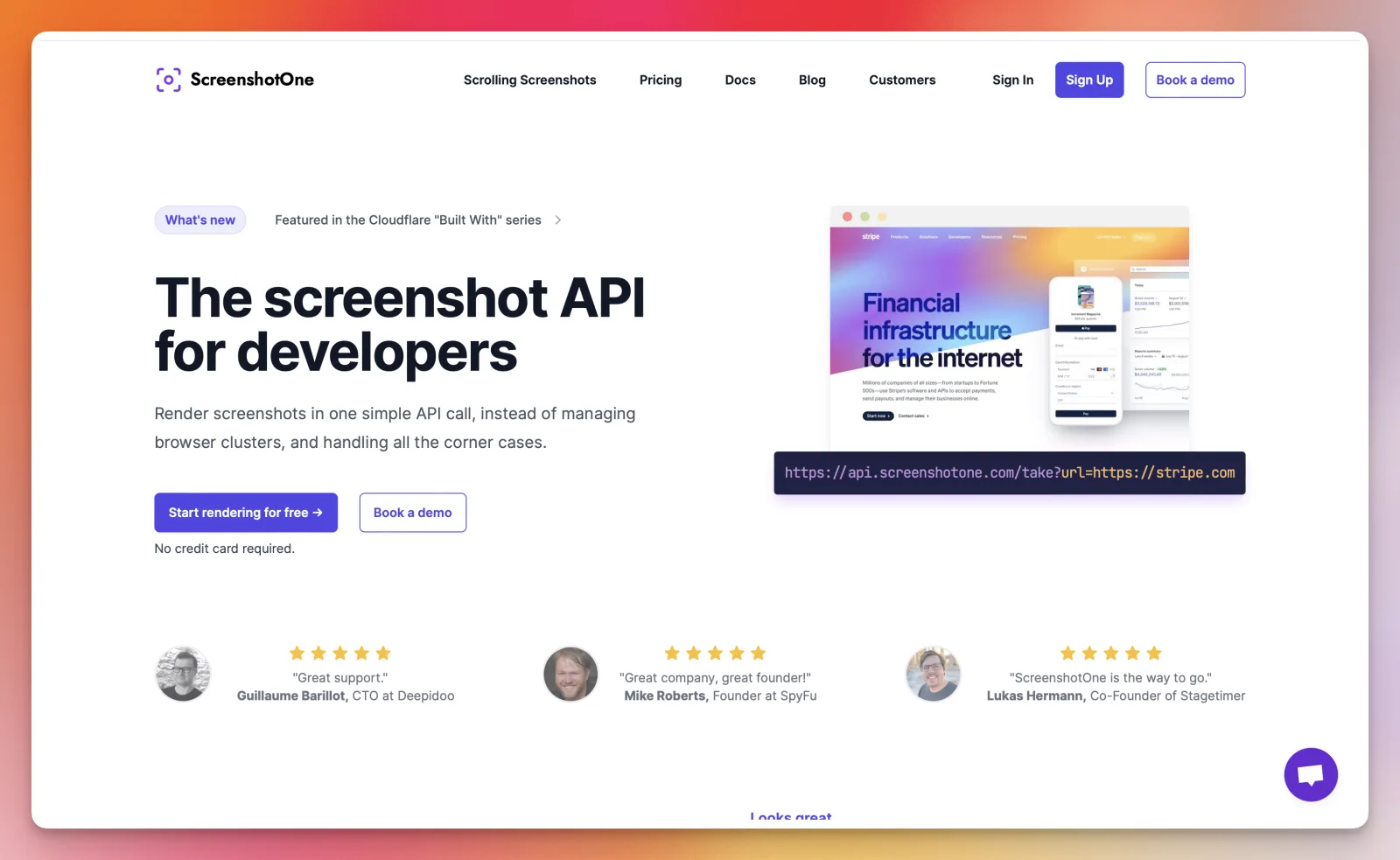
It's definitely a great screenshot API focused on performance and reliability. Apart from general features like full-page screenshots and PDF rendering, ScreenshotOne also comes with advanced features like blocking ads and cookie banners, and uploading screenshots straight to S3.
**Pricing:** The free plan includes 100 screenshots a month with no card required, and paid plans start at $17 a month for 2,000 screenshots.
### Abstract API
Abstract API is an excellent choice for developers looking for a single provider that can do much more than just taking screenshots.
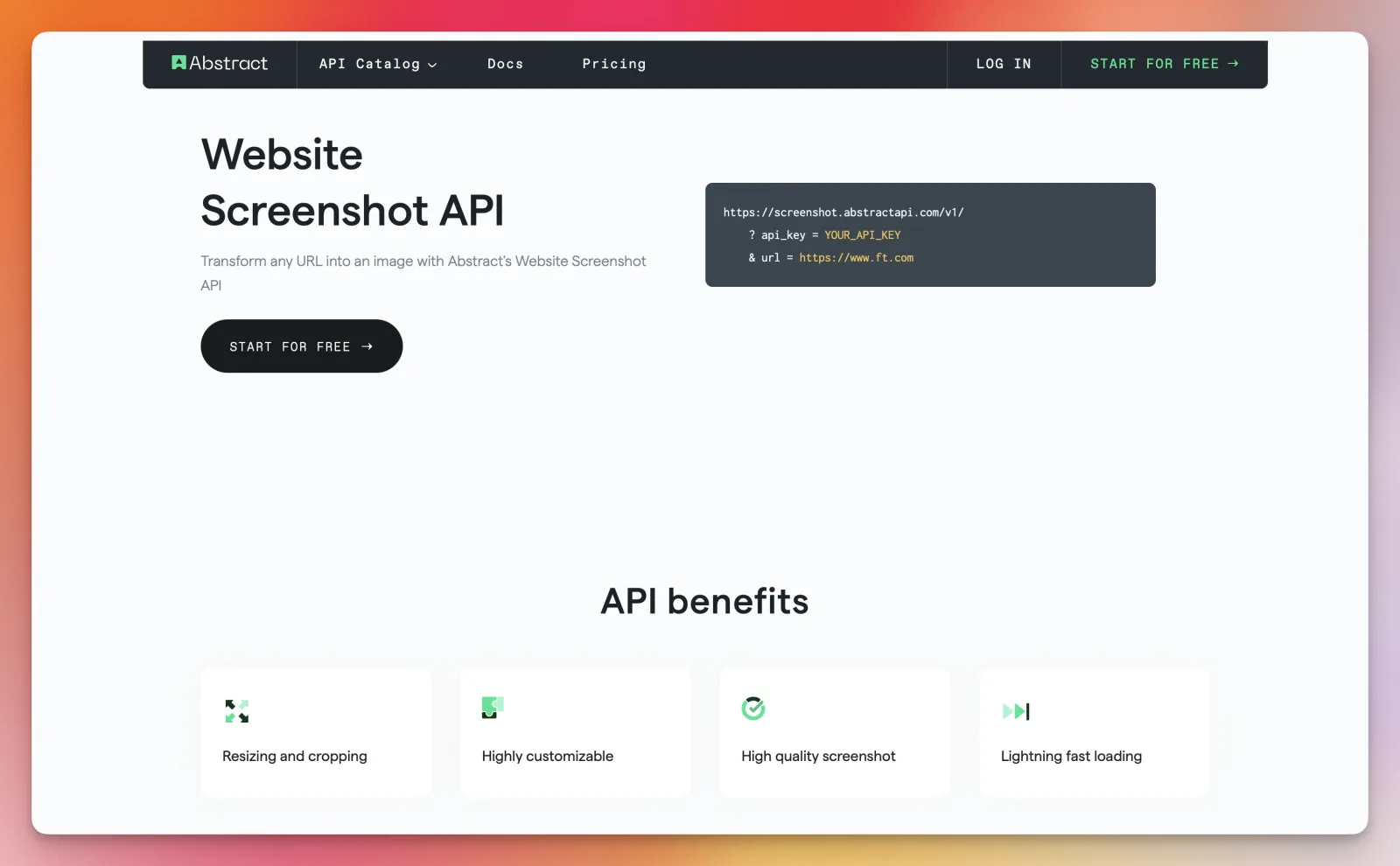
Its API catalogue includes various APIs such as IP geolocation, email validation and many more. One downside here is that each API has its own plan, so you pay for each one separately.
**Pricing:** The free plan includes 100 screenshots a month, and paid plans for the screenshot API start at $99 a month.
### URLBox
URLBox is another popular screenshot API provider. It offers a reliable screenshot API with features such as blocking ads and cookie banners. This is especially a great choice for the EU, as GDPR has introduced numerous banners.
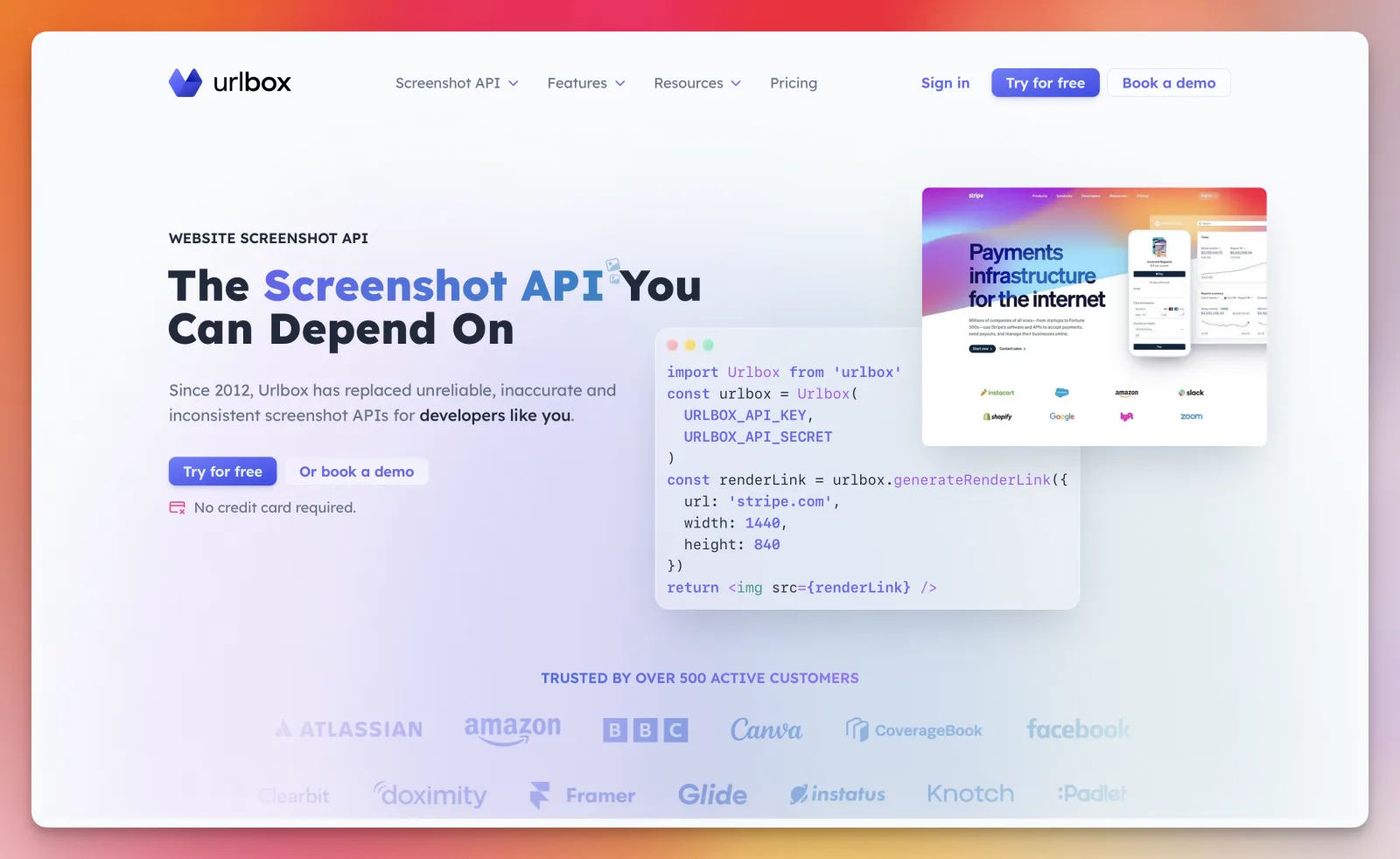
It also supports retina resolutions up to 5K, URL to PDF and custom JavaScript, giving you full control over your captures.
**Pricing:** There's a 7-day free trial with no card required, and paid plans start at $19 a month for 2,000 renders.
### Others
There are numerous other screenshot APIs available, each boasting unique features and benefits. Notable mentions include ApiFlash, Screenshot Machine, and screenshotlayer API, each offering distinct capabilities that may be suitable for specific use cases.
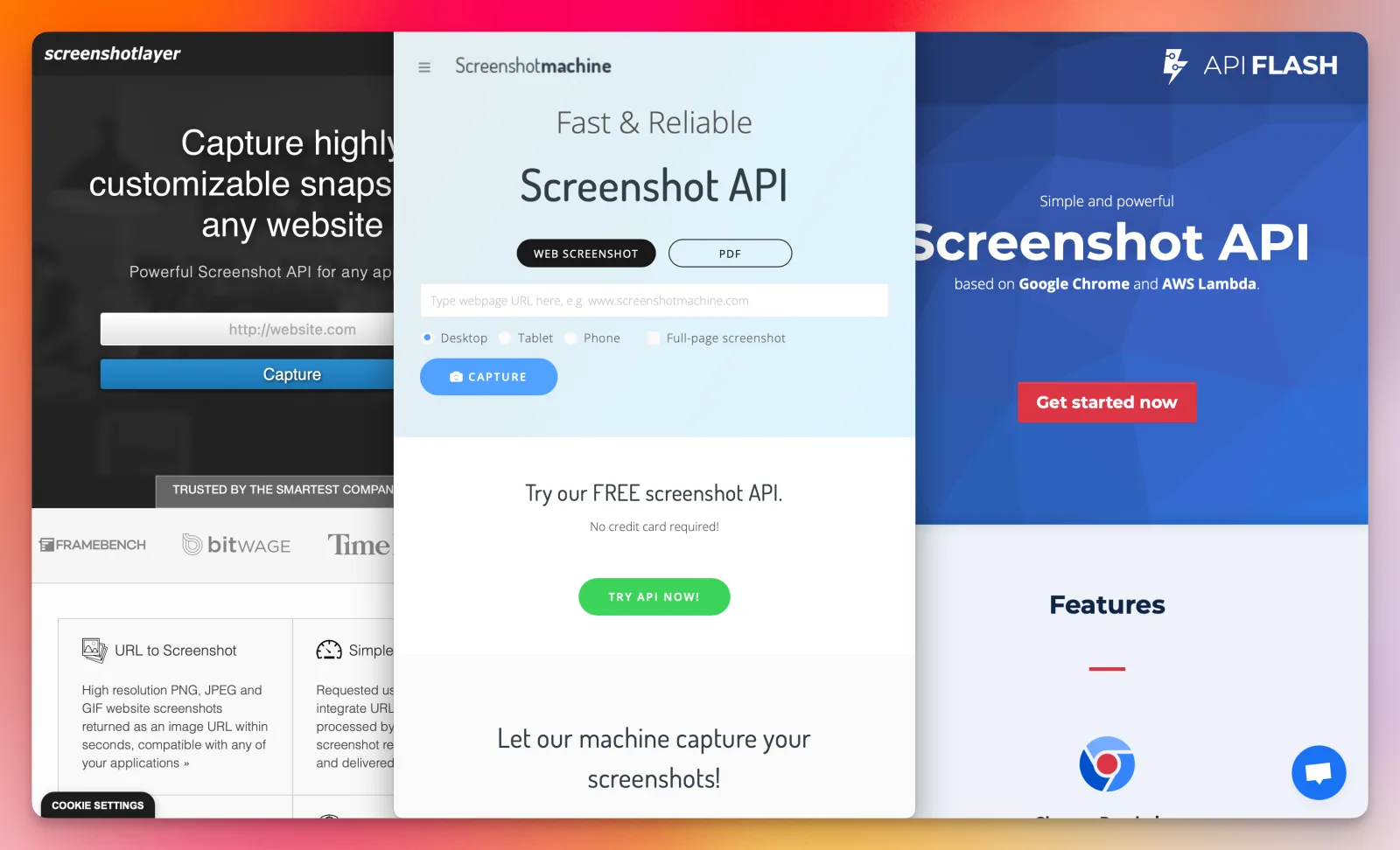
## Which one is the best for you?
Although there isn't a clear winner, some options do have an edge. If you need an API with more than just screenshot capabilities, Orshot is the best choice. It can also [beautify screenshots](https://orshot.com/templates/beautify-screenshot), create Open Graph images, social posts, PDFs and videos from templates, and much more.
If you need fine control over the capture itself, like blocking ads and cookie banners, ScreenshotOne and URLBox are strong picks. If you only need a simple screenshot API, you can choose any option, but I recommend trying each of them to see which best suits your workflow.
## Frequently asked questions
### What happened to Pika's screenshot API?
Pika's API moved to Orshot. The `website-screenshot` and `beautify-screenshot` templates take the same parameters, so switching is mostly a matter of changing the endpoint to `https://api.orshot.com/v1/generate/images`, passing the template as `templateId` and using an Orshot API key.
### What additional features does Orshot have?
Orshot comes with several features that complement each other. Here's a list of what you can do with it:
- Website screenshots and beautified screenshots
- Dynamic Open Graph images
- Social media posts and banners
- PDFs and videos from templates
- A design editor to make your own templates
- Generating at scale from Google Sheets, Airtable, Zapier, Make or n8n
- …. And many more. Here's [the link](https://orshot.com/templates) to see all the templates.
### Can Orshot replace URLBox or ScreenshotAPI?
Yes, for most screenshot use cases: full-page and fixed-size captures, single elements and PDFs. If you rely on ad and cookie banner blocking or custom JavaScript, compare those features first.
### Which tool allows using Zapier for screenshot?
Both Orshot and ScreenshotOne support Zapier capabilities; however, certain features might differ. Feel free to compare them yourselves and choose the right one.
# Take full page website screenshots using API
> Take full-page website screenshots with Orshot's API: pass the URL, set fullCapture, and get the image back in one request. With cURL and fetch.
- URL: https://pika.style/blog/full-page-website-screenshots-api
- Published: 2024-07-07 (updated 2026-10-02)
- Author: Rishi Mohan
- Tags: How to
---
There are many uses for an API that captures website screenshots: generating link previews, showing site previews on a directory website, archiving pages, or feeding screenshots into your favourite apps through Zapier.
With a screenshot API, you automate it once and forget about it. The API does its work and you don't have to worry about it (unless you've missed your screenshot subscription's payment :P)
**In case you're looking for something that doesn't involve an API** and code, here's a [free website screenshot generator](https://pika.style/tool/website-screenshot-generator) where you paste a URL and tick "Capture full page".
So let's get started, but first, the **prerequisites**:
- We'll be using [Orshot's Website Screenshot API](https://orshot.com/templates/website-screenshot). Orshot is made by the team behind Pika, and Pika's screenshot API now lives there, so if you used it before, the template and its options are the same.
- [Get your API key](https://orshot.com/docs/quick-start/get-api-key) from the API Keys page in the Orshot dashboard. The free plan includes 100 credits a month, so you can test it without paying.
- Keep the key on your server, for example in an `ORSHOT_API_KEY` environment variable, and never ship it in frontend code.
## Taking a full-page screenshot with cURL
The quickest way to try it is from your terminal. This request captures the whole of slack.com and saves it as a PNG:
```bash
curl -X POST "https://api.orshot.com/v1/generate/images" \
-H "Authorization: Bearer $ORSHOT_API_KEY" \
-H "Content-Type: application/json" \
-d '{
"templateId": "website-screenshot",
"response": { "type": "binary", "format": "png" },
"modifications": {
"websiteUrl": "https://slack.com",
"fullCapture": true,
"width": 1200
}
}' \
--output slack.png
```
With `"type": "binary"`, the response body is the image file itself, so `--output` writes it straight to disk.
## Taking a full-page screenshot with JavaScript
Here's the same request with `fetch`, which works in Node.js 18+ and in any server-side JavaScript runtime. This time we ask for a URL to the hosted image instead of the file:
```javascript
const response = await fetch("https://api.orshot.com/v1/generate/images", {
method: "POST",
headers: {
"Content-Type": "application/json",
Authorization: `Bearer ${process.env.ORSHOT_API_KEY}`,
},
body: JSON.stringify({
templateId: "website-screenshot",
response: { type: "url", format: "png" }, // type can be "url", "base64" or "binary"
modifications: {
websiteUrl: "https://slack.com",
fullCapture: true,
delay: 1000,
width: 1200,
},
}),
});
const result = await response.json();
if (!response.ok) {
throw new Error(result.error);
}
console.log(result.data.content); // link to the full-page screenshot
```
Code explanation:
- `https://api.orshot.com/v1/generate/images` is the endpoint for every Orshot image template, and `templateId: "website-screenshot"` picks the screenshot one.
- The `Authorization` header carries your API key as `Bearer `.
- `response.type` is how you get the result back: `"url"` returns a link to the hosted image, `"base64"` returns a data URI like `data:image/png;base64,...`, and `"binary"` returns the raw file. For `url` and `base64`, the result is in `data.content` of the JSON response.
- `response.format` is the file type: `png`, `jpg`, `webp`, `avif` or `pdf`.
- `modifications` configure the capture. `websiteUrl` is the page you want, and it's the only required one. `fullCapture: true` captures the full length of the page instead of just the visible area; it takes a little longer since it waits for the whole page to load. `width` sets how wide the page is rendered, and the image runs as tall as the page. Without `fullCapture`, set both `width` and `height` to get a screenshot of a specific size.
- `delay` waits that many milliseconds before capturing. Increase it for pages that load slowly or have heavy animations.
Two more options are worth knowing: `captureElement` takes a CSS selector (like `#pricing` or `.hero`) and captures only that element, and `blockMedia: true` skips videos for a faster, lighter capture. You can try every option in the playground on the [Website Screenshot template page](https://orshot.com/templates/website-screenshot) and see the result before you write any code.
Here's the full-page output for slack.com:
If something's wrong with the request, like a missing or invalid `websiteUrl`, the API responds with an error status and a JSON body with an `error` message, which is what the `throw` above surfaces.
## Using an SDK
If you have a Node.js, Python, PHP or Ruby backend, Orshot's [official SDKs](https://orshot.com/docs/sdks) wrap the same request. With the Node.js SDK (`npm install orshot`):
```javascript
import { Orshot } from "orshot";
const orshot = new Orshot(process.env.ORSHOT_API_KEY);
const result = await orshot.renderFromTemplate({
templateId: "website-screenshot",
modifications: {
websiteUrl: "https://slack.com",
fullCapture: true,
width: 1200,
},
responseType: "url",
responseFormat: "png",
});
console.log(result.data.content);
```
If you want to put a screenshot straight into an `` tag on a public page without exposing your key, Orshot can also create [signed URLs](https://orshot.com/docs/api-reference/generate-signed-url) for a template and its modifications.
## Using Zapier and other no-code tools
If you prefer a no-code setup, Orshot connects to [Zapier, Make and n8n](https://orshot.com/integrations), so you can take website screenshots from a Google Sheets or Airtable row, or any other trigger.
And once you have a screenshot, you can make it presentable in Pika's [screenshot editor](https://pika.style/templates/screenshot-editor): add a background, padding, rounded corners and a shadow, then export it. If you're still choosing an API, here's our comparison of the [best screenshot APIs](https://pika.style/blog/best-screenshot-api).
Have any questions? DM us on Twitter [@AppPika](https://twitter.com/AppPika) or send us an email at hi@pika.style
# 5 Free Screenshot Editing Tools
> Turn your boring screenshots into appealing images that'll get you clicks with these screenshot editors
- URL: https://pika.style/blog/free-screenshot-editor-tools
- Published: 2024-02-23 (updated 2024-02-24)
- Author: Rishi Mohan
- Tags: Lists
---
Screenshots are very handy for sharing info online. They not only convey information better but also makes your content more engaging. But finding the right editor can be tough. Luckily, there are free options packed with features. Here are five awesome and free ones you can try today!
## [Pika Screenshot Editor](https://pika.style/templates/screenshot-editor)
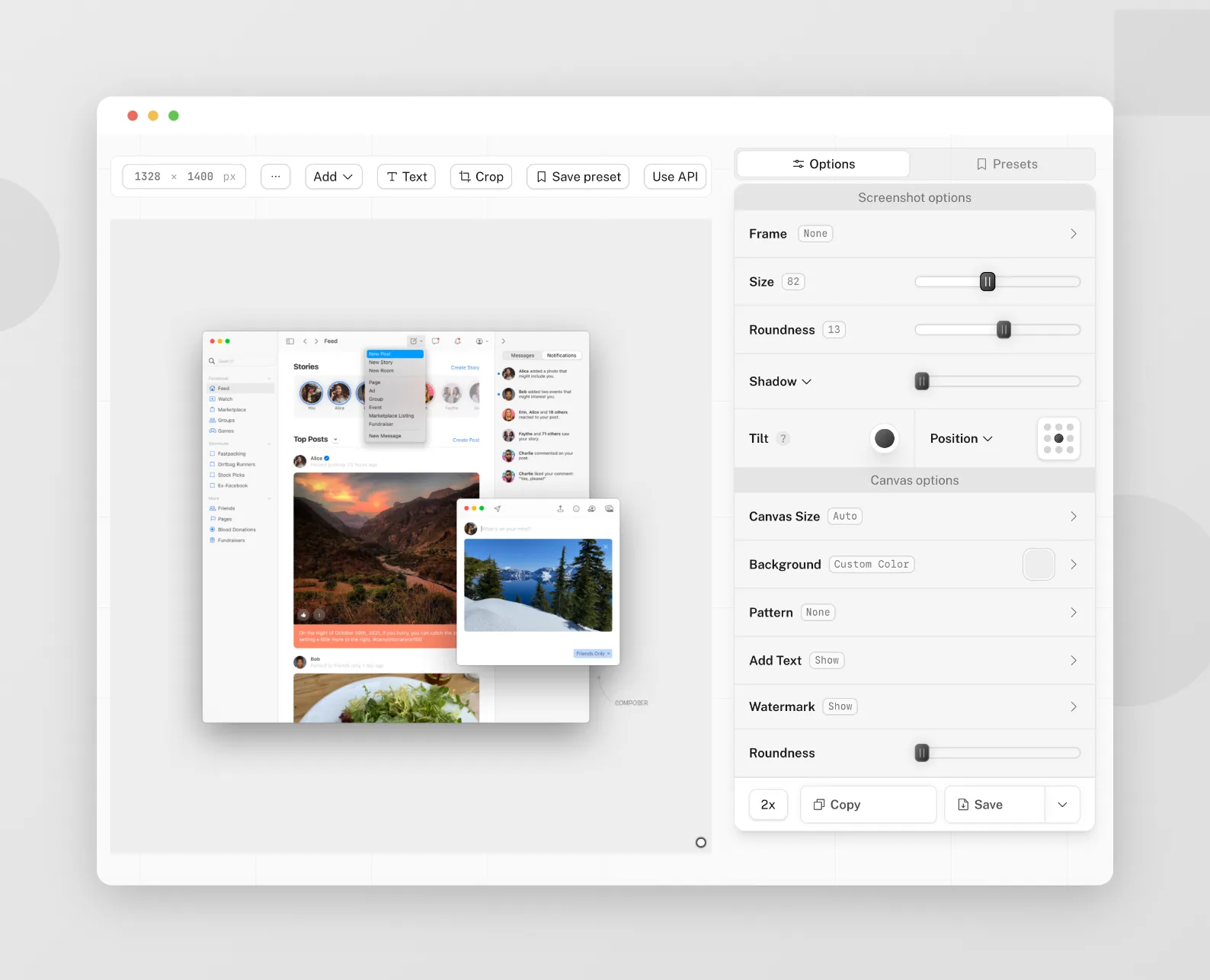
Platforms: Web App, Chrome Extension
Pika is an all-in-one screenshot editing tool for web. It not only lets you create beautiful screenshots but also [create mockups from templates](https://pika.style/templates) for free
Right after you open the app, you can add a screenshot from your system, or you can also capture a screenshot from a URL for free
**Screenshot editing options**:
- **Capture screenshot from URL**
- **Annotate** **and markup** your screenshot
- Add solid colours, gradients and images as background
- **Add rounded corners**, **shadow**, **browser frames** to your screenshot
- **Export your image in social media sizes:** Tweets, LinkedIn, YouTube thumbnail, Instagram Post/Stories and more
→ [Pika](https://pika.style/templates/screenshot-editor)
## Shottr
Platforms: macOS
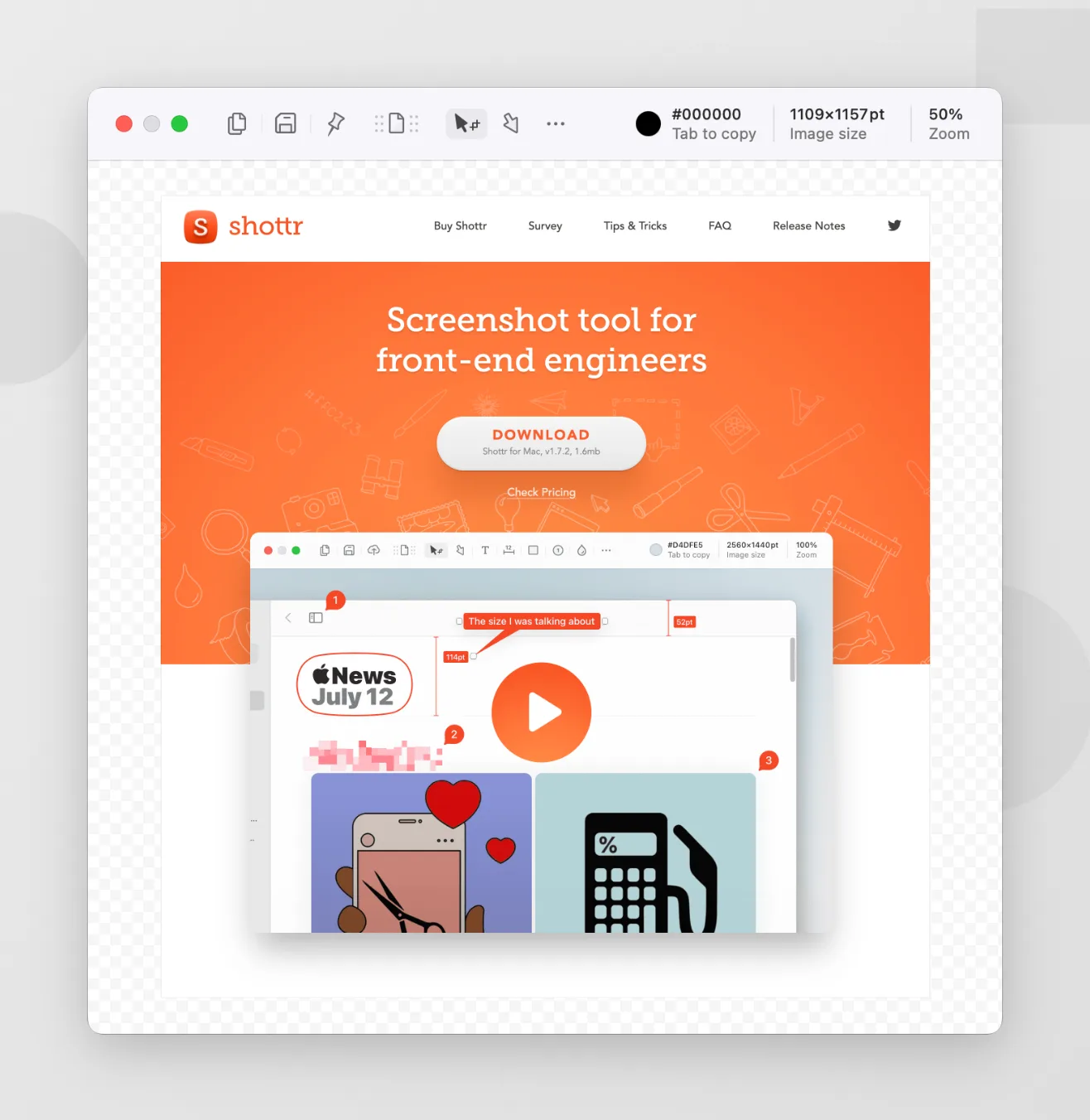
Shottr is a lightweight, free macOS application designed primarily for users seeking advanced capabilities in taking and editing screenshots. Key features include:̦
- Capture and markup screenshots
- Blur and hide sensitive details
- Extract text from images
→ [Shottr](https://shottr.cc/)
## Lightshot
Platforms: macOS and Windows
A very simple app for macOS and Windows to capture and customize your screenshots. With Lightshot, you can capture selected area or the whole screen, and upload it and get a link to it
A bit outdated but still works well for simple use case. Here are some key features:
- Simple and fast
- Similar image search
→ [Lightshot](https://app.prntscr.com/en/index.html)
## Freeform
Platforms: iOS
Freeform is an iOS app from Apple which lets you do many things, one of which is edit your screenshots and images
Users can access a vast collection of predefined shapes, modify their properties, and add text to customize the screenshot. Freeform also provides alignment guides to maintain organization and clarity throughout the board. To enhance productivity, users can import content from other applications, such as Files and Finder, and utilize Quick Look to preview items without exiting the board
If you're an iOS user, you can use it right away. Just open the app, import your screenshot and use the tools to edit your screenshot
## Zight
Platforms: macOS and Windows
Zight, formerly known as CloudApp, is a comprehensive platform offering screen recording, sharing, and annotation services. Launched initially as a browser extension for capturing and sharing GIFs, Zight has evolved into a useful screen capture and screenshot editor app
→ [Zight](https://zight.com/)
With these free screenshot editors, you can capture, annotate and edit your screenshots with ease. Whether you're a student, professional, or just need to share info, these tools have got you covered! Try them out and make your screenshots shine!