# How to take website screenshot in Next.js
> Two ways to take website screenshots in Next.js: run Puppeteer yourself, or call Orshot's screenshot API from an App Router route handler.
- URL: https://pika.style/blog/take-screenshots-nextjs
- Published: 2024-08-16 (updated 2026-10-02)
- Author: Rishi Mohan
- Tags: How to
---
Taking screenshots manually is a big hassle, especially if you take a lot of them regularly with a [website screenshot generator](https://pika.style/tool/website-screenshot-generator). In this post, we'll see how you can use Next.js to take website screenshots programmatically in a few seconds.
## Website **screenshots in Next.js**
There are several ways to take website screenshots in Next.js, but in this post we'll cover two: running Puppeteer yourself, and calling [Orshot](https://orshot.com), an image generation API with a ready-made website screenshot template.
Both examples use the App Router, so the server code lives in a route handler under `app/`.
### Using Puppeteer to take screenshots in Next.js
Puppeteer drives a headless Chrome, so you can open a page and save what it renders. Here's how to set it up in Next.js.
**Install Puppeteer**: Install it with npm, or with yarn or pnpm if you prefer. The package downloads its own copy of Chrome the first time it installs.
```bash
npm install puppeteer
```
**Create a route handler for taking screenshots**: Create `app/api/screenshot/route.js` and add the following code:
```javascript
// app/api/screenshot/route.js
import puppeteer from "puppeteer";
export async function GET(request) {
const url = request.nextUrl.searchParams.get("url");
if (!url) {
return Response.json({ error: "URL is required" }, { status: 400 });
}
const browser = await puppeteer.launch();
try {
const page = await browser.newPage();
await page.setViewport({ width: 1280, height: 800 });
await page.goto(url, { waitUntil: "networkidle2" });
const screenshot = await page.screenshot({ type: "png" });
return new Response(screenshot, {
headers: { "Content-Type": "image/png" },
});
} catch (error) {
return Response.json({ error: "Failed to take screenshot" }, { status: 500 });
} finally {
await browser.close();
}
}
```
Pass `fullPage: true` to `page.screenshot()` if you want the whole page instead of the visible area.
**Call the route from your frontend**: Since the route returns an image, the simplest client is an `![]() ` tag pointing at it. Here's a small client component that does that:
```jsx
// app/page.js
"use client";
import { useState } from "react";
export default function Home() {
const [url, setUrl] = useState("");
const [imageSrc, setImageSrc] = useState("");
function captureScreenshot(event) {
event.preventDefault();
setImageSrc(`/api/screenshot?url=${encodeURIComponent(url)}`);
}
return (
);
}
```
**Run your application**: Start the dev server and try a URL.
```bash
npm run dev
```
That's the basic setup. From here you can tune the viewport, wait for specific elements, or loop over a list of URLs from a JSON file if you need many screenshots at once.
**Note:** this works locally and on a server or VPS, but not as-is on serverless platforms like Vercel or Netlify. The Chrome that Puppeteer downloads is too big for a serverless function, so you'd have to switch to `puppeteer-core` with a slimmed-down Chromium build, or host the route somewhere that can run a full browser. On top of that, you handle slow pages, cookie banners, fonts and crashes yourself.
### Using Orshot to take screenshots in Next.js
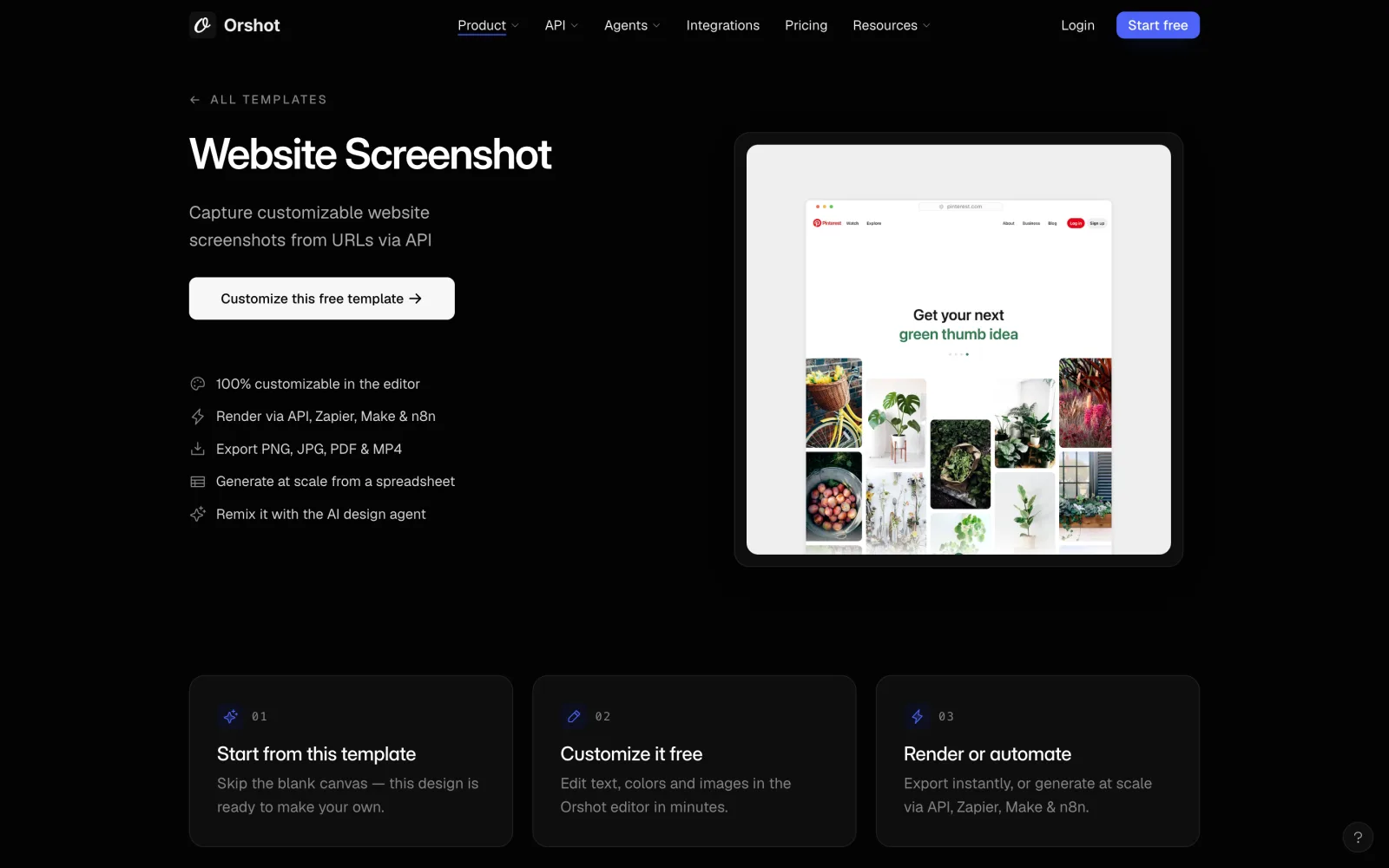
If you'd rather not run a browser, call a screenshot API instead. [Orshot](https://orshot.com) is made by the team behind Pika, and Pika's screenshot API now lives there. Its [Website Screenshot](https://orshot.com/templates/website-screenshot) template captures any URL as PNG, JPG, WebP, AVIF or PDF, and since it's a plain HTTPS request, it runs fine on Vercel and other serverless hosts.
### Step 1: Set up a Next.js project and an API key
If you don't already have a Next.js project, create one:
```bash
npx create-next-app@latest your-project-name
cd your-project-name
```
Then [get an Orshot API key](https://orshot.com/docs/quick-start/get-api-key) from the API Keys page in your dashboard (the free plan includes 100 credits a month) and add it to `.env.local`:
```bash
ORSHOT_API_KEY=your_orshot_api_key
```
Keep the key on the server. Only code in route handlers, server actions and Server Components should read it.
### Step 2: Create a route handler
Create `app/api/screenshot/route.js`. It takes a URL from the client, asks Orshot for a screenshot, and returns the image URL:
```javascript
// app/api/screenshot/route.js
// Full-page captures can take a few seconds, so allow a longer run time
export const maxDuration = 60;
export async function POST(request) {
const { url, fullCapture = false } = await request.json();
let websiteUrl;
try {
websiteUrl = new URL(url).toString();
} catch {
return Response.json({ error: "A valid URL is required" }, { status: 400 });
}
const response = await fetch("https://api.orshot.com/v1/generate/images", {
method: "POST",
headers: {
"Content-Type": "application/json",
Authorization: `Bearer ${process.env.ORSHOT_API_KEY}`,
},
body: JSON.stringify({
templateId: "website-screenshot",
response: { type: "url", format: "png" },
modifications: {
websiteUrl,
fullCapture,
delay: 500,
width: 1280,
height: 800,
},
}),
});
const result = await response.json();
if (!response.ok) {
return Response.json({ error: result.error }, { status: response.status });
}
// With response.type "url", data.content is a link to the hosted image
return Response.json({ image: result.data.content });
}
```
What the request does:
- `templateId: "website-screenshot"` picks Orshot's screenshot template.
- `response.type` is `"url"` here, so you get back a link to the hosted image. Use `"base64"` for a data URI or `"binary"` for the raw file. `response.format` can be `png`, `jpg`, `webp`, `avif` or `pdf`.
- `websiteUrl` is the only required modification. `fullCapture: true` captures the whole page, `delay` waits (in milliseconds) before capturing, which helps on slow or animated pages, and `width` and `height` set the size.
The template also takes `captureElement`, a CSS selector to capture one element, and `blockMedia` to skip videos for a lighter capture. The [template page](https://orshot.com/templates/website-screenshot) lists every option.
Every request uses credits from your plan, so before you ship this, put the route behind your app's auth or add a rate limit so strangers can't use it.
### Step 3: Call the route from a component
Now a client component that posts a URL to the route and shows the result:
```jsx
// app/page.js
"use client";
import { useState } from "react";
export default function Home() {
const [url, setUrl] = useState("https://pinterest.com");
const [fullCapture, setFullCapture] = useState(false);
const [image, setImage] = useState(null);
const [error, setError] = useState(null);
const [loading, setLoading] = useState(false);
async function takeScreenshot(event) {
event.preventDefault();
setLoading(true);
setError(null);
try {
const response = await fetch("/api/screenshot", {
method: "POST",
headers: { "Content-Type": "application/json" },
body: JSON.stringify({ url, fullCapture }),
});
const data = await response.json();
if (response.ok) {
setImage(data.image);
} else {
setError(data.error || "Something went wrong");
}
} catch {
setError("Something went wrong");
} finally {
setLoading(false);
}
}
return (
);
}
```
### Step 4: Run the project
Start the development server and take your first screenshot:
```bash
npm run dev
```
### Prefer a server action?
If the screenshot is only used inside your own app, a server action saves you the route and the `fetch` on the client. Put it in its own file:
```javascript
// app/actions.js
"use server";
export async function takeScreenshot(websiteUrl) {
const response = await fetch("https://api.orshot.com/v1/generate/images", {
method: "POST",
headers: {
"Content-Type": "application/json",
Authorization: `Bearer ${process.env.ORSHOT_API_KEY}`,
},
body: JSON.stringify({
templateId: "website-screenshot",
response: { type: "url", format: "png" },
modifications: { websiteUrl, width: 1280, height: 800 },
}),
});
const result = await response.json();
if (!response.ok) throw new Error(result.error);
return result.data.content;
}
```
Then call it from a client component with `const image = await takeScreenshot(url)`. Server actions are public endpoints too, so the same advice about auth and rate limits applies.
Like with Puppeteer, if you need many screenshots at once, loop over a list of URLs. If that list lives in a spreadsheet, Orshot also connects to [Zapier, Make and n8n](https://orshot.com/integrations), so you can skip the code for that part.
## Puppeteer or a screenshot API?
Both work. Here's how they compare in practice.
**Hosting:** Puppeteer needs a server that can run Chrome. With Orshot, the browser runs on Orshot's side, so your Next.js app can stay on Vercel or any serverless host.
**Setup and upkeep:** With Puppeteer, you own the browser: memory, timeouts, fonts, crashes and Chrome updates. With an API, it's one `fetch` call.
**Control:** Puppeteer lets you do anything a browser can, like logging in, clicking through a flow or running custom scripts before the capture. An API gives you the options it exposes, which cover most screenshot needs: full page, delay, size, a single element and the output format.
**Cost:** Puppeteer is free apart from your hosting. Orshot has a free plan with 100 credits a month, and paid plans for more volume.
**More than screenshots:** Orshot also has templates for [beautified screenshots](https://orshot.com/templates/beautify-screenshot), Open Graph images, social posts, PDFs and videos, all through the same endpoint.
## Conclusion
Now you know two ways to take website screenshots in Next.js. If you already run a server and want full control over the browser, Puppeteer is a good fit. If you'd rather not run Chrome yourself or you deploy to a serverless platform, [Orshot's screenshot API](https://orshot.com/templates/website-screenshot) gets you there with a single request, and you can start on the free plan.
If you want to make a screenshot look nicer before you share it, drop it into Pika's [screenshot editor](https://pika.style/templates/screenshot-editor) to add a background, padding, rounded corners and a shadow. For more options, see our list of the [best screenshot APIs](https://pika.style/blog/best-screenshot-api).
` tag pointing at it. Here's a small client component that does that:
```jsx
// app/page.js
"use client";
import { useState } from "react";
export default function Home() {
const [url, setUrl] = useState("");
const [imageSrc, setImageSrc] = useState("");
function captureScreenshot(event) {
event.preventDefault();
setImageSrc(`/api/screenshot?url=${encodeURIComponent(url)}`);
}
return (
);
}
```
**Run your application**: Start the dev server and try a URL.
```bash
npm run dev
```
That's the basic setup. From here you can tune the viewport, wait for specific elements, or loop over a list of URLs from a JSON file if you need many screenshots at once.
**Note:** this works locally and on a server or VPS, but not as-is on serverless platforms like Vercel or Netlify. The Chrome that Puppeteer downloads is too big for a serverless function, so you'd have to switch to `puppeteer-core` with a slimmed-down Chromium build, or host the route somewhere that can run a full browser. On top of that, you handle slow pages, cookie banners, fonts and crashes yourself.
### Using Orshot to take screenshots in Next.js
If you'd rather not run a browser, call a screenshot API instead. [Orshot](https://orshot.com) is made by the team behind Pika, and Pika's screenshot API now lives there. Its [Website Screenshot](https://orshot.com/templates/website-screenshot) template captures any URL as PNG, JPG, WebP, AVIF or PDF, and since it's a plain HTTPS request, it runs fine on Vercel and other serverless hosts.

### Step 1: Set up a Next.js project and an API key
If you don't already have a Next.js project, create one:
```bash
npx create-next-app@latest your-project-name
cd your-project-name
```
Then [get an Orshot API key](https://orshot.com/docs/quick-start/get-api-key) from the API Keys page in your dashboard (the free plan includes 100 credits a month) and add it to `.env.local`:
```bash
ORSHOT_API_KEY=your_orshot_api_key
```
Keep the key on the server. Only code in route handlers, server actions and Server Components should read it.
### Step 2: Create a route handler
Create `app/api/screenshot/route.js`. It takes a URL from the client, asks Orshot for a screenshot, and returns the image URL:
```javascript
// app/api/screenshot/route.js
// Full-page captures can take a few seconds, so allow a longer run time
export const maxDuration = 60;
export async function POST(request) {
const { url, fullCapture = false } = await request.json();
let websiteUrl;
try {
websiteUrl = new URL(url).toString();
} catch {
return Response.json({ error: "A valid URL is required" }, { status: 400 });
}
const response = await fetch("https://api.orshot.com/v1/generate/images", {
method: "POST",
headers: {
"Content-Type": "application/json",
Authorization: `Bearer ${process.env.ORSHOT_API_KEY}`,
},
body: JSON.stringify({
templateId: "website-screenshot",
response: { type: "url", format: "png" },
modifications: {
websiteUrl,
fullCapture,
delay: 500,
width: 1280,
height: 800,
},
}),
});
const result = await response.json();
if (!response.ok) {
return Response.json({ error: result.error }, { status: response.status });
}
// With response.type "url", data.content is a link to the hosted image
return Response.json({ image: result.data.content });
}
```
What the request does:
- `templateId: "website-screenshot"` picks Orshot's screenshot template.
- `response.type` is `"url"` here, so you get back a link to the hosted image. Use `"base64"` for a data URI or `"binary"` for the raw file. `response.format` can be `png`, `jpg`, `webp`, `avif` or `pdf`.
- `websiteUrl` is the only required modification. `fullCapture: true` captures the whole page, `delay` waits (in milliseconds) before capturing, which helps on slow or animated pages, and `width` and `height` set the size.
The template also takes `captureElement`, a CSS selector to capture one element, and `blockMedia` to skip videos for a lighter capture. The [template page](https://orshot.com/templates/website-screenshot) lists every option.
Every request uses credits from your plan, so before you ship this, put the route behind your app's auth or add a rate limit so strangers can't use it.
### Step 3: Call the route from a component
Now a client component that posts a URL to the route and shows the result:
```jsx
// app/page.js
"use client";
import { useState } from "react";
export default function Home() {
const [url, setUrl] = useState("https://pinterest.com");
const [fullCapture, setFullCapture] = useState(false);
const [image, setImage] = useState(null);
const [error, setError] = useState(null);
const [loading, setLoading] = useState(false);
async function takeScreenshot(event) {
event.preventDefault();
setLoading(true);
setError(null);
try {
const response = await fetch("/api/screenshot", {
method: "POST",
headers: { "Content-Type": "application/json" },
body: JSON.stringify({ url, fullCapture }),
});
const data = await response.json();
if (response.ok) {
setImage(data.image);
} else {
setError(data.error || "Something went wrong");
}
} catch {
setError("Something went wrong");
} finally {
setLoading(false);
}
}
return (
);
}
```
### Step 4: Run the project
Start the development server and take your first screenshot:
```bash
npm run dev
```
### Prefer a server action?
If the screenshot is only used inside your own app, a server action saves you the route and the `fetch` on the client. Put it in its own file:
```javascript
// app/actions.js
"use server";
export async function takeScreenshot(websiteUrl) {
const response = await fetch("https://api.orshot.com/v1/generate/images", {
method: "POST",
headers: {
"Content-Type": "application/json",
Authorization: `Bearer ${process.env.ORSHOT_API_KEY}`,
},
body: JSON.stringify({
templateId: "website-screenshot",
response: { type: "url", format: "png" },
modifications: { websiteUrl, width: 1280, height: 800 },
}),
});
const result = await response.json();
if (!response.ok) throw new Error(result.error);
return result.data.content;
}
```
Then call it from a client component with `const image = await takeScreenshot(url)`. Server actions are public endpoints too, so the same advice about auth and rate limits applies.
Like with Puppeteer, if you need many screenshots at once, loop over a list of URLs. If that list lives in a spreadsheet, Orshot also connects to [Zapier, Make and n8n](https://orshot.com/integrations), so you can skip the code for that part.
## Puppeteer or a screenshot API?
Both work. Here's how they compare in practice.
**Hosting:** Puppeteer needs a server that can run Chrome. With Orshot, the browser runs on Orshot's side, so your Next.js app can stay on Vercel or any serverless host.
**Setup and upkeep:** With Puppeteer, you own the browser: memory, timeouts, fonts, crashes and Chrome updates. With an API, it's one `fetch` call.
**Control:** Puppeteer lets you do anything a browser can, like logging in, clicking through a flow or running custom scripts before the capture. An API gives you the options it exposes, which cover most screenshot needs: full page, delay, size, a single element and the output format.
**Cost:** Puppeteer is free apart from your hosting. Orshot has a free plan with 100 credits a month, and paid plans for more volume.
**More than screenshots:** Orshot also has templates for [beautified screenshots](https://orshot.com/templates/beautify-screenshot), Open Graph images, social posts, PDFs and videos, all through the same endpoint.
## Conclusion
Now you know two ways to take website screenshots in Next.js. If you already run a server and want full control over the browser, Puppeteer is a good fit. If you'd rather not run Chrome yourself or you deploy to a serverless platform, [Orshot's screenshot API](https://orshot.com/templates/website-screenshot) gets you there with a single request, and you can start on the free plan.
If you want to make a screenshot look nicer before you share it, drop it into Pika's [screenshot editor](https://pika.style/templates/screenshot-editor) to add a background, padding, rounded corners and a shadow. For more options, see our list of the [best screenshot APIs](https://pika.style/blog/best-screenshot-api).